


Tasks & Projects
Task Dispatch & Availability
Support Guide
-
Overview
This guide explores two powerful features designed to streamline your scheduling: the Task Availability tool and the Dispatch Screen. Together, they allow managers to quickly assign tasks by automatically evaluating employee qualifications, proximity, and existing commitments, while providing a comprehensive visual summary of current work hours. Once your foundational Task Types and Pools are configured, you can effortlessly distribute workloads and optimize your daily operations directly from a single, intuitive dashboard.
Read this guide if you are trying to:
✔ Instantly match the right employees to tasks based on skills, location, and availability.
✔ Get a clear, visual summary of daily work hours and commitments from a single dashboard.
✔ Effortlessly distribute workloads and optimize daily operations using advanced dispatch tools.
-
Dispatch Screen
The great thing about the Dispatch Screen is once Task Types and Task Pools have been set up, the Dispatch Screen is ready to use. This page is a great way for managers to quickly assign work to their Employees while having a visual summary of the current work hours they have already. Just create the Tasks that need to be completed and, if they are assigned to a Pool, you can divide the Workload from the Dispatch Screen. Below is a screenshot showing how the Dispatch Screen appears.
To view the Dispatch Screen, use the following steps:
Tasks → Dispatch
The Dispatch Tasks page is split into two (2) panes: the Task List Pane on the left side and the Employee List Pane on the right side. Each side has a Gear icon for settings, a Refresh icon, and a Search icon in the top right corner of the pane.
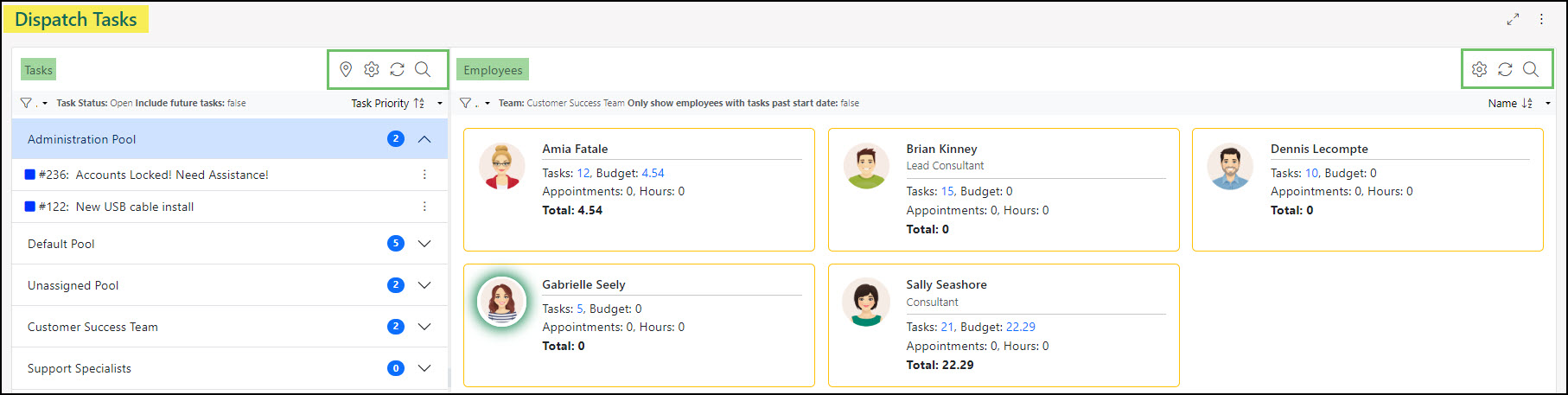
Example of the Dispatch Tasks Page

-
Task List Pane
The Task List Pane allows you to view the Tasks awaiting Dispatch. These Tasks are neatly organized within collapsible groups that allow them to be viewed clearly.
- Tasks: Displays all tasks within your configured groups.
- Task Group: Displays the name of the configured group. The blue number icon indicates the amount of Tasks currently assigned within the group. To expand or collapse the group, click the pennant icon on the far right.
- Task Name: Displays the configured information regarding the Task. The kebab menu on the far right of the Task Name allows you to view the Task Actions.
- Task List Tools: Includes the following options which will be reviewed in depth within the next section:
- Map It
- Settings
- Refresh
- Search
- Sorting Options: Allow you to select how the Task List will be sorted. These sorting options will be reviewed in depth within the next section.
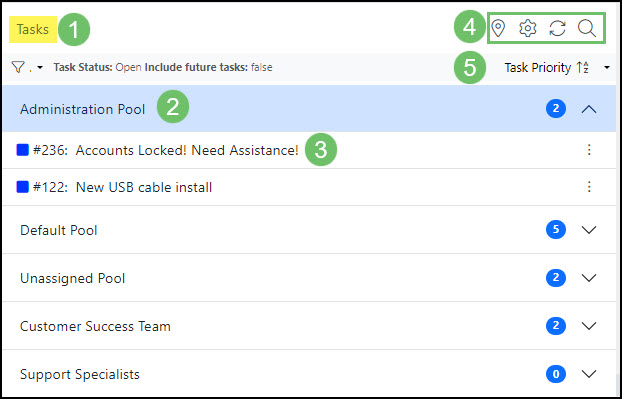
Example of the Tasks List Pane on the Dispatch Tasks Page
Map IT
The Map IT feature allows you to see the Tasks awaiting dispatch as pins on a map to make dispatching tasks located in the same area more efficient.
To view the Tasks awaiting dispatch on the map, click the Map IT icon from the top right corner of the Tasks pane.
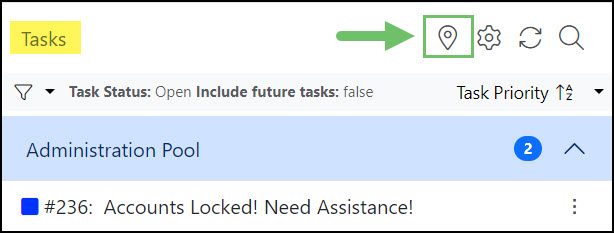
Example of the Map IT Icon Located on the Tasks Pane
When the map opens, the Tasks awaiting dispatch will appear as red pins on the map.
The Map IT feature works in conjunction with the Task Panes Filters. If filters are applied, narrowing the results for the Tasks awaiting dispatch, then selecting the Map It icon will prompt a map which displays pins for only the Tasks matching the filter’s criteria. If no search filters are configured, all Tasks awaiting dispatch will appear on the map.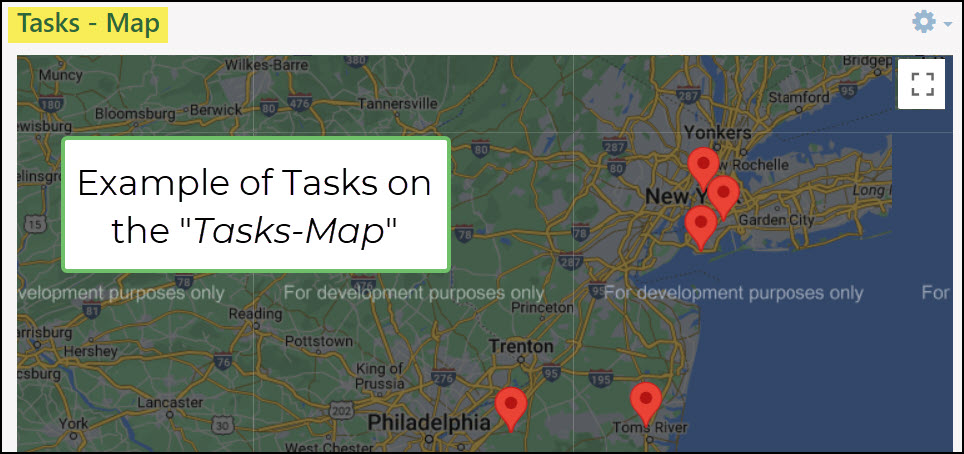
Example of the Map Displaying Tasks Awaiting Dispatch
Clicking on a pin will display the information for the Task associated with that location. This information will include the following:
- Location Address: Clicking on the address will open the Task’s location within Google Maps.
- Task Number and Name: Clicking on the Task’s name will open the task to view the Task details.
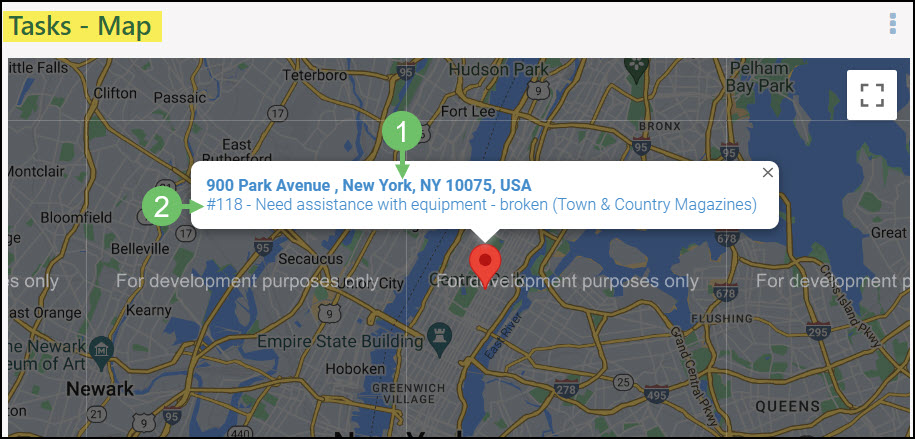
Example of Task Information within a Map Pin
If more than one Task is associated with a Location on the map, clicking the pin will display up to 10 Tasks. The total number of Tasks at that location will be notated beneath the location’s address. If more than 10 tasks are associated with a location, only 10 of the Tasks will be listed within the pin, sorted newest to oldest.
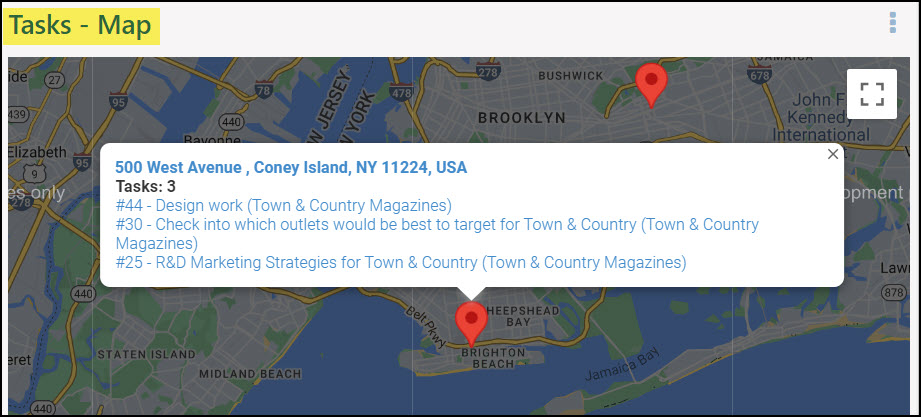
Example of More Than 1 Task Associated with a Location
Task Settings
There are a variety of settings available to display the Task List Pane as needed. These settings are found by clicking on the Gear icon at the top of the Task List Pane.
The Task Settings popup allows you to choose how you want Tasks grouped and what Task information you want displayed on the page.
- Show Tasks Grouped By: Determines how the Tasks will be grouped in the Tasks pane of the Dispatch page.
- Pool: Shows the Pool and all Tasks assigned to the Pool directly.
- Team: Shows the Team and all Tasks assigned to the Team directly.
- Members of Team: Shows all Employees that are part of the selected Team as separate groups and Tasks assigned to each of them in their group.
- Manager: Shows all Employees that have the selected Manager as separate groups and Tasks assigned to each of them in their group.
- Employee: Shows the Employee and all Tasks that are assigned to the Employee.
- Task Display Settings: Determines which Task details are displayed on the Task List Pane. Display options include:
- Status
- Number
- Customer/Vendor
- Customer/Vendor Location
- Type
- Budget
- Start Date
- Due Date
- Created Date
- Last Modified Date
- Project
- Project Location
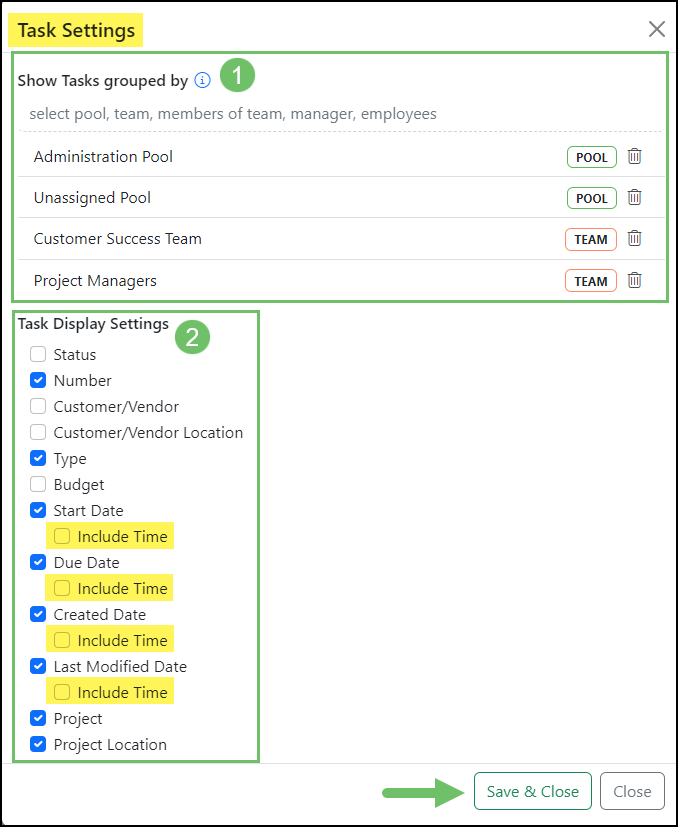
Example of the Task Settings Popup on the Dispatch Task List
- Note: The Start Date, Due Date, Created Date, and Last Modified Date will all display an option to Include Time when selected.
Task List Refresh
Tasks are displayed in the Task List Pane in groups based on your Task Settings selections. If changes are made to Tasks within these groups, a red alert message will appear at the top of the list notifying you that there are updates in the indicated group. This will provide you with the option to click on the group to expand it to see the updates, or you can click on the Refresh button at the top of the Task List Pane to show all the updates.
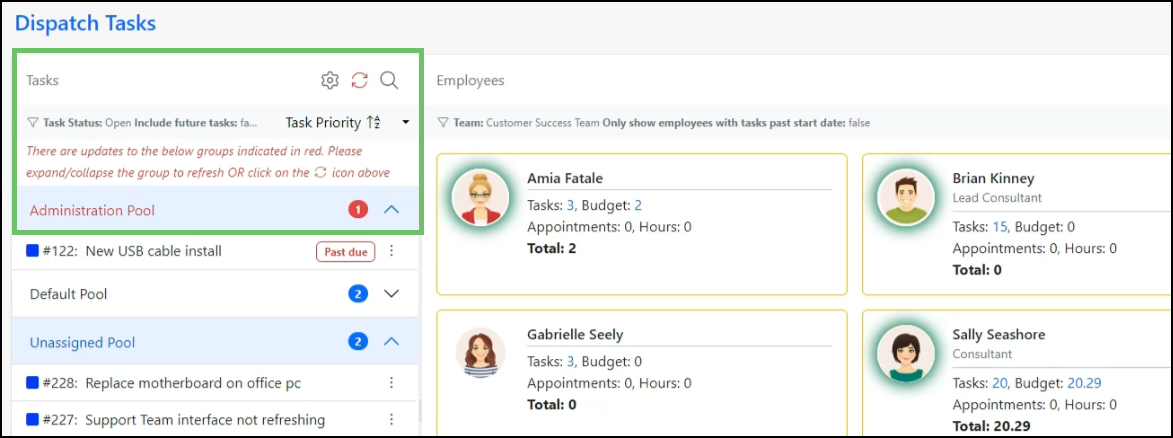
Example of the Red Update Alert to Refresh the List
Task List Search
The Search function can be accessed by clicking on the Magnifying Glass icon that is located in the upper right hand corner of the Task List Pane. Tasks can be searched by Type, Status, Task Name, Project Type, Project, and Customer/Vendor, with the option to include future tasks. This Search popup window also provides the option to save a search and access previous Saved Searches by clicking the Saved Searches tab.
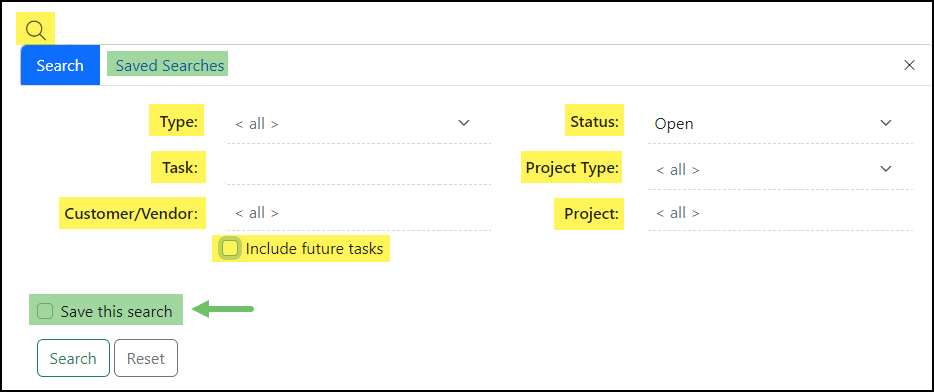
Example of the Task Search Feature on the Dispatch Tasks Page
Task List Sorting
Sorting the Tasks List Pane is achieved by clicking the downward triangle located beneath the Search icon. The available Sort options are Task Priority, Start Date, Due Date, Date Created, Last Modified Date, Last Modified by Me, and Assignment Date.
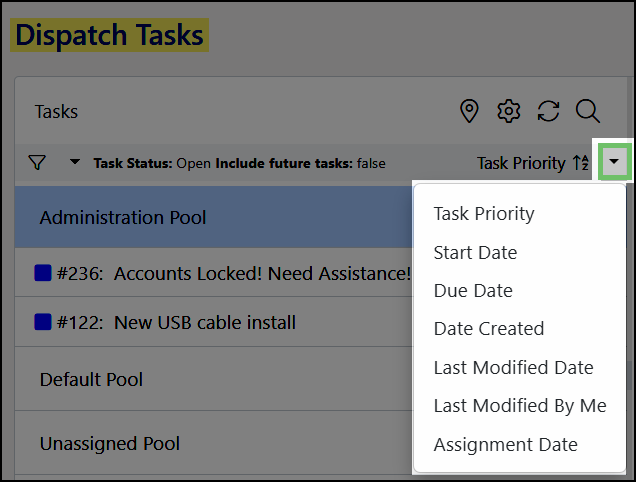
Example of the Tasks Sorting Options on the Dispatch Tasks Pane
Task List Actions
Each Task has a kebab menu which allows you to view the available Task Actions. These actions include View Task, Customer/Vendor Assignments, Assign to Me, and Dispatch.
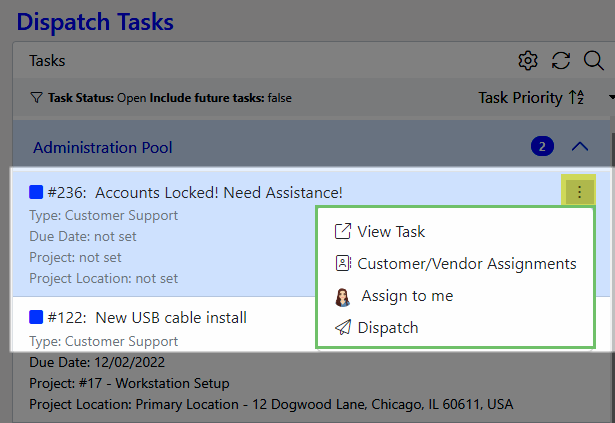
Example of Dispatch Tasks Action Options
Dispatching Tasks
There are multiple options for dispatching Tasks. For single Tasks, you can either click and drag a Task to an Employee in the Employee List Pane, or click the Dispatch option from the Task Actions menu and then select the desired Employee on the Employee List Pane to which you wish to assign the Task.
To assign multiple Tasks to a single Employee, you can press the CTRL key (or Command key for Macs) while clicking on each of the Tasks you wish to assign. Then you can drag the selected Tasks to the Employee of your choice in the Employee List Pane.
You can also select Assign to Me from the Task Actions menu, which will assign the selected Task to yourself.
-
Employees List Pane
The Employees List Pane allows you to view Employees awaiting Task Assignments. The Employee List shows Employees based on your search filters. Each Employee has an Employee Summary Card which provides a variety of information related to the Employees listed.
- Employees: Displays all the Employees that are being tracked based on selected search criteria, including Team, Pool, Employee, etc.
- Employee Workload: Displays details related to the Employee’s current Workload to assist in determining the Employee best suited to complete the Tasks in the Dispatch list. These details include:
- Tasks: Lists the number of Tasks assigned to the Employee.
- Budget: Lists the total Budget Hours for the assigned Tasks.
- Appointments: Lists the number of Appointments the Employee has scheduled.
- Hours: Lists the total amount of hours for scheduled Appointments.
- Total: Lists the total amount of Task Budget Hours and Appointment Hours.
- Note: Clicking the hyperlinked number next to each detail will bring up a popup window that displays further details regarding the statistics.
- Employee Photo: The card displays the Employee photo with a colored halo to indicate the Employee’s availability. The Availability is indicated by the following colors:
- Green: Indicates the Employee is available.
- Yellow: Indicates the Employee has an hour or less remaining in their shift.
- No Halo: Indicates the Employee does not have a shift at this time and is unavailable.
- Employee List Tools: Includes the following options which will be reviewed in depth within the next section:
- Settings
- Refresh
- Search
- Sorting Options: Allow you to select how the Employee List will be sorted. These sorting options will be reviewed in depth within the next section.
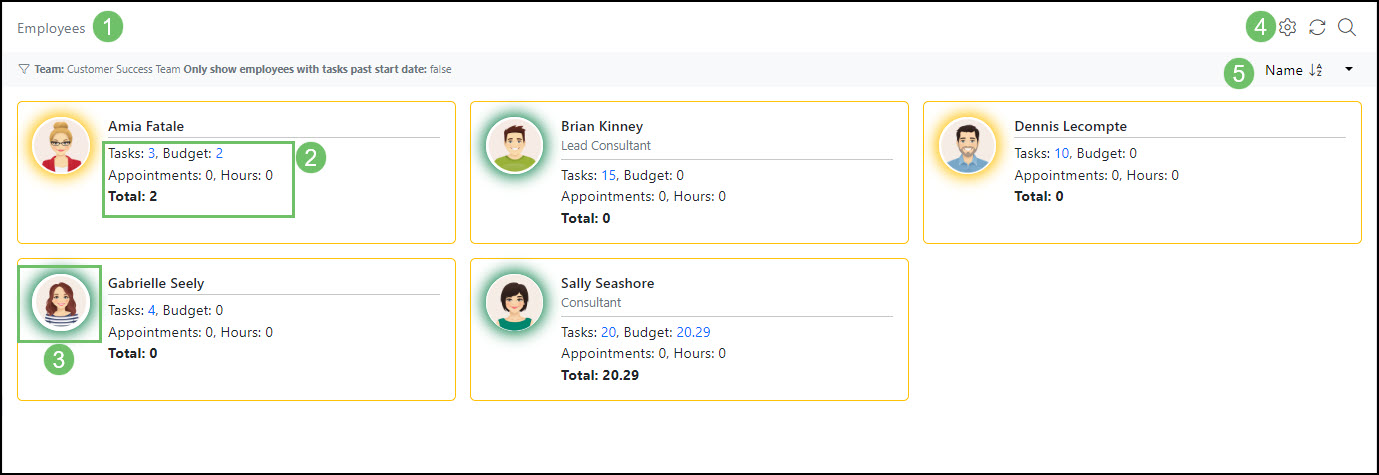
Example of the Employees List Pane on the Dispatch Tasks Page
Employee Task Settings
There are settings available to configure the display of Workload details and Task details related to the Employees. These settings can be located by clicking on the Gear icon at the top right of the Employee List Pane.
The Employee Task Settings popup allows you to choose what factors are calculated in the Employee’s Workload, and which Task details are displayed.
- Calculation Settings:
- Tasks Calculation: Allows Tasks with a status of On Hold to be included on the number of Tasks listed on the Employee Summary Card.
- Appointment Calculation: Allows the Hours and Count of all Appointment Types to be included in the Appointment Workload Details.
- Task Display Settings: Determines which Task details are displayed on the Employee’s Task Workload Details. Display options include:
- Status
- Number
- Customer/Vendor
- Customer/Vendor Location
- Type
- Budget
- Start Date
- Due Date
- Created Date
- Last Modified Date
- Project
- Project Location
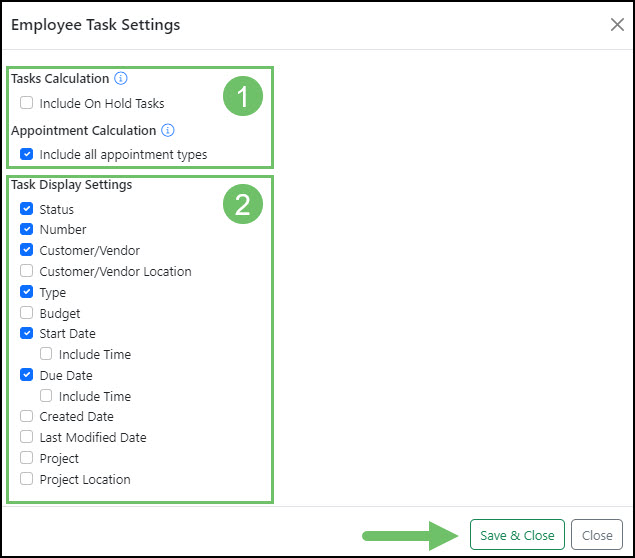
Example of the Employee Settings Popup on the Dispatch Task List
Employee List Refresh
The Employee List Pane features an Employee Availability feature and real time Workload updates that refresh automatically. To force these features to refresh, you can use the Refresh icon located at the top right corner of the Employee List Pane.
Employee List Search
The Employee List Search will allow you to choose which Employees you view on the Employee List. You can access the popup Search window by clicking the Search icon found in the top right corner of the Employee List Pane.
The Search allows you to find Employees by Team, Employee, Department, Job Title, and Shift. You also have the option to Only Show Employees with Tasks Past Start Date, and the window allows you to save a search or access previous Saved Searches.
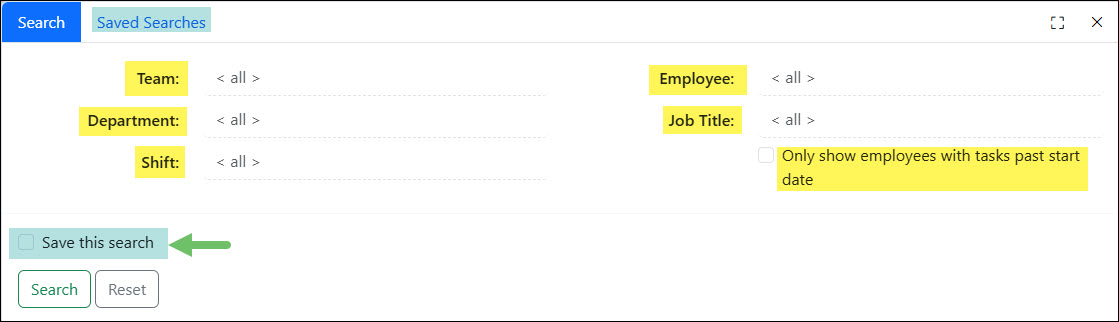
Example of the Employee Search Feature on the Dispatch Tasks Page
Employees List Sorting
Sorting the Employees List Pane is achieved by clicking the downward triangle located beneath the Search icon. You can sort the Employees by Name, # of Tasks, Task Budget, # of Appointments, Appointment Hours, and Total.
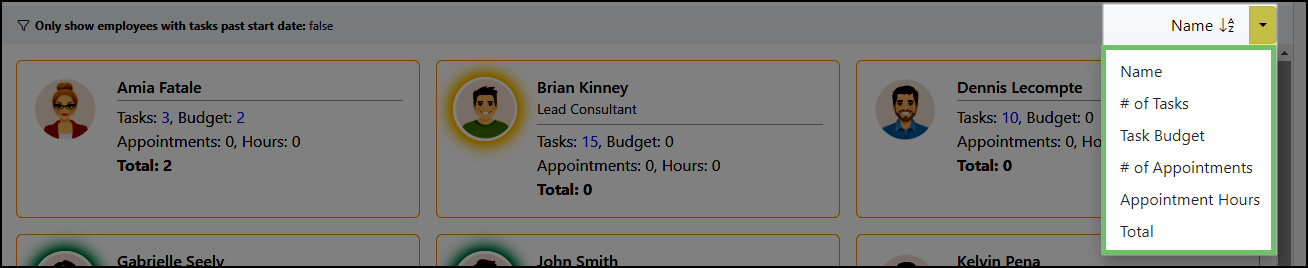
Example of Employee Sorting Options on the Dispatch Tasks Page
-
Task Availability
With the Task Availability tool, you can identify the most suitable Employee for a Task by evaluating several factors. This includes verifying information such as their Department or Job Title and calculating the distance between the Customer’s Location and the Employee. Additionally, the feature considers existing commitments, such as Appointments or other Tasks already scheduled for the same start time, to ensure optimal assignment.
-
Task Type Configurations
Skillsets
Employee Skillsets can be selected on the Task Type in order to make sure Employees have the Skillset before they are available for Task Assignment using the Task Availability tool. When configuring your Task Type, you can choose to Include Skillsets.
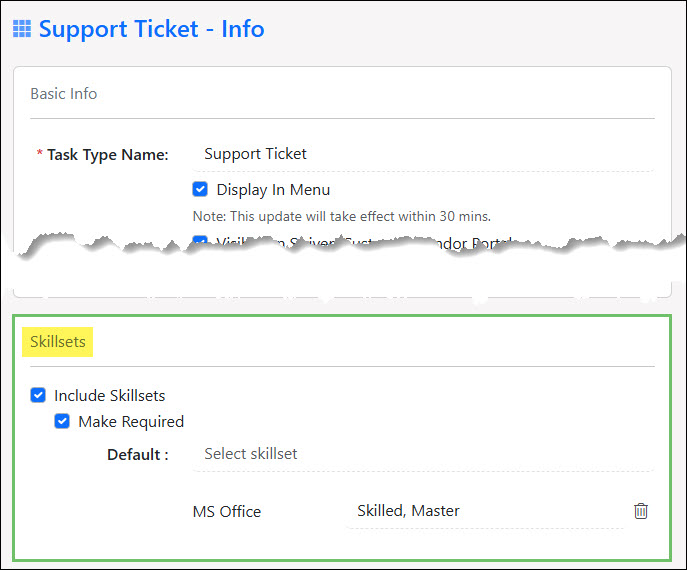
Example of Enabling Skillsets in a Task Type
Once you have selected the Include Skillsets option, an additional configuration option is available to Make Required. Requiring Skillsets within the Task Type will ensure that the Skillsets need to be selected on the Task before it can be marked Done.
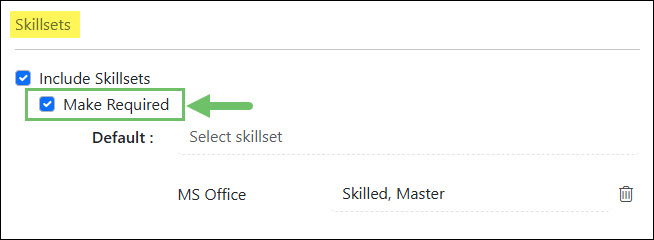
Example of the Make Required Option for Skillsets in a Task Type
Users can add Skillsets to a Task Type by selecting them from the dropdown menu. To ensure an Employee possesses the appropriate proficiency for a Task, an expertise level can be assigned if that feature is enabled for the chosen Skillset. While the Skillsets section on a Task will automatically populate with these selections, it remains fully editable to meet specific needs.
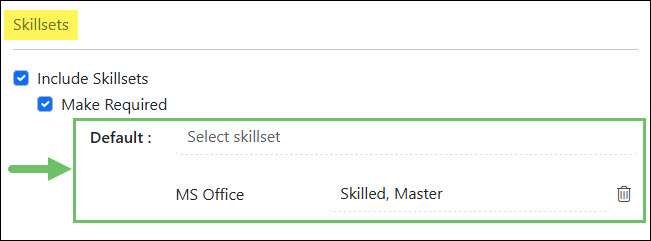
Example of Adding Skillsets to a Task Type
Availability Configurations
To set up the Availability Configurations, first navigate to a specific Task Type. In the Task Type, click on the waffle menu and go to the Availability Configuration tab.
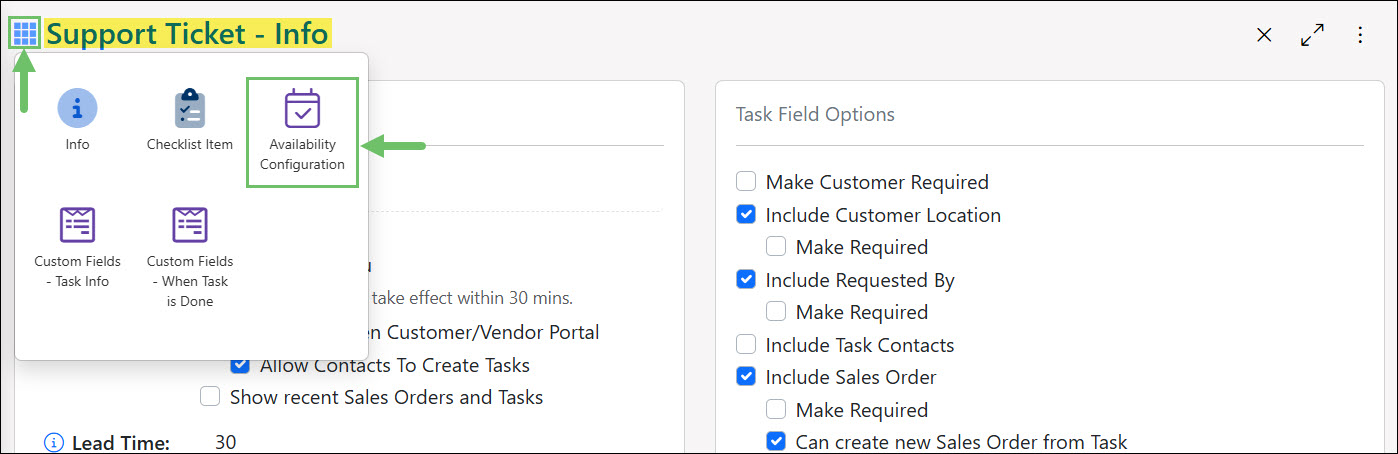
Example of the Availability Configurations Tab Location in a Task Type
The Availability Configurations tab in a Task Type has three (3) components that can be set up based on the criteria most helpful when assigning Tasks. The three (3) components include Who can work on a task of this type?, Customer Location Proximity, and Blocked Times. Below is a description of each of these options in detail and how they will affect assigning out a Task to the best available Employee suited for the work.
Note: The fields configured for the Availability Configurations tab within a Task Type can be overridden when using the View Assignee Availability button on a Task. Setting up the Availability Configurations tab within a Task Type will prepopulate these fields on the Task in order to save time and entry when using the View Assignee Availability feature.
Below is a description of the configurations that can be set up for the Availability Configurations tab within a Task Type:
- Who can work on a task of this type: The following information in regards to an Employee will be taken into consideration when determining if they are a fit to be assigned to a Task:
- Department: Ensures that only staff members associated with designated Departments are eligible for Task Assignment.
- Team: Guarantees that Task Assignment eligibility is restricted to personnel linked to specific Teams.
- Job Title: Evaluates the Job Title found in the Employee Information to verify eligibility for Task assignment.
- Location: Limits eligibility for Task Assignment to staff members who are linked to certain Company Locations.
- Employees based on assignments at the customer level: Will only look at available Employees for Task Assignment that are set as an assignment to the specific Customer selected on the Task.
- Customer Location Proximity: This section is determining how far an Employee is located away from the Customer’s Location on the Task in order to be available to complete work on the Task. The following options are available in this section:
- Employee’s Company Location: This option calculates Task Assignment eligibility by measuring the distance between an Employee’s designated Company Location and the Customer’s site. This setting is particularly effective for staff members who operate from a consistent office location each day.
- Employee’s Home Address: This configuration is ideal for Employees working remotely, as it determines eligibility for Task Assignments by calculating the geographical distance between the Customer’s site and the staff member’s residence.
- Blocked Times: Times that are considered blocked and the Employee is not available for Task Assignment includes Time Off, Holidays, Time that is outside of their scheduled shift, and time that is set as start and end times on Open Tasks assigned to them. Exceptions can be set up for these times which are described below:
- Exclude Tentative Appointments: If this setting is enabled, tentative appointments will not be considered when determining an Employee’s unavailability during a Task Assignment availability check.
- Exclude Scheduled Appointments of the following types: By selecting particular Appointment Types in this field, you can ensure that the Employee remains eligible for Task Assignment despite those scheduled items.
- Exclude Open Tasks of the following types: By selecting specific Task Types in this field, you can ensure that the Employee remains eligible for Task Assignment despite the start and end times set within the Task Types selected here.
- Block Time (in minutes) before and after every scheduled appointment or task: Provides a designated buffer by marking extra minutes before and after the start and end times of Tasks and Appointments as unavailable. This ensures that Employee availability for Task Assignment accounts for necessary transition time.
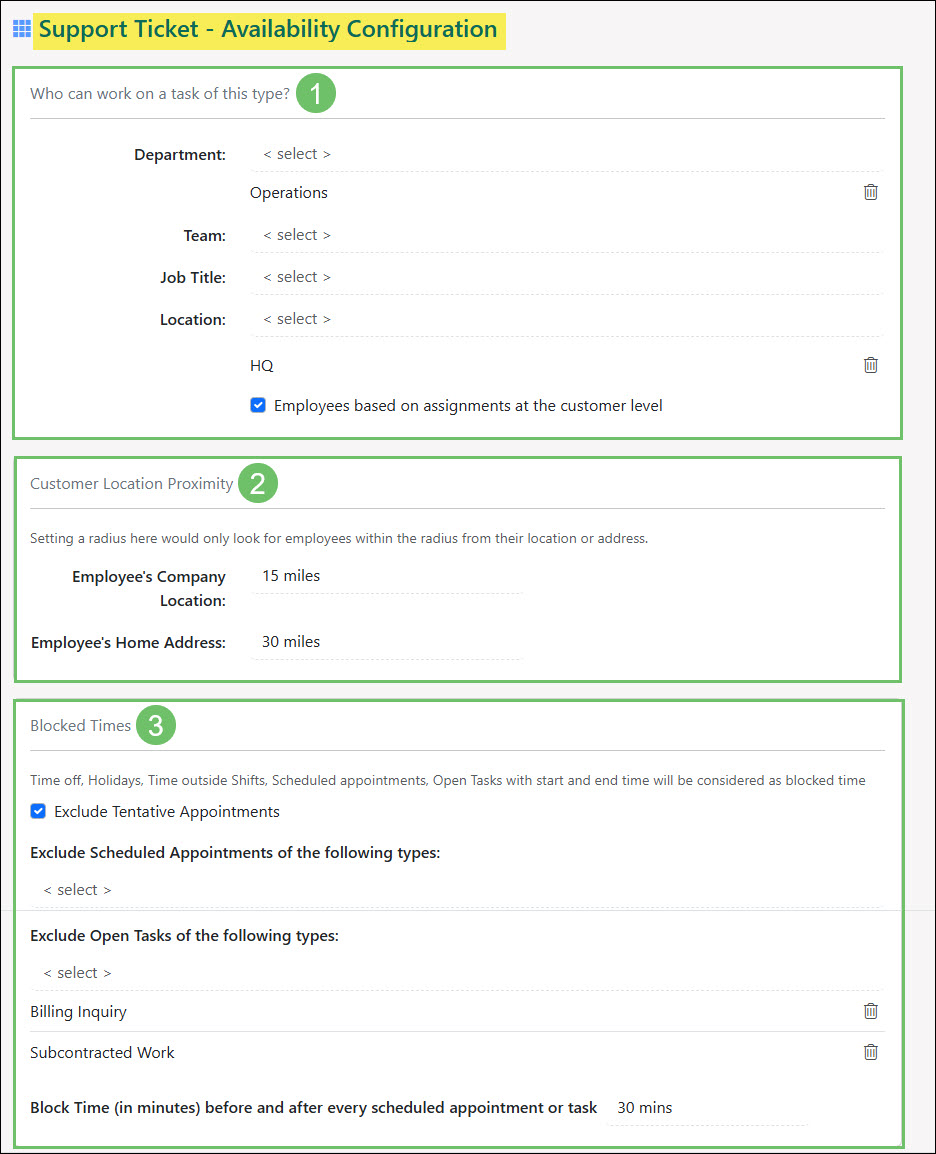
Example of the Availability Configuration Tab in a Task Type
- Who can work on a task of this type: The following information in regards to an Employee will be taken into consideration when determining if they are a fit to be assigned to a Task:
-
View Assignee Availability
Once the Availability Configurations tab in a Task Type has been set up you can then begin to use the View Assignee Availability button on a Task in order to assign or reassign Tasks to the best available person to complete the work. This button is accessed in the Task Actions menu as shown in the image below.
Note: The View Assignee Availability button on a Task will only be available if the Task Type is configured to include a Start Date and Time. In addition, this feature will only be available to use if a Budget has been added to the Task.
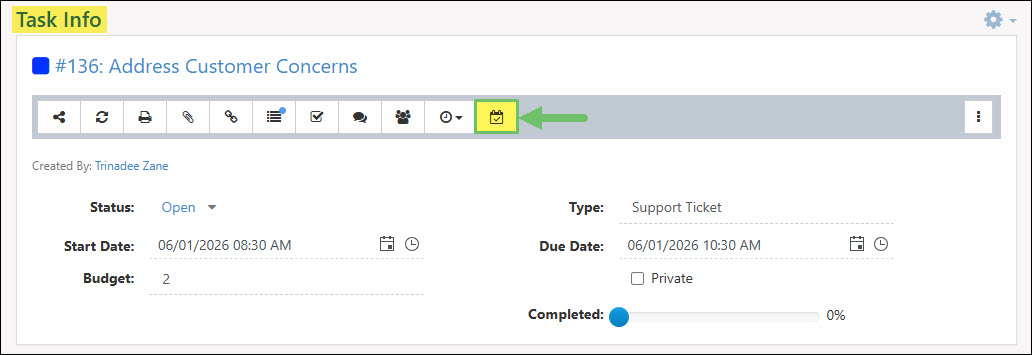
Example of the View Assignee Availability button on a Task
The following information and actions are available when viewing the View Assignee Availability window:
- Search Criteria: The following information will be considered within this section:
- Start Date: Searches who is available for Task Assignment based on the Start Date that is entered on the Task, which can be switched from greater than or equal to the Start Date, or equal to the Start Date. If no Start Date has been entered on the Task, the current Date and Time will be used for this search filter instead.
- Duration: The duration listed in this section will be based on the number entered into the Budget field on the Task. This accounts for how many hours should be considered to complete the Task.
- Time Zone: The Time Zone selected here will autopopulate based on the logged in user. Employees’ Time Zones can be configured within their My Profile page.
- Additional Search Fields: Will open additional search field options which will be detailed further in the next section.
- Employee: Lists the Employee that is available to be assigned to the Task. Clicking on their name will open their Employee Information Card for further information.
- Next Available: Based on the Task’s specified Time and Duration, this column identifies the earliest point at which the Employee can begin work.
- Miscellaneous Info: The following miscellaneous information will be listed in this column:
- Prior: Displays the date and time of a prior Appointment or Task on the same day, along with the distance of that Appointment or Task from the current Task’s Customer Location. If there is no location selected on the Task, the miles away will not be shown here.
- Next: Shows the date and time of the next Appointment or Task for the Employee on the same day, along with the distance of that Appointment or Task from the current Task’s Customer Location. If there is no location selected on the Task, the miles away will not be shown here.
- Location & Address: If the Employee has no prior or next Appointments or Tasks on the same day as the slot then the distance from the Employee’s Company Location and their address will be shown.
- Assign: Adds the Employee as an additional Assignee on the Task.
- Reassign: Removes all current Assignees on the Task and will instead add the Employee as the new Assignment.
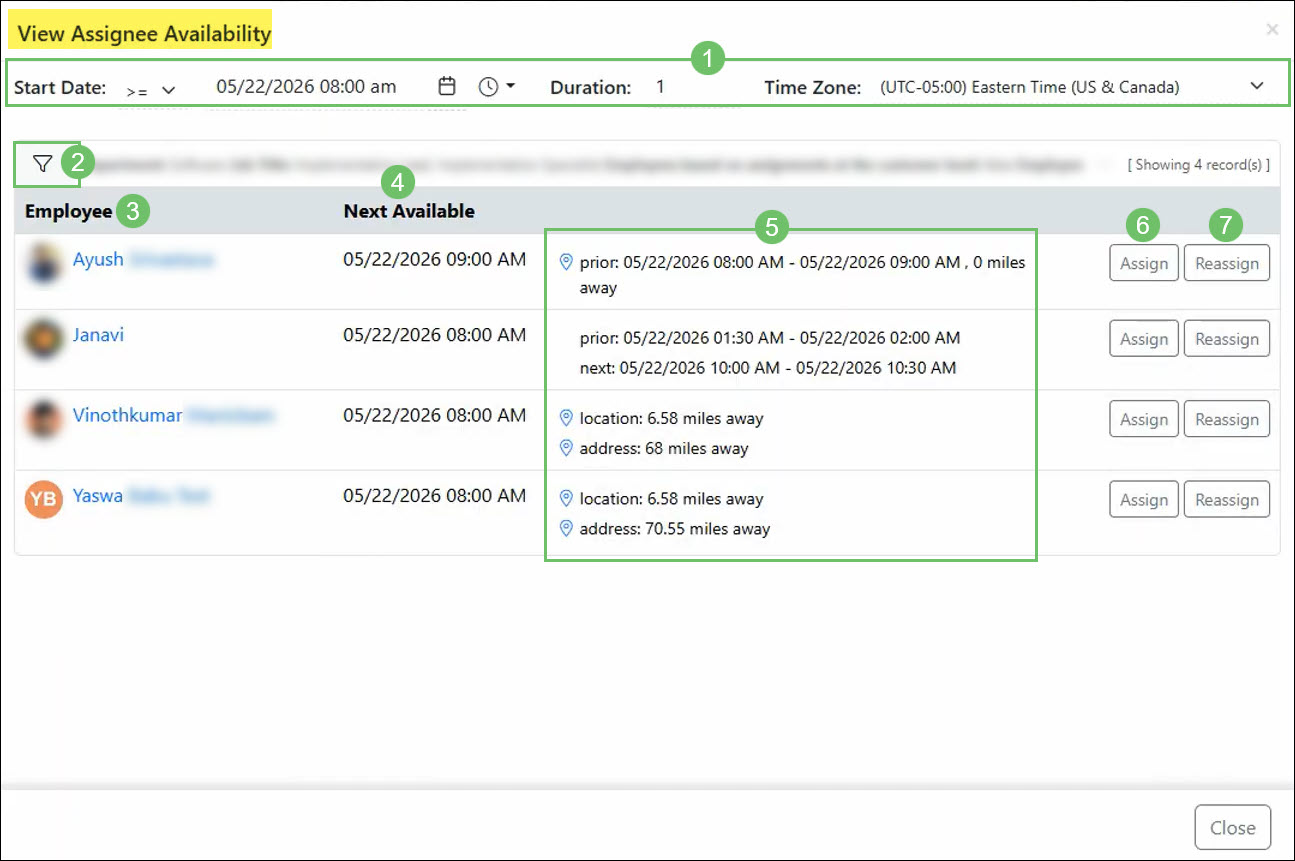
Example of the View Assignee Availability Window in a Task
The following additional search filters are available from the View Assignee Availability window:
- Employee: Narrows search results based on specific Employees selected in this field.
- Department: Restricts eligibility for Task Assignment exclusively to personnel who are affiliated with the specified Departments. This field may be prepopulated based on the Availability Configurations tab in a Task Type.
- Team: Guarantees that Task Assignment eligibility is restricted to personnel linked to specific Teams. This field may be prepopulated based on the Availability Configurations tab in a Task Type.
- Job Title: Evaluates the Job Title found in the Employee Information to verify eligibility for Task assignment. This field may be prepopulated based on the Availability Configurations tab in a Task Type.
- Employees based on assignments at the customer level: Will only look at available Employees for Task Assignment that are set as an assignment to the specific Customer selected on the Task. This option may be toggled on or off based on the Availability Configurations tab in a Task Type.
- Location: Limits eligibility for Task Assignment to staff members who are linked to certain Company Locations. This field may be prepopulated based on the Availability Configurations tab in a Task Type.
- Employee Location: Limits the Employees available for Task Assignment based on a mile radius from the Employee’s Company Location selected within their Employee Information. This field may be prepopulated based on the Availability Configurations tab in a Task Type.
- Employee Address: Limits the Employees available for Task Assignment based on a mile radius from the Employee’s home address entered within their Employee Information. This field may be prepopulated based on the Availability Configurations tab in a Task Type.
- Previous/Next Location: Limits the Employees available for Task Assignment based on a mile radius from the previous and next Appointment or Task Location.
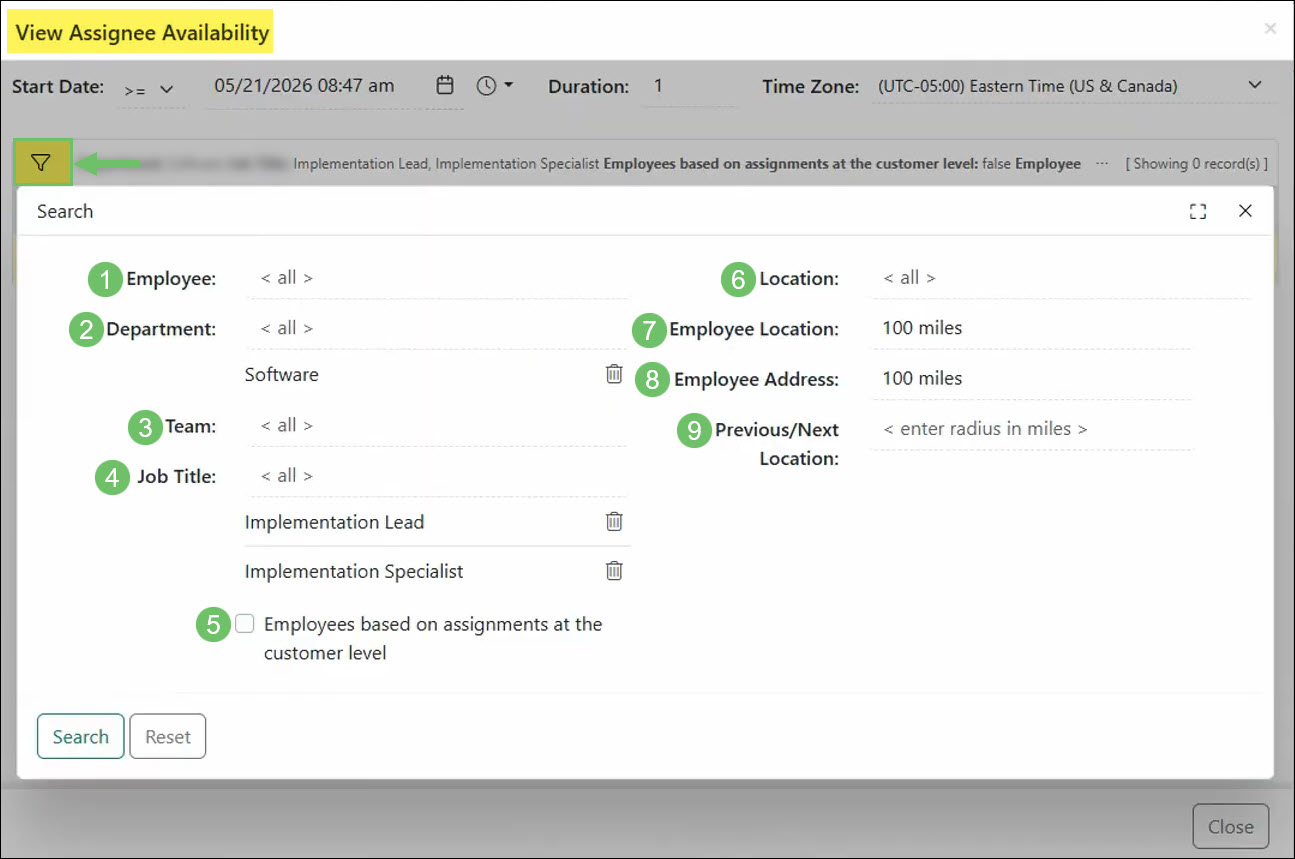
Example of the Search Filters in the View Assignee Availability Window
The results shown in View Assignee Availability take into account any Skillsets associated with the Task to confirm that assigned Employees possess the necessary expertise for the work. These Skillsets can be automatically populated based on the specific Task Type settings or adjusted manually directly on the Task as required.
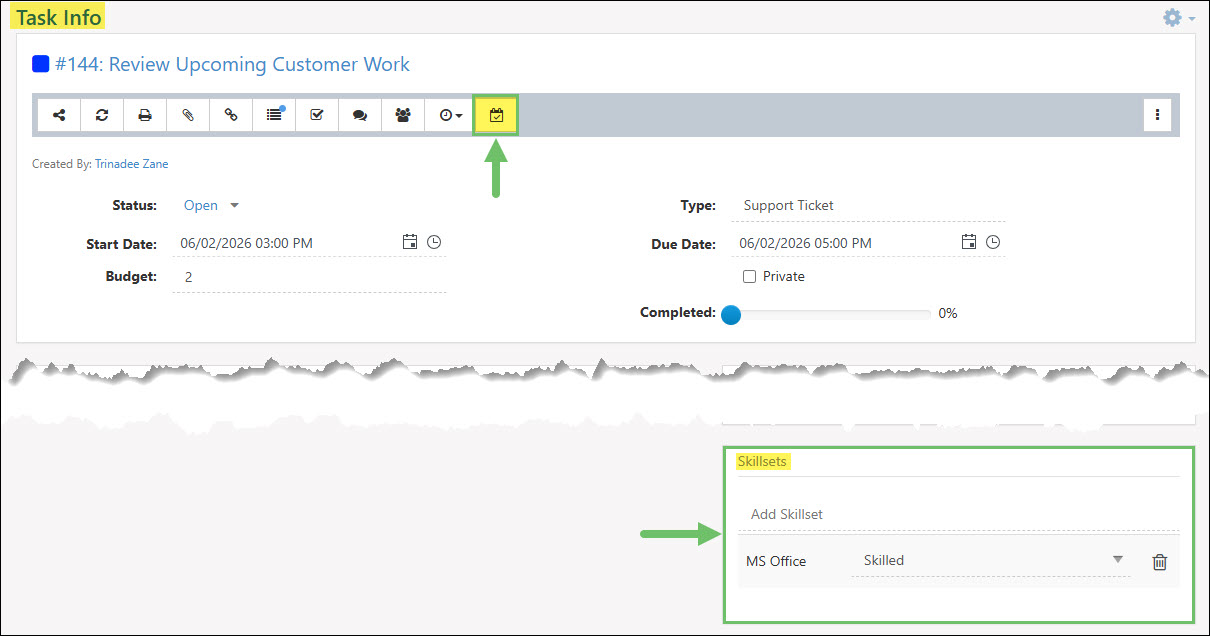
Example of the Skillsets Section on a Task
- Search Criteria: The following information will be considered within this section:
-
Recap
With this guide, we’ve discussed how to streamline your scheduling using the Task Availability tool and the Dispatch Screen. We have covered the automatic evaluation of employee qualifications, proximity, and existing commitments, alongside a comprehensive visual summary of work hours. Additionally, we’ve explored how configuring foundational Task Types and Pools allows you to effortlessly distribute workloads and optimize daily operations from a single dashboard.
FAQs
-
I’m trying to use the Task Availability tool but the icon is not showing up in my Task. Why could it be missing?
For the View Assignee Availability button to appear on a Task, the associated Task Type must be set up to include both a Start Date and a Time. Furthermore, a Budget must be assigned to the Task for this functionality to be accessible.