


Portals
Career Portal
Support Guide
-
Overview
The Striven Career Portal serves as a central location for job seekers, streamlining the application process and fostering efficient communication between Candidates and recruiters. This intuitive platform empowers Candidates to create and manage their profiles, ensuring a smooth and personalized experience.
Upon signing in, Candidates can access a comprehensive dashboard where they can browse available job applications. As Candidates fill in their profiles with contact information, education, work history, skills, and their resume, the portal saves the data. This crucial feature eliminates the need for Candidates to re-enter information for each new application, saving valuable time.
Read this guide if you are trying to:
✔ Review what information can be entered and stored for Candidates in the Career Portal.
✔ Learn what information is available for the Candidate from the Dashboard.
✔ Understand the process for applying for Job Postings that are currently available.
-
Signing Up / Logging In
The Career Portal can be accessed by going to https://careers.striven.com/login/[company-system-name]. The Company system name at the end of the URL will match the URL of your Striven system. Below is a screenshot illustrating how the Career Portal Log In and Sign Up page appears and a description of what can be accomplished there.
- Sign In: If you have previously signed up for the Career Portal, the following information can be entered before using the Sign In option:
- Email: Enter the email address that is associated with your Career Portal profile.
- Password: Enter the password that was created when you signed up for the Career Portal.
- Forgot Password: If you cannot remember your password you can use the Forgot Password option to be sent an email in order to reset your Career Portal password.
- Keep Me Signed In: Will keep you logged into the Career Portal when accessing it from the same device or browser.
- Sign Up: If you have not previously signed up for the Career Portal, the following information can be entered before choosing the Get Started option:
- First and Last Name: Enter your first and last name that should be associated with your Career Portal profile.
- Email: Enter the email address that should be associated with your Career Portal profile.
- Phone: Enter the phone number that is best for recruiters to be able to contact you at a later date if needed.
- Password / Confirm Password: Enter a password along with confirming your password. The password for the Career Portal must be a minimum of 8 characters in length.

Example of the Career Portal Log In and Sign Up Page

- Sign In: If you have previously signed up for the Career Portal, the following information can be entered before using the Sign In option:
-
Portal Menu Bar
The Career Portal Menu Bar will house options to navigate and take actions through the Career Portal. Below is a screenshot illustrating how the Career Portal Menu Bar appears and a description of what can be accomplished there.
- Dashboard: Navigates to the Career Portal Dashboard which will hold a summary of incomplete, submitted, or open job applications.
- My Applications: Will open a list of job applications that have been submitted through the Career Portal.
- Apply for a Job: Takes you the available job listings in order to begin a new job application submission.
- Profile Image: Opens a sub-menu which will include the following options:
- Edit My Profile: Allows the user to update information regarding their Candidate Profile.
- Change Password: Allows the user to update their log in password that is associated with their Candidate profile.
- Sign Out: Logs the user out of the Career Portal.
- Messages: Opens the Messages list that have been sent to the Candidate from recruiters regarding any next steps, follow-ups, or general updates. For unread messages, a red box with the number of unread messages will appear above the Message icon. The Candidate will only be able to begin a message thread with the recruiter if the Allow Candidate to Send Messages to Recruiters option is enabled in the Recruiting Settings page.

Example of the Career Portal Menu Bar
-
Dashboard
The Career Portal Dashboard is a central location where a Candidate can view information such as incomplete applications, open applications, and other available jobs that can be applied to. To access the Career Portal Dashboard, click on the Dashboard option from the Portal Menu Bar.

Example of the Dashboard Menu Location from the Portal Menu Bar
Below is a screenshot illustrating how the Dashboard from the Career Portal appears and a description of what can be accomplished there.
- Profile Completeness: Shows the Candidate’s name and profile image along with a progress bar which shows the percentage that has been completed for the user’s profile. Underneath the progress bar is a hyperlink to edit the user’s profile.
- Career Portal Landing Page Content: This content can be configured and customized from the Recruiting Settings page in order to display additional context or information for applying to the specific Company that is using the Career Portal to house their job postings.
- My Incomplete Applications: Lists the names of job applications that have been started but has not been fully submitted to the recruiter. Next to the name of the job posting will list the location that is being applied to. Clicking on the job posting listed here will allow the user to continue the application process in order to complete the application.
- My Open Applications: Lists job postings that the user completed an application for and is waiting for a final result. This section will list the job posting name, the current status and options to message the recruiter or print the application. Clicking on the job posting name will navigate to the Application Step Status page to see the current progress of the application.
- Available Job Postings: Displays lists of the current available job postings that can be applied to. Each job posting listed is a hyperlink that can be clicked on to begin the application process. The job postings shown in this section will be sectioned based on the location that is currently hiring for the position.

Example of the Information and Actions Available from the Career Portal Dashboard
-
My Applications
The My Applications page will list job postings that have been applied to and is still in progress. The My Applications page can be accessed by clicking on the My Applications option in the Portal Menu Bar or clicking on the View All hyperlink in the My Open Applications section from the Dashboard.
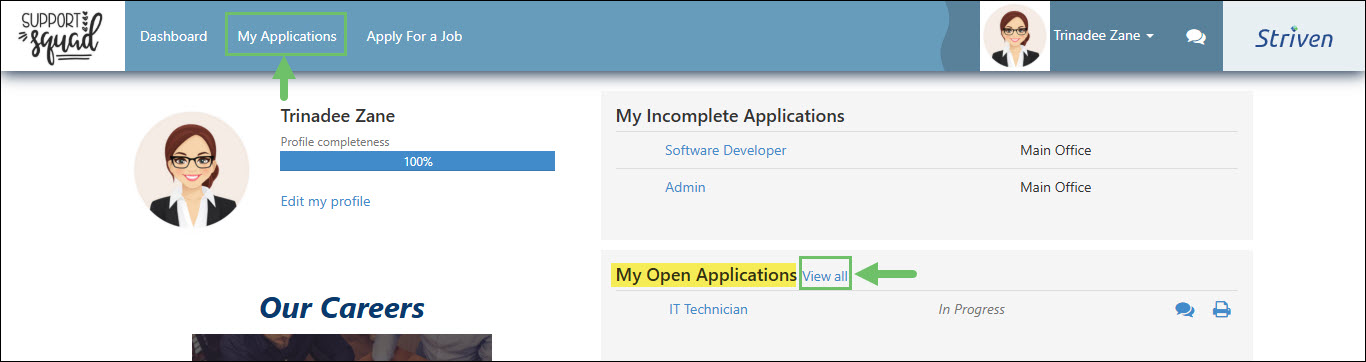
Example of the Locations to Access the My Applications page in the Career Portal
Below is a screenshot illustrating how the My Applications page in the Career Portal appears and a description of what can be accomplished there
- Job Title: Lists a hyperlink of the job posting that was applied to. Clicking on the link in this column will open the Application Step Status page to see the current progress of the application.
- Location: Displays the location that the job posting is available for and has been applied to.
- Status: Shows the current status that the job application resides in.
- Current Step: Lists the current step that the job application is in.
- Messages: Opens a Messages pop-up window which will house any messages that were sent to the Candidate from the recruiter regarding the job application. Any messages sent from the recruiter will have an option for the Candidate to reply to the message for further communication. The Candidate will only be able to begin a message thread with the recruiter if the Allow Candidate to Send Messages to Recruiters option is enabled in the Recruiting Settings page.
- Print: Saves the job application as a PDF so the Candidate can print if needed for their records.

Example of the Information and Actions Available from the My Applications Page
-
Apply For a Job
The option to apply for a job can be initiated by clicking on the Apply For a Job option in the Portal Menu Bar or selecting a job posting listed from the Dashboard. Each job posting listed is a hyperlink that can be clicked on to begin the application process. The job postings shown in this section will be sectioned based on the location that is currently hiring for the position.
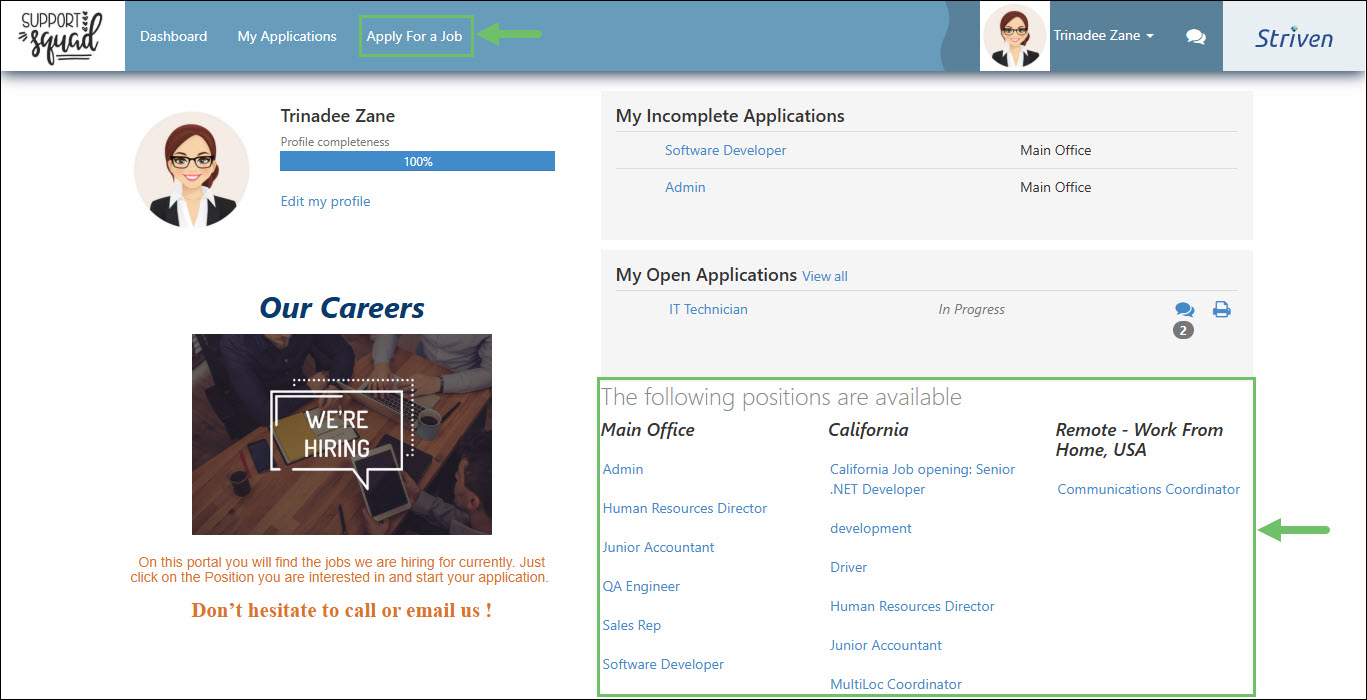
Example of Job Postings are Listed on the Dashboard and Where to Access from the Portal Menu Bar
Below is a screenshot illustrating how the Start an Application page appears and a description of what can be accomplished there.
- Location: The office location in which the job is available for.
- Job Posting: Underneath each location listed will be hyperlinks of job postings available. Clicking on the hyperlinks listed here will begin the application process for the available position.
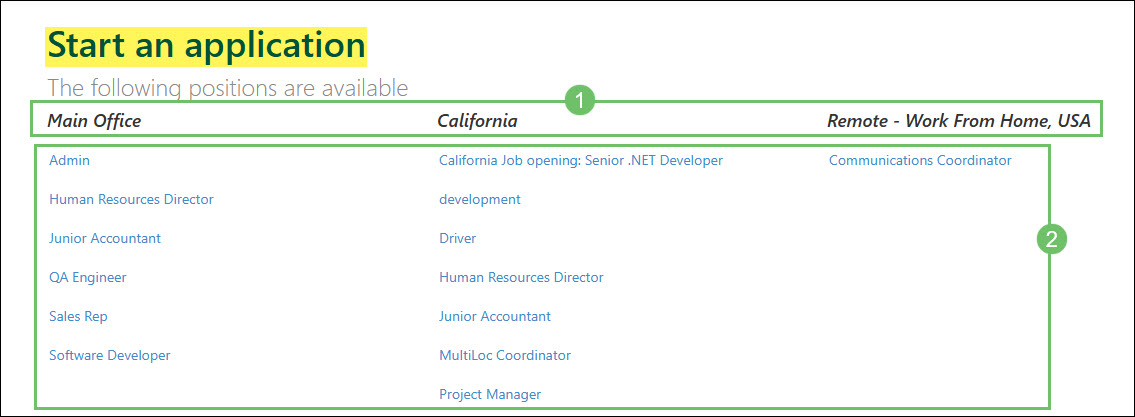
Example of the Information and Actions Available on the Start an Application Page in the Career Portal
-
Messages
To access messages in the Career Portal you can click on the Message icon located in the Portal Menu Bar. This will open a list of all messages regardless of which application they are related to. A number in a red box will appear above the Message icon here to indicate the number of unread messages.
You can access messages related to specific job applications by clicking on the Message icon located in the My Open Applications section from the Dashboard. The number shown underneath the Message icon here will indicate a total number of messages related to the job application.
Note: The Candidate will only be able to begin a message thread with the recruiter if the Allow Candidate to Send Messages to Recruiters option is enabled in the Recruiting Settings page.
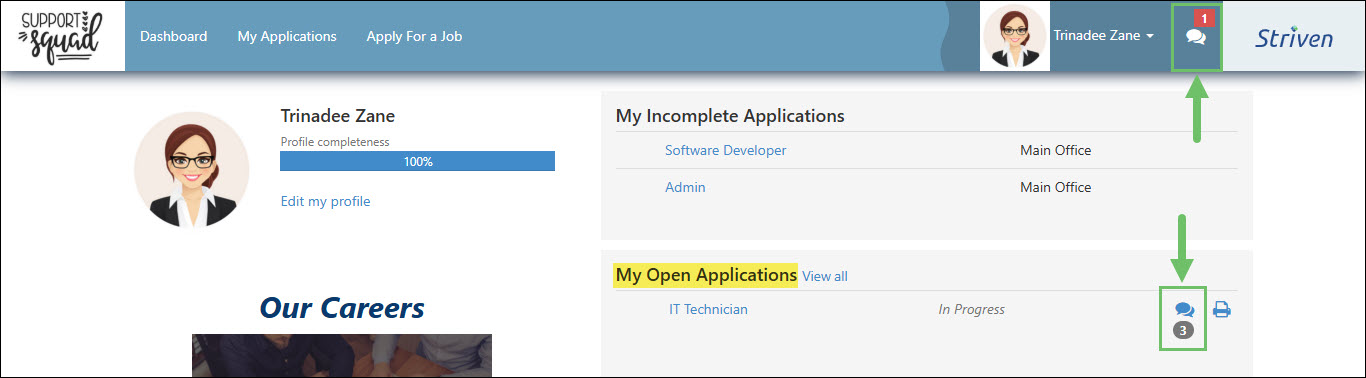
Example of How to Access Messages from the Portal Menu Bar and the Dashboard
Below is a screenshot illustrating how the Messages list appears in the Career Portal and a description of what can be accomplished there.
- Include Archived Messages: Will include any messages that have been archived in the list to view.
- Message: Shows the message that was sent from the recruiter. The sender will be listed along with the date and time the message was sent. If any other recruiters were CCd on the message they will be shown in the To: section of the message. The job posting that the message is related to will also be listed above the message content.
- Reply: To initiate a reply to a specific message, the user can click the Reply button.
- Archive: The user can click the Archive button to mark a message as archived and remove it from the list. To bring back the messages that have been archived, the user can click the option at the top of the list to Include Archived Messages.
- Message Replies: By default, replies will be hidden but can be seen by clicking on the View Replies button listed underneath the message. To not show the replies to messages, you can click the Hide Replies button. The replier’s name will be listed along with the date and time the reply was sent.
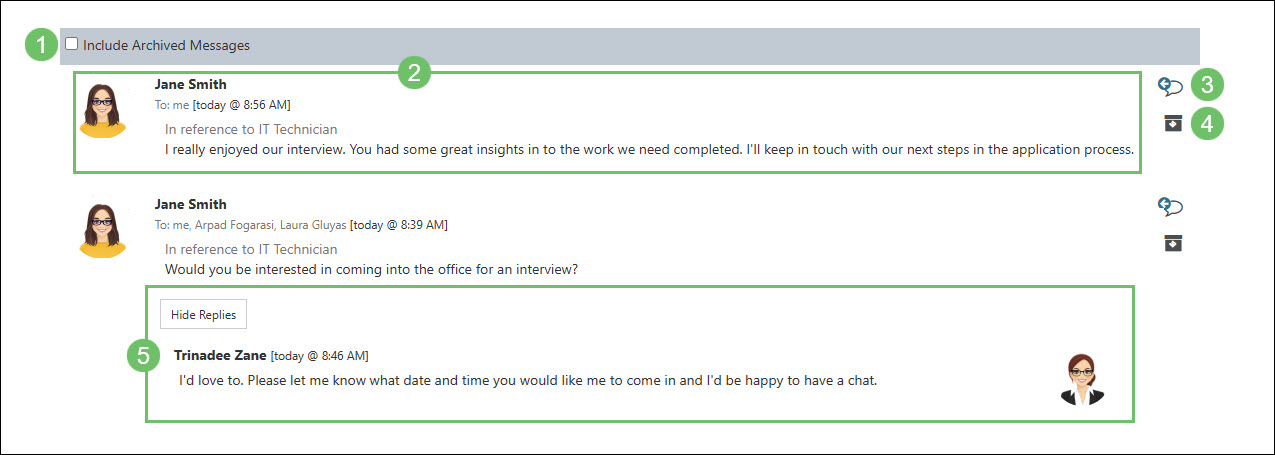
Example of the Information and Actions Available on the Messages List in the Career Portal
-
Candidate Profile
The information saved within the Candidate Profile will be saved and carried over to each application submitted. To edit or update the Candidate Profile you can click the Edit My Profile option from the Dashboard or click on your name in the Portal Menu Bar and select the Edit My Profile option from the drop down menu.

Example of How to Access the Candidate Profile from the Dashboard
-
Profile
The Profile tab within the Candidate Profile will include general information regarding the Candidate along with any custom fields that have been added for Candidates to fill out. Below is a screenshot illustrating how the Profile tab for a Candidate Profile appears in the Career Portal and a description of what can be accomplished there.
- Profile Image: Allows the Candidate to upload an image. Underneath the profile image will include options to upload a new phone or remove the profile image that has already been uploaded.
- Personal Info: Includes general information regarding the Candidate such as their name information and the time zone they reside in.
- Contact Info: Includes information regarding how to contact the Candidate including their email, phone number, and address. If Address is set to be required in the Requirements section of a Job Posting, then the Candidate will need to fill this in before moving forward to the next page.
- Custom Fields: Any custom fields that have been added regarding the Candidate will be listed here as long as they were marked as visible on the Portal. These fields allow for additional information to be stored with the Candidate profile.
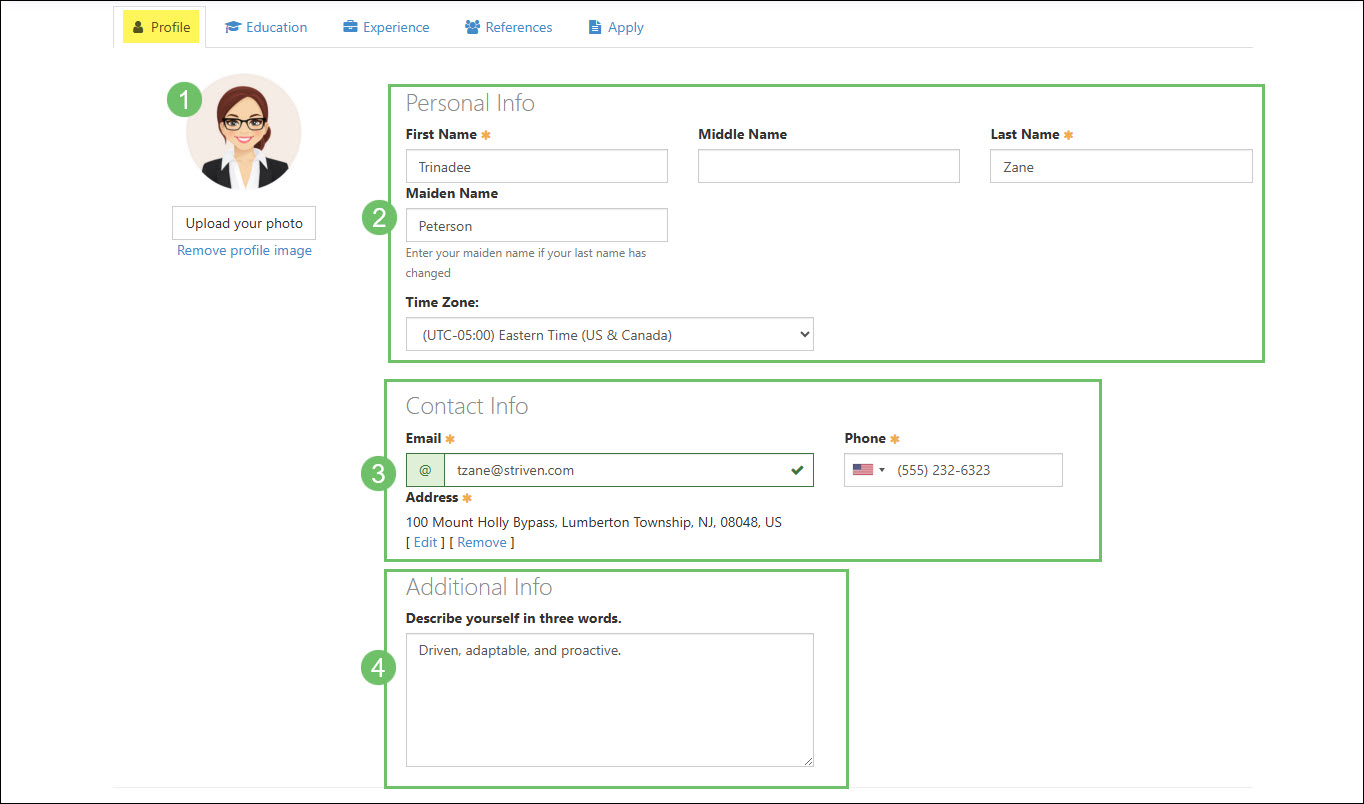
Example of the Information and Actions Available from the Profile Tab from a Candidate Profile
-
Education
The Education tab of the Candidate Profile will include a list of education history that the Candidate would like to include for the recruiters to review.
- Note: If the option is enabled to Skip Filling Out Education / Experience / Reference When Submitting Application in the Requirements section of a job posting, this tab may be unavailable to the Candidate. However, if Education is set as required in the Requirements section of a Job Posting, then the Candidate will need to enter at least one entry before moving on to the next page.
Below is a screenshot illustrating how the Education tab for a Candidate Profile appears in the Career Portal and a description of what can be accomplished there.
- Add Education: Allows the user to add a new school to the list of their education.
- School: Lists the school name that was added to their education history.
- Type: Indicates the type of school that was attended for the Candidate.
- Finished: Lists the month and year that the Candidate completed the education course for the listed school. If this field is blank then it indicates they either have not finished or are still attending the school.
- Actions: There are two actions available for the Candidate to take for the listed schools including:
- Edit: Opens the information regarding the listed school to allow them to make changes as needed.
- Delete: Removes the school from their list of education listed in their profile.

Example of the Information and Actions Available from the Education Tab from a Candidate Profile
Clicking on the Add Education button from the Education tab will allow the user to add a new school to be included in their education history. Below is a screenshot illustrating how the Add Education page for a Candidate Profile appears in the Career Portal and a description of what can be accomplished there.
- Name of School: Searches through official schools that can be selected from.
- School Type: A drop down list with options to indicate the type of school that was attended or completed.
- Number of Years Completed: Indicates the amount of years that the Candidate completed with the school.
- Date Finished: A month and year selection field to indicate when the school was completed. Leaving this blank will indicate that the school was either not completed or the Candidate is still attending the school.
- Major: A field where the candidate can type in the major that was being studied.
- Degree: A drop down list to indicate the degree that was obtained while attending the school. If needed, the Candidate can select the Other option and type in a different degree that was not included in the available list.

Example of the Information and Actions Available from the Add Education Page from a Candidate Profile
-
Experience
The Experience tab of the Candidate Profile will include a list of previous job experience that the Candidate would like to include for the recruiters to review.
- Note: If the option is enabled to Skip Filling Out Education / Experience / Reference When Submitting Application in the Requirements section of a job posting, this tab may be unavailable to the Candidate. However, if Experience is set as required in the Requirements section of a Job Posting, then the Candidate will need to enter at least one entry before moving on to the next page.
Below is a screenshot illustrating how the Experience tab for a Candidate Profile appears in the Career Portal and a description of what can be accomplished there.
- Add Experience: Allows the user to add a new job to their previous work experience.
- Employer: Displays the name of the Candidate’s previous employer.
- Phone: Lists the phone number for the previous employer.
- Job Title: Shows the job title that the Candidate previously worked as in their past job.
- From/To: Shows the month and year for when the Candidate began working for their previous employer as well as the month and year for when they stopped working at that company. If the To field is empty, this indicates that the Candidate is still currently employed.
- Actions: There are two actions available for the Candidate to take for the previous jobs they worked in which are the following:
- Edit: Opens the information regarding their previous job to allow them to make changes as needed.
- Delete: Removes the work from their list of experience listed in their profile.
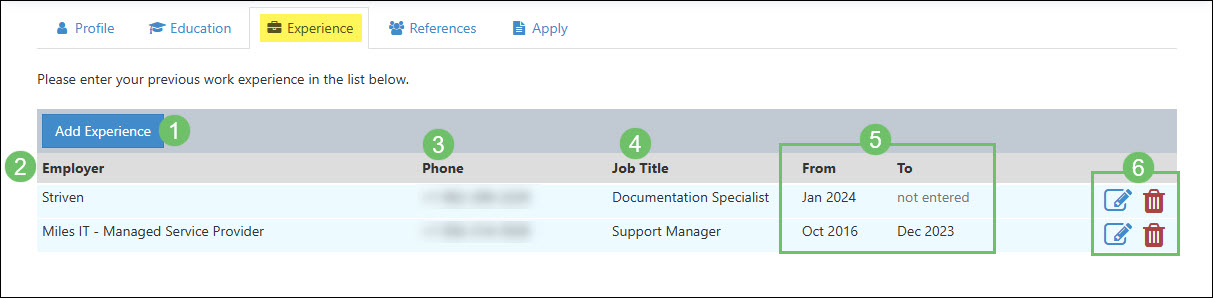
Example of the Information and Actions Available from the Experience Tab from a Candidate Profile
Clicking on the Add Experience button from the Experience tab will allow the user to add more jobs to be included in their experience history. Below is a screenshot illustrating how the Add Experience page for a Candidate Profile appears in the Career Portal and a description of what can be accomplished there.
- Employer Name: Searches for the previous employer. Once found, the phone number and website will prefill based on results available.
- Employer Contact Info: Includes the phone number and website for the previous employer. These fields may prefill based on results included from the Employer Name search in the above field.
- Your Responsibilities: Allows the Candidate to include what their previous job title was and a detailed description of what their job included in regards to workload and responsibilities.
- When You Worked: Allows the Candidate to indicate the month and year that they began work and ended work for their previous job. Clicking on the Still Employed option instead of an end date will indicate to the recruiter that they are still currently working at the job. If an Ended On date is entered, the Reason for Leaving field will be required.
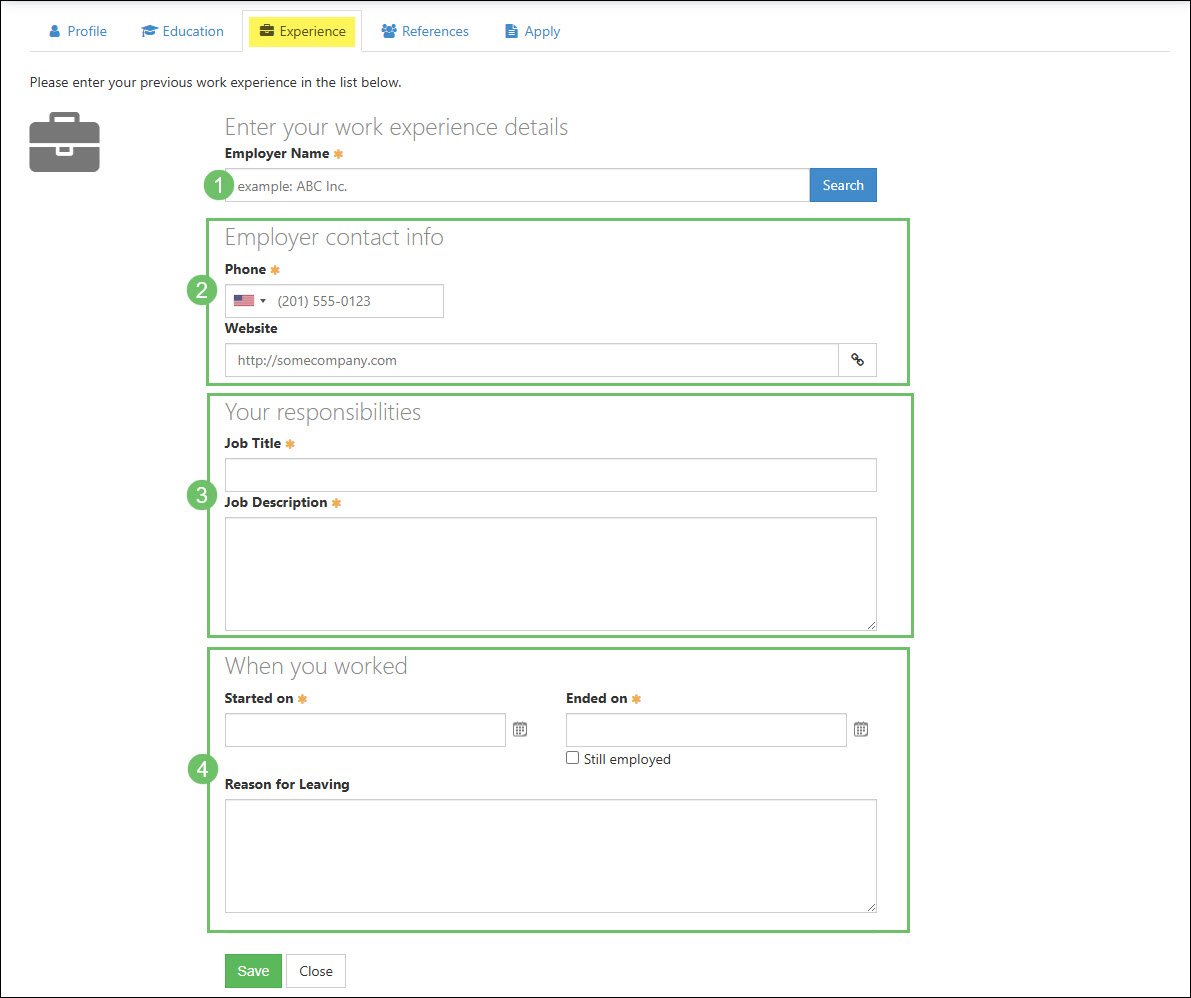
Example of the Information and Actions Available from the Add Experience Page from a Candidate Profile
-
References
The References tab of the Candidate Profile will include a list of people that can be contacted as a reference from the recruiter.
- Note: If the option is enabled to Skip Filling Out Education / Experience / Reference When Submitting Application in the Requirements section of a job posting, this tab may be unavailable to the Candidate. However, if References is set as required in the Requirements section of a Job Posting, then the Candidate will need to enter at least one entry before moving on to the next page.
Below is a screenshot illustrating how the References tab for a Candidate Profile appears in the Career Portal and a description of what can be accomplished there.
- Add Reference: Allows the user to add a new person as a reference that the recruiter can reach out to.
- Name: Lists the name of the person that has been added as a reference for the Candidate.
- Position: Displays the reference’s job position that they currently hold or held when the Candidate worked with them.
- Company: Displays the company’s name where the reference works or previously worked when they had worked with the Candidate.
- Phone: Lists the contact phone number that can be used by the recruiter to reach out to the reference.
- Actions: There are two actions available for the Candidate to take for the references listed which are the following:
- Edit: Opens the information regarding their previous job to allow them to make changes as needed.
- Delete: Removes the work from their list of experience listed in their profile.
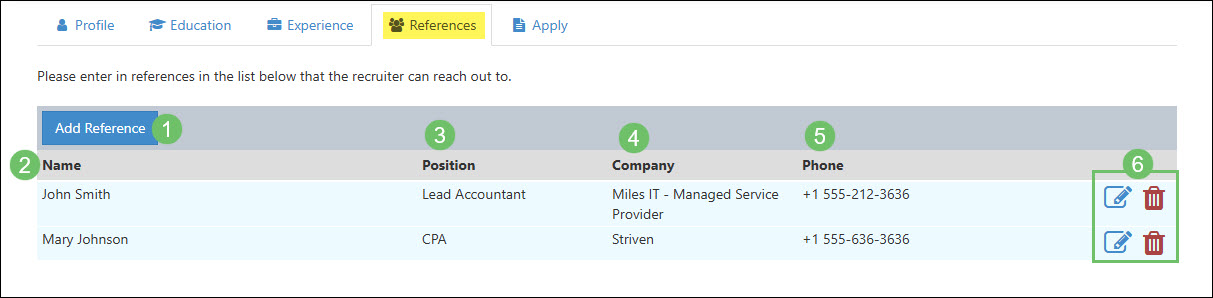
Example of the Information and Actions Available from the References Tab from a Candidate Profile
Clicking on the Add Reference button from the References tab will allow the user to add more people that can be contacted by the recruiter as a reference for the Candidate. Below is a screenshot illustrating how the Add Reference page for a Candidate Profile appears in the Career Portal and a description of what can be accomplished there.
- Reference Name: A field where the reference’s name can be entered.
- Company Info: Should include the reference’s company info such as their company name and the position they hold within the company.
- Contact Info: Should include the contact information that the recruiter can use to reach out in regards to the Candidate. The Phone field is required while the Email field is optional to include.
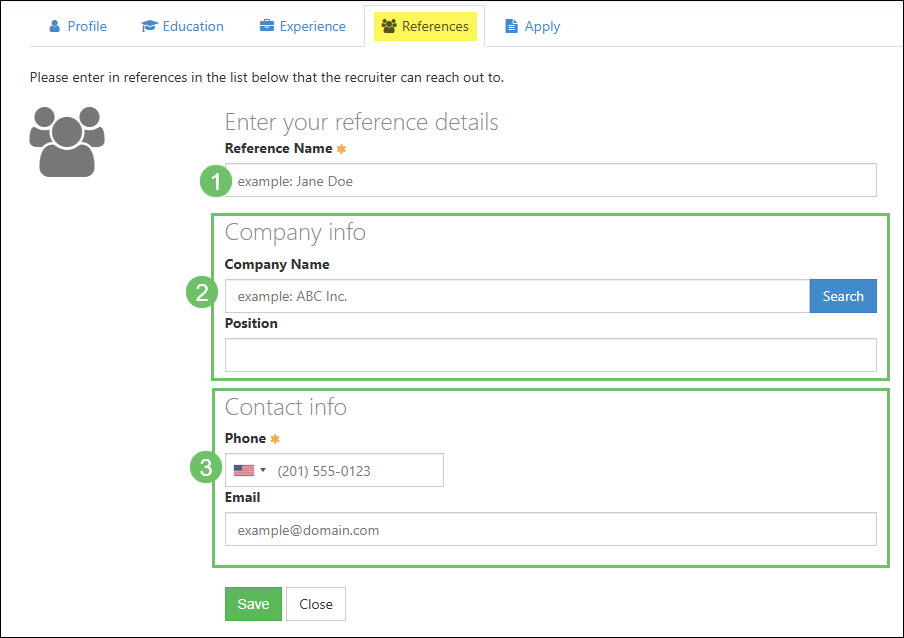
Example of the Information and Actions Available from the Add Reference Page from a Candidate Profile
-
Submit Application
The Apply tab will list available job positions that the Candidate can apply for. After they have selected a job posting, they will have the chance to review and update the previous tabs in their profile before accessing the Apply page for the job they are submitting their application for. The Apply page will have additional information and fields that the Candidate will fill out that is specific to the job posting. Below is a screenshot illustrating how the Apply page in the Career Portal appears and a description of what can be accomplished there.
- Job Title: This section will display the job title that is being applied for. The Message icon next to the job title will open a Messages window in order to view or send messages to the recruiter for this specific position. Candidates will only be able to begin a message to the recruiter if the Allow Candidate to Send Messages to Recruiters option is toggled on within the Recruiting Settings page. Clicking on the View Details About This Position hyperlink will open more details that have been added about the specific job position being applied to.
- Resume: Allows the Candidate to upload a resume from their computer or device for the recruiter to review in further detail. Depending on the set up for the Requirements section of a Job Posting, this section may be required.
- Application Info: This section will have questions for the Candidate to fill out in regards to the job application such as when they are able to begin working, what their desired salary is, how they heard about the company or position, and if they have previously applied with the company. If Desired Annual Salary is set as required in the Requirements section of a Job Posting, the Candidate will need to fill this field in before submitting the application.
- Custom Fields: Any custom fields that have been added for the Job Posting or for Candidate Applications will be listed here for the Candidate to complete.
- Convicted of Crime: This question may or may not appear depending on the set up of the Job Posting. To confirm if the Candidate has been convicted of a crime before submitting the application, enable the option Ask If Candidate Has Been Convicted of a Crime within the Requirements section of a Job Posting.
- Terms and Conditions: The Candidate must agree to the Terms and Conditions before submitting their application to the available position. To edit the Terms and Conditions that appear within the Career Portal, navigate to Company → Settings → Employees → Recruiting → Career Portal → Terms and Conditions.
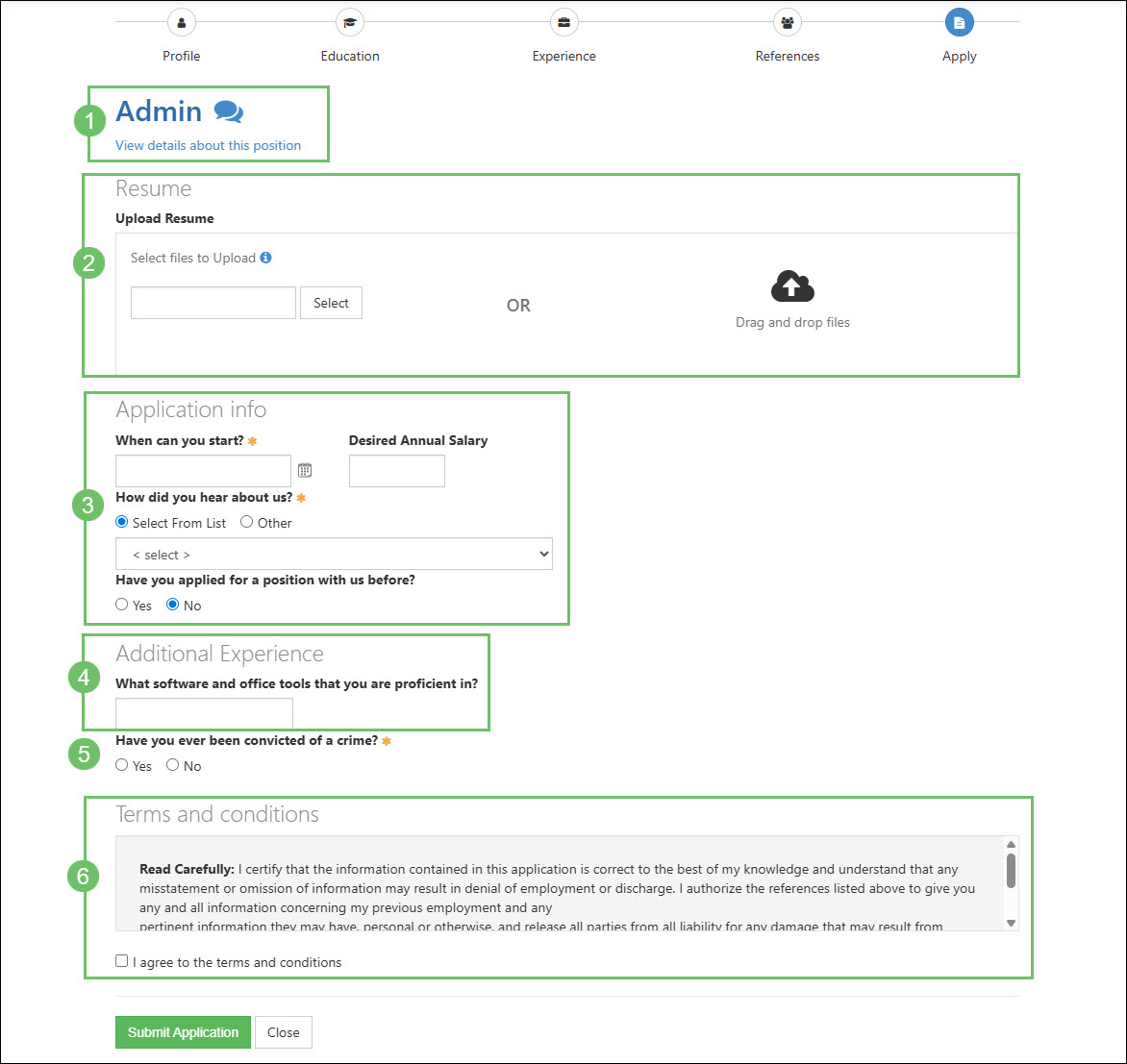
Example of the Information and Actions Available on the Apply Page in the Career Portal
-
Submission Confirmation
Once a Candidate has submitted the application, they will be navigated to a Thank You page which will show their next steps or additional information. Below is a screenshot illustrating how the Thank You page in the Career Portal appears and a description of what can be accomplished there.
- Thank You Content: The content displayed in this section can be customized within the Recruiting Settings page. To update this content, use the Content for Application Submission Message editor box which is located in the Application Submission Info section within the Recruiting Settings page.
- Job Title: This section will display the job title that was applied for. The Message icon next to the job title will open a Messages window in order to view or send messages to the recruiter for this specific position. Candidates will only be able to begin a message to the recruiter if the Allow Candidate to Send Messages to Recruiters option is toggled on within the Recruiting Settings page. Clicking on the View Details About This Position hyperlink will open more details that have been added about the specific job position being applied to.
- Application Step Status: This section will list completed and next steps for the Candidate or Recruitier. The only steps that will appear within this section on the Career Portal are ones that have been configured Visible on Career Portal when editing or creating the Recruiting Steps for Job Postings.
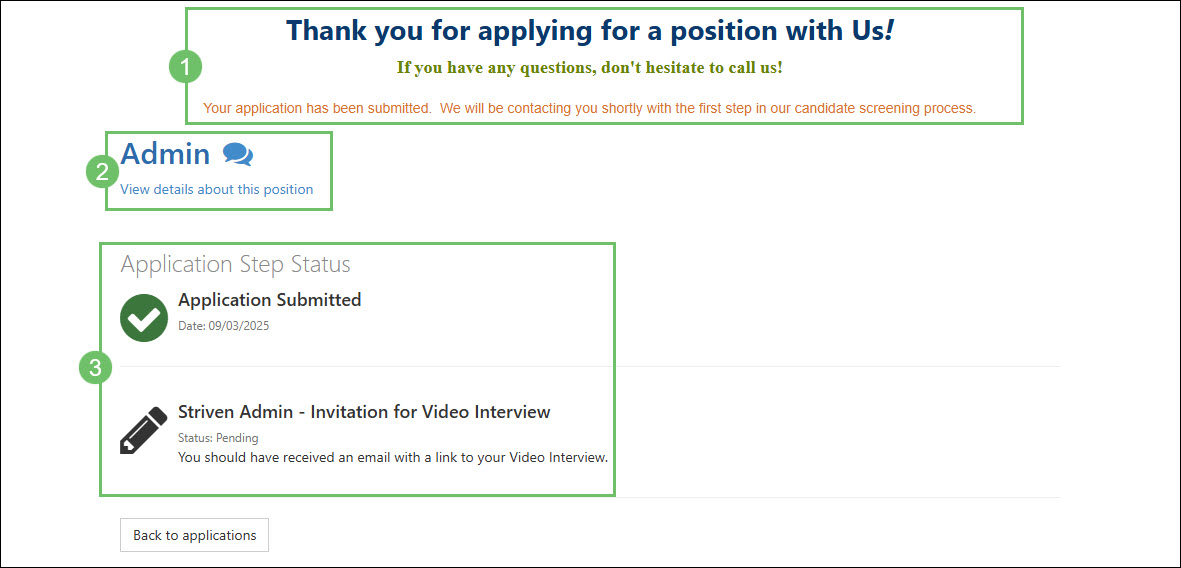
Example of a Thank You Page for a Job Application in the Career Portal
-
Recap
With this guide, we’ve discussed what information can be entered and stored regarding a Candidate. We have covered what information the Candidate can access and view from the Dashboard. Additionally, we have reviewed the process for applying for Job Postings that are available for hire.
Have a Question?
Ask the Striven Community
User-sourced how-to’s, feedback, and more!
FAQs
-
I’ve applied for a job but would like to apply for a different position. Why is it not letting me apply for a different position with the company?
This would be the result of the Only Allow One Active Job Application Per Candidate setting that is enabled by the company within their Recruiting Settings. The recruiter will need to close your current application before you can begin another one. Please contact the recruiter to inform them you would like your current application to be closed as you would like to apply for a different position.
-
After logging into the Career Portal I am not able to apply to any job postings. No matter what page I access it is just showing me the same message that I can no longer access the site. What does this mean?
This may be due to your Candidate Profile being denied access to the Career Portal. If you have been denied access to the Career Portal, you will no longer be able to access any Job Postings or your Candidate Profile.