


INITIAL SETUP
Striven Help Menu
Support Guide
-
Overview
The Striven Help menu is a specialized menu that houses all of the direct methods for attaining assistance with Striven. This menu serves as the epicenter of all things support-related. This guide will describe the helpful features and reference materials available in this menu.
Read this guide if you are trying to:
✔ Contact Striven Support via chat, ticket, or screenshare meeting.
✔ Review system notifications for important announcements or release updates.
✔ View Striven User Guides or Community Posts for instructions or ideas.
-
Finding the Help Menu
Located in the top right corner of most pages in Striven, you will find the Striven Menu Bar, which furnishes quick access to features such as the Dashboard, Quick-Add menu, Discussions, Buzz, Favorites, and the Help menu. The Help menu is designated by a Question Mark icon.

Example of the Help Menu Option Located on the Striven Menu Bar

-
Chat with Live Support
Striven’s support chat provides a convenient way to connect with a Help Desk Specialist for assistance with your Striven-related questions. The moment you send your message, you will be connected to a live person – no bots here! Immediate assistance is available with real-time responses, allowing you to get help quickly.
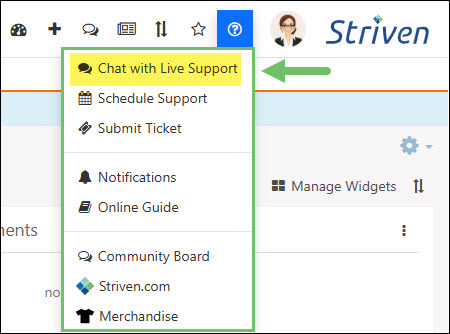
Example of the Chat with Live Support Option on the Striven Help Men
Clicking on the Chat with Live Support option from the top of the Help menu will display a popup chat window allowing you to engage with a Striven Help Desk Specialist via live chat.
You can ask questions and receive guidance right away, sharing screenshots or other files related to your request, as needed. For more complex requests, the Help Desk Specialist can create a Task for further assistance, investigation, and follow-up.

Example of the Striven Support Chat Popup Window
You will also be provided with a copy of the chat transcript when the exchange has ended for future reference and as a record of your interaction.
-
Schedule Support
For more complicated or detailed requests, you can choose the Schedule Support option to meet with a Help Desk Specialist. These appointments are very helpful when a screenshare is needed for clarification or detailed explanations. The appointment is set for 15 minutes to allow for a discussion or demonstration and will be recorded and shared with you for future reference.
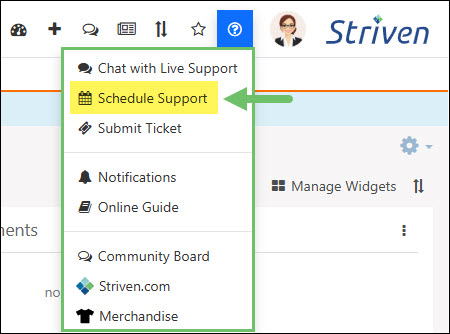
Example of the Schedule Support Option on the Striven Help Menu
When you select the Schedule Support option, the browser opens a new tab to the Striven Schedule Support page. Simply enter your email address in the field to view available dates/times to meet with a Help Desk Specialist.

Example of the Striven Schedule Support Page
The steps that follow will depend on whether or not your email address has already been saved within our Striven system.
If this is your first time contacting Striven Support with your email address, you will be asked to fill in some contact information, such as your Name, Company Name, and Phone Number.
Next, you will need to enter a brief description of your appointment topic in the Appointment Title field. This information will provide the Help Desk Specialist the ability to better prepare for your meeting.
If you know an exact date/time you wish to meet, you can choose it from the Calendar or enter it into the Search field to determine if there is a Help Desk Specialist available at that time. Otherwise, you can easily select an available date/time from the list provided to meet with the next available representative or choose a date/time that works best for your schedule.

Example of the Date/Time Selection Options for a Screenshare Meeting
- Note: If our Striven system recognizes your email address from previous contact, you will not be asked to fill in your contact information and will be provided the Appointment Title field and date/time selection options.
-
Submit Ticket
Another effective way to request assistance is by choosing the Submit Ticket option from the Help menu. This feature allows you to report your request in Task form for a member of the Striven Help Desk to investigate and provide a solution.
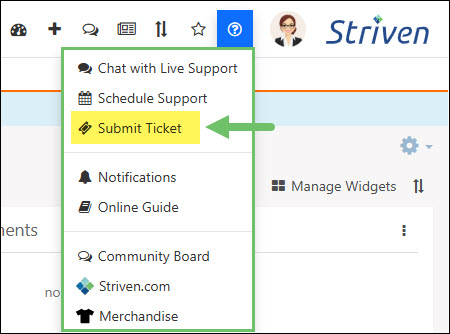
Example of the Submit Ticket Option on the Striven Help Menu
When you select the Submit Ticket option, a Striven Support page will open in a new browser tab. There you can enter the subject of your request to briefly explain the topic, as well as any details or content you feel will aid the Help Desk Specialist with assisting you. There is a rich text editor provided to write out your request and include relevant links or external videos. Additionally, there is an upload box on the page to include images or documents related to your request.
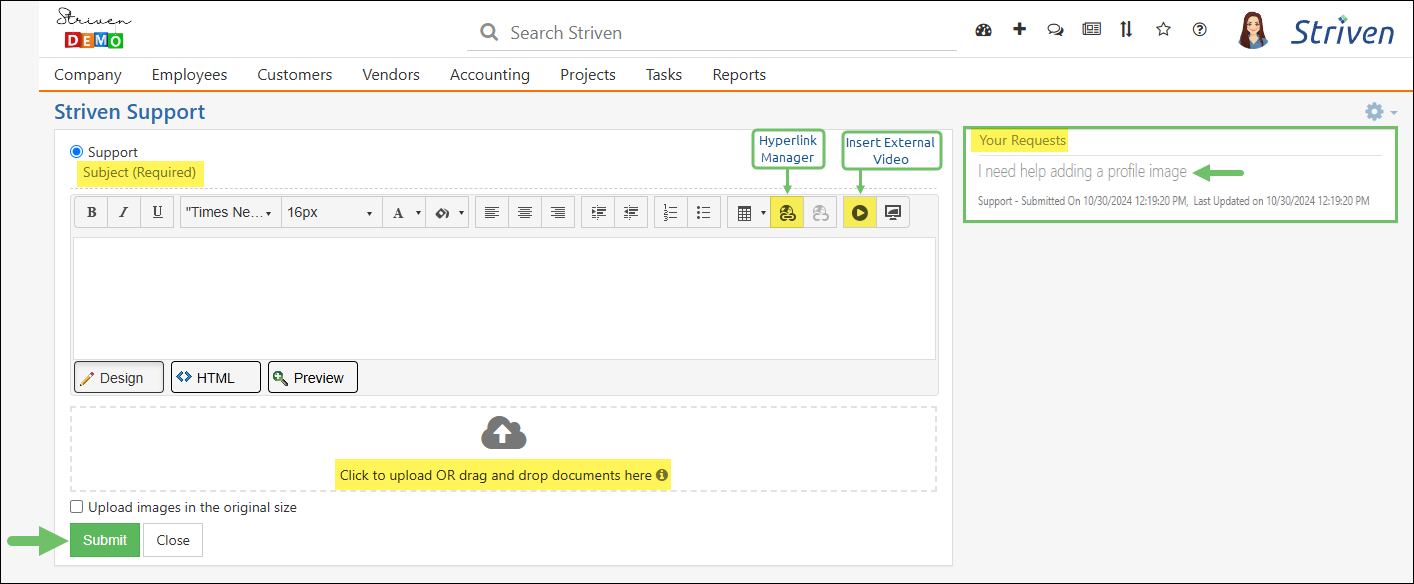
Example of the Striven Support Page to Submit a Ticket
Once you have submitted your request, it should show up in the Your Requests panel on the right side of the page.
-
Notifications
Striven sends out certain system notifications that can be viewed from the Notifications option on the Help menu. These notifications may include announcements for scheduled system maintenance, quarterly updates, or highlighting new features.
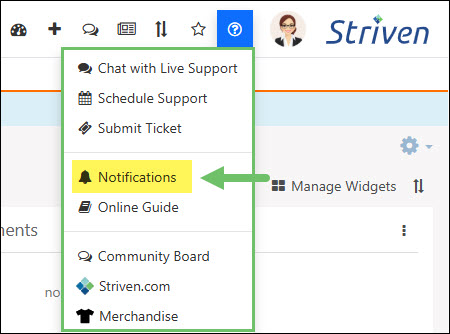
Example of the Notifications Link on the Striven Help Menu
Choose the Notifications option from the Help menu. This will open the System Notifications page in a new browser tab. From this page, you can sort the list of notifications by All, Release Notes, System Notifications, and Did you know? categories. There is also a Search field to help locate a specific notification by Title, Message, or Tags.
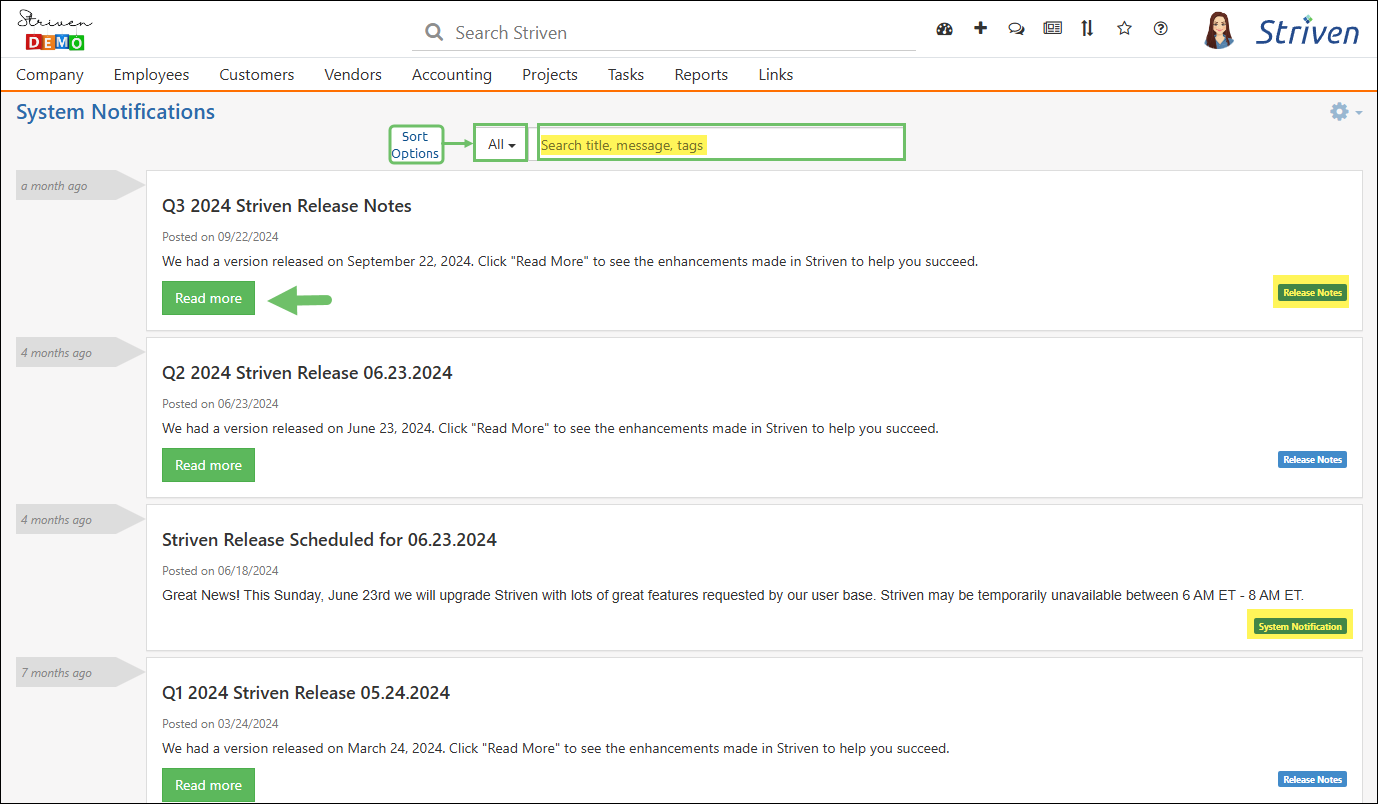
Example of the System Notifications Page
Brief announcements will display directly on this page, but lengthier notifications will have a Read More button. Clicking that button will display the full notification message on the current page.
-
Online Guide
Striven offers a comprehensive library of detailed User Guides and Integration Guides to reference for assistance when using the system. These guides help users quickly learn and understand Striven’s functionality and easily navigate the system, providing clear instructions for a simplified and smoother user experience. The guides are full of detailed visuals, including animated images in some cases, to simplify complex processes or steps. By empowering users to find solutions independently, Striven’s guides reduce the need for support tickets and streamline the overall user experience.
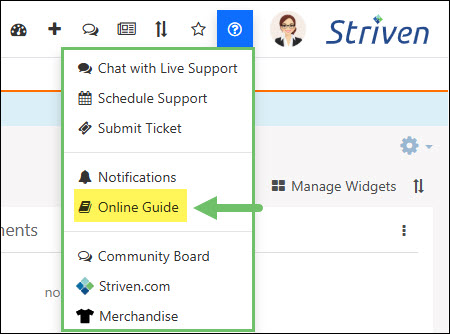
Example of the Link to the Support Guides on the Striven Help Menu
Click the Online Guide link in the Help menu to open the Striven Resources & Support Documentation page in another browser tab. From there, you can choose from the following options:
- Getting Started: Provides links to the most relevant resources when you’re first starting out using Striven.
- Guides: Opens the full list of our published Striven User Guides in a new browser tab.
- Integrations: Provides links to all of our Integration Guides for assistance with enabling and managing your chosen integrations.
- Developers: Opens Striven’s API Reference page in a new browser tab for assistance utilizing API keys for updating and reporting purposes.
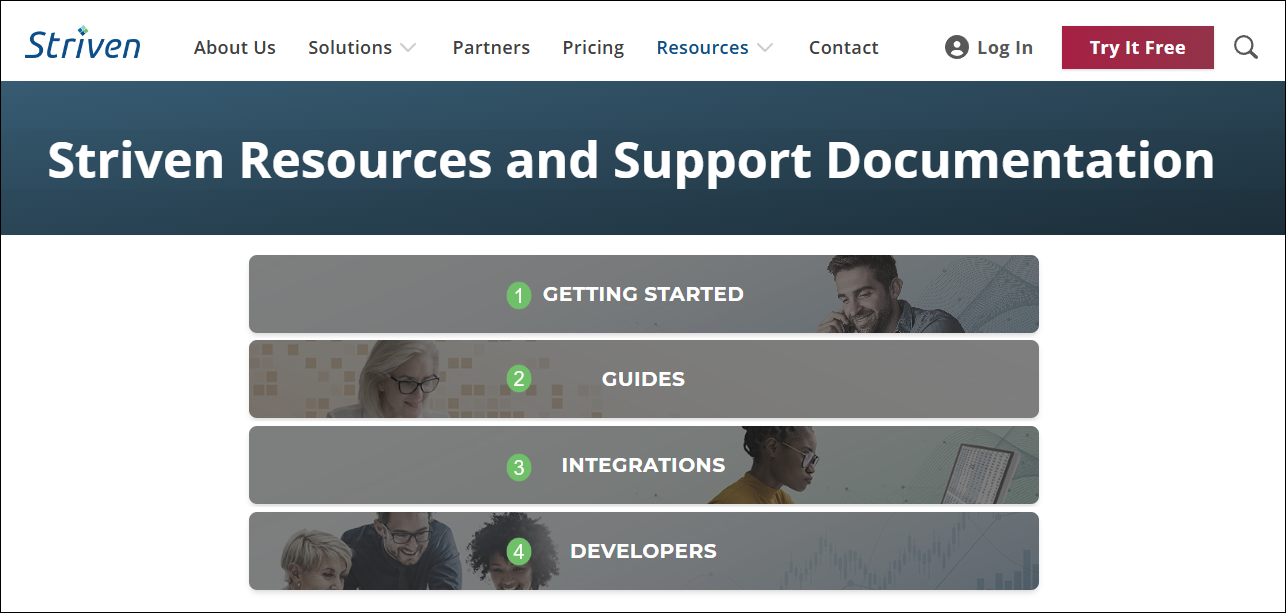
Example of the Striven Resources & Support Documentation Page
-
Community Board
The Striven Community Board is a centralized forum for learning, sharing ideas and suggestions, and helping out fellow Striven users. This resource provides a platform for users to interact and engage with each other, as well as our Help Desk Specialists, to bolster their use and knowledge of Striven.
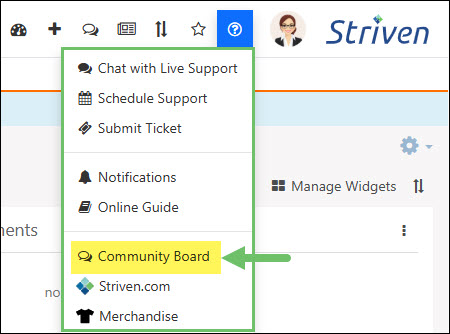
Example of the Striven Community Board Link on the Striven Help Menu
The first time you visit the Striven Community Board, you will need to register to interact with the message boards. The Community dashboard is organized by categories to assist users with finding the information for which they are searching or locating the best place to submit their posts. The available categories are as follows:
- Getting Started: For posts related to familiarizing yourself with the basics when starting to use Striven.
- How To: Review and ask questions in this category to learn more about specific features or configurations in order to accomplish your goals.
- Note: There are a variety of subcategories available under the How To category for a more direct search or listing for posts.
- Announcements: Used mainly for updates on releases, new features, or upcoming events.
- Developers & APIs: Designated for questions or suggestions regarding integrations using Striven’s APIs.
- Product Feedback: For topics sharing new feature or functionality ideas and submitting suggestions for future development of Striven.
- Partners: Designated category for Striven Partners to discuss features, processes, and anything else relevant to their experience as partners.
- Site Feedback: Intended for Striven Community feedback. Promoting the submission of helpful suggestions about how the Community works, how it is organized, and how we can improve it.
- Uncategorized: For topics that just don’t fit anywhere else in the Community.
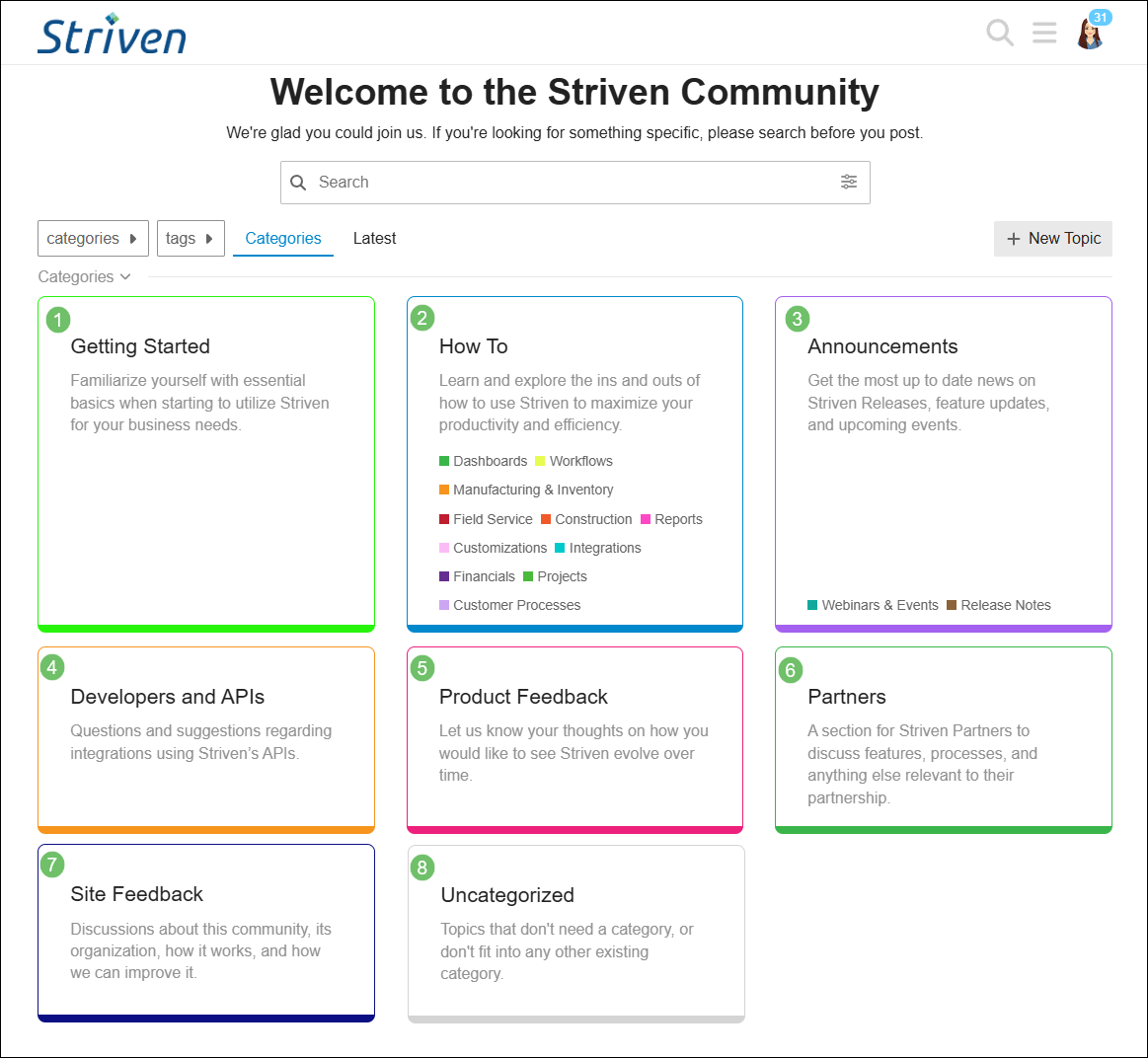
Example of the Striven Community Dashboard
-
Striven Website
The Striven website is full of insight and details related to Striven, with feature highlights, links to pricing details, interesting and relevant blog articles, as well as user guides and other learning resources.
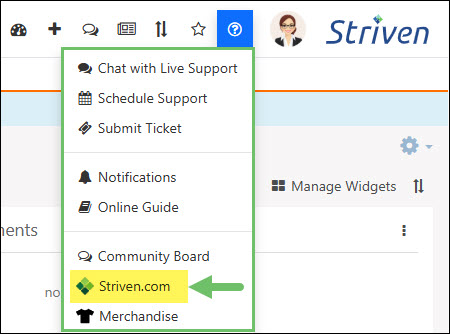
Example of the Striven Website Link on the Striven Help Menu
You can access our website by clicking on the Striven.com link in the Help menu. You can also access it from your web browser by entering Striven.com in your address bar.
-
Striven Search
The Striven Search tool provides a wide variety of granular options to narrow down results, ensuring you can find exactly what you need quickly. This includes navigating to specific pages within Striven, accessing detailed Customer or Vendor records, and managing core work tools such as Projects, Tasks, and Opportunities, while also providing a history of your previous searches for even faster access.
To begin using the Striven Search tool, click the Search or Ask a Question bar at the top of the page.

Example of Where to Find the Search Striven Tool
Selecting this field opens a menu of advanced filtering tools designed to sharpen your search for specific records. By interacting with this section, you can utilize detailed categories like Transactions, Contacts, and Tasks to locate precise information. Furthermore, this enhanced interface offers immediate access to your recent search history and includes a Show Inactive toggle, allowing you to incorporate deactivated entities into your results.
Below is a description of what can be accomplished within the Striven Search utility.
- Search Striven: Initiates a search of whatever query is entered into this field. To view records that have been deactivated or canceled, you can utilize the Show Inactive toggle that appears alongside your results.
- Ask How to Question: Employs an AI-driven tool to crawl through Online Guides, the Community Board, and the API Reference documentation. It is particularly well-suited for users seeking step-by-step instructions on how to complete specific work or for those looking to deepen their understanding of various Striven functionalities.
- Search History: Provides a convenient list of terms and queries that the active user has previously entered.
- Search Filters: Assists with narrowing down search results. This utility is particularly beneficial when looking for specific Striven entities, including Transactions, Contacts, Tasks, and various others.
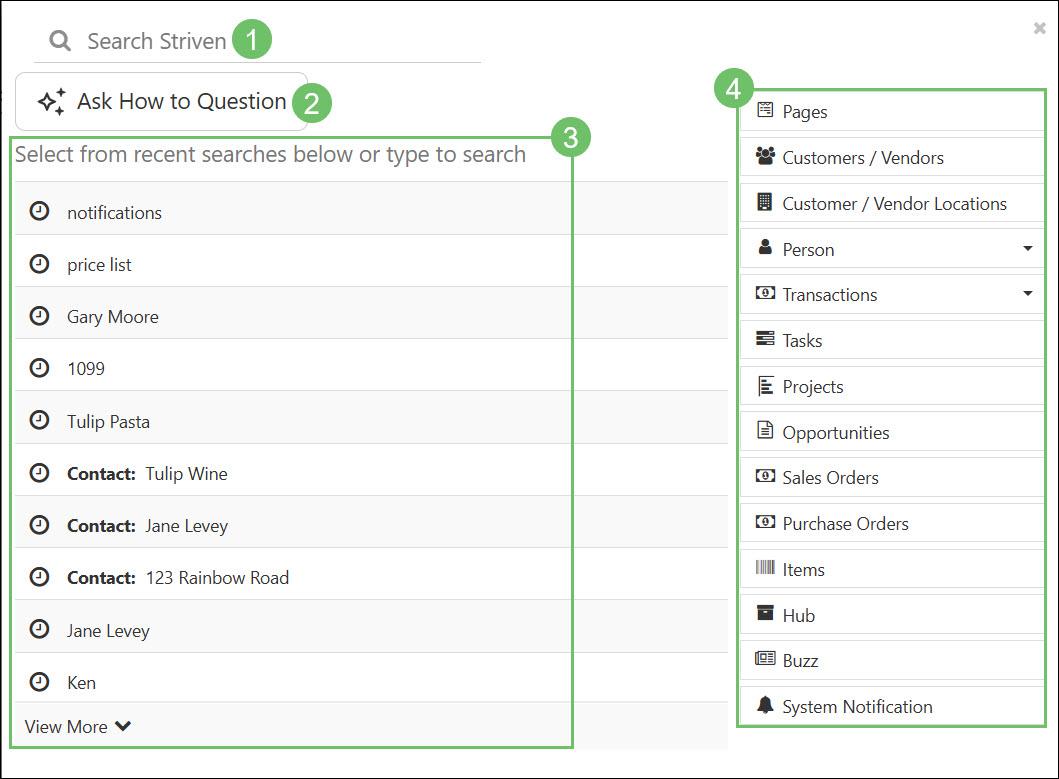
Example of the Striven Search Filters and Options
-
Ask How-To Question
Clicking the Ask How to Question button triggers a query via the Azure OpenAI engine. This feature uses an AI-driven tool to crawl through comprehensive resources to provide step-by-step instructions for completing specific work or deepening understanding of Striven functionalities. To provide these comprehensive answers, the tool searches across multiple resources, including: Striven API Reference materials, the Striven Community Board, and Striven’s User Guides.
To begin using this tool, users can click the Ask How to Question button located within the Striven Search interface. To provide a seamless experience, any text you type directly into the main Striven Search box will automatically carry over into the chat interface the moment you click the button, eliminating the need to retype your prompt. Once activated, the system toggles to a chat-like interface where users can enter prompts, such as How to create an Invoice, and receive AI-generated responses grounded in official documentation.
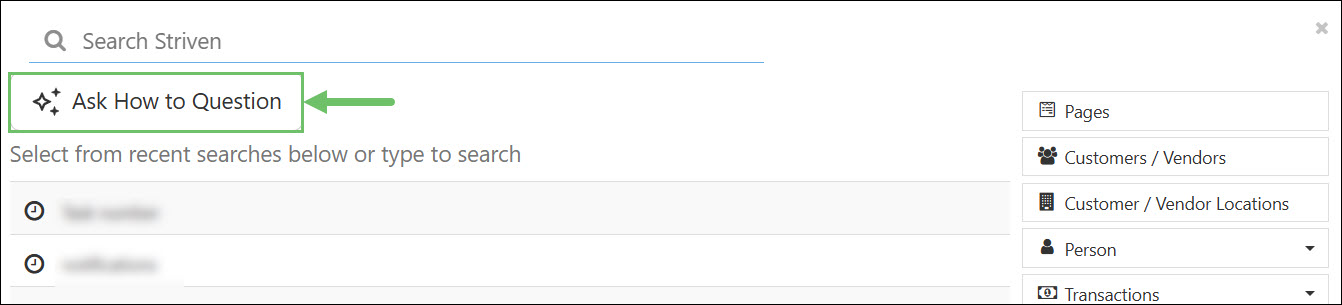
Example of Where to Find the Ask How To Question Button in the Striven Search Tool
To start a conversation with the AI and obtain detailed, step-by-step guidance, enter your query into the provided text box. If you wish to go back to the Striven Search interface, simply select the Back to Striven Search button found at the upper-left side of the screen.
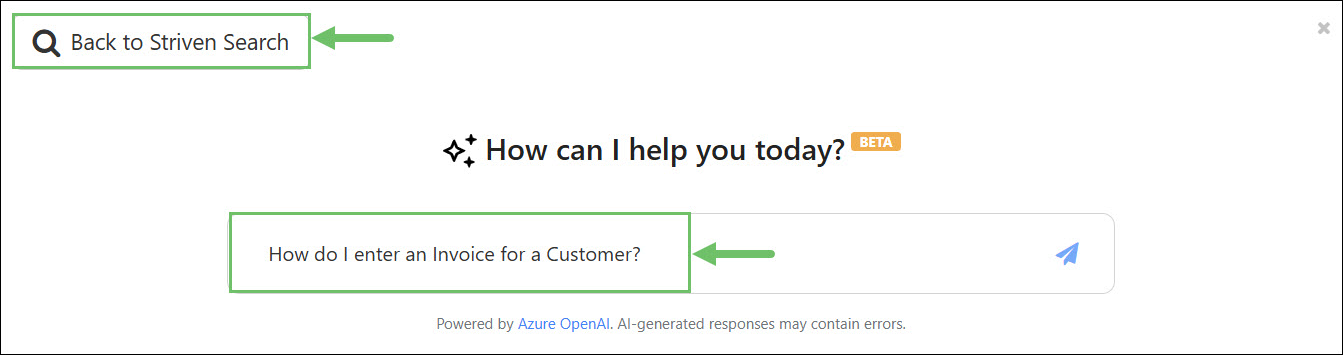
Example of Asking the AI Tool a How To Question
After receiving a response to your question, you can remain in the chat with the AI Tool to seek additional details or ask follow-up questions. To make capturing and evaluating the assistant’s responses easier, you can also utilize the following interactive features:
- Response Feedback: You can provide feedback on the answers provided. Use the feedback icons (thumbs up and thumbs down) to share your insights, which helps improve the accuracy and helpfulness of the tool.
- One-Click Copying: A Copy button allows you to instantly grab the entire response to your clipboard. This provides added convenience, ensuring you can cleanly paste the formatted text directly into Google Docs, emails, or other external applications without losing its structure.
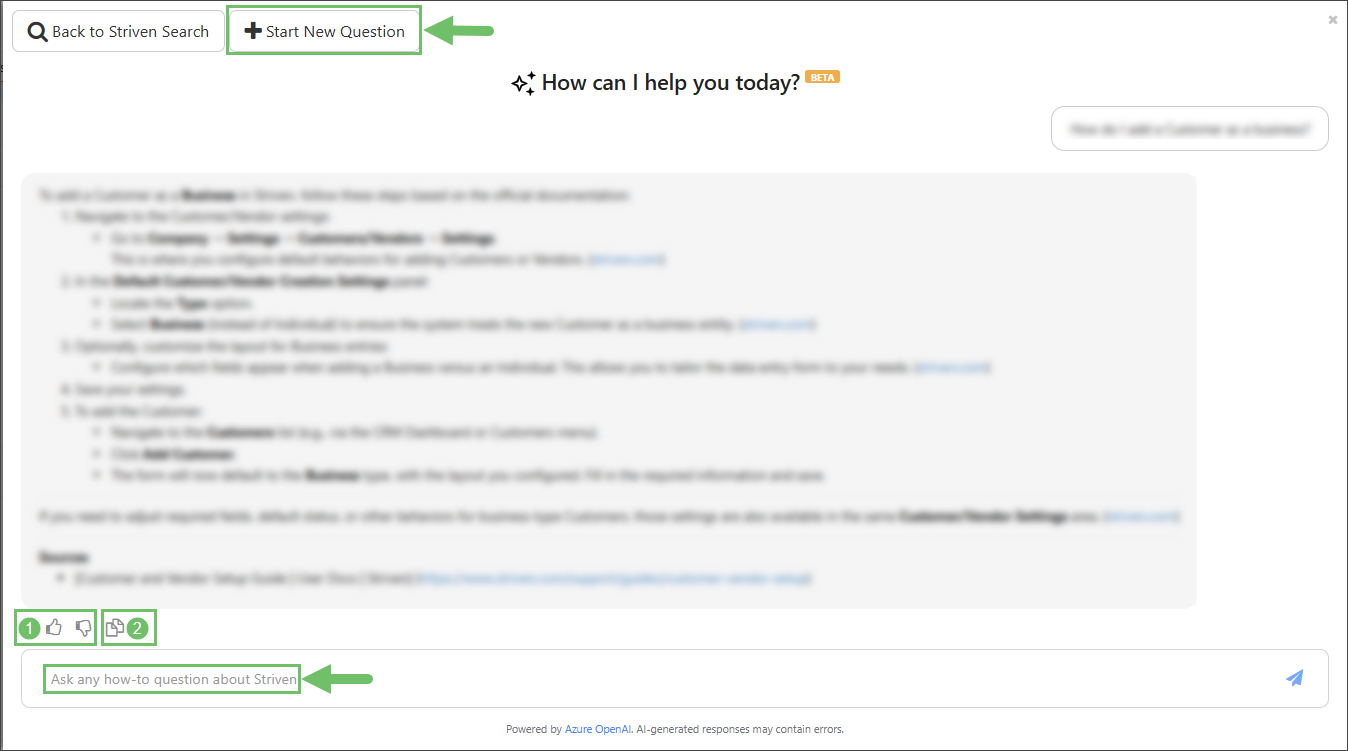
Example of Chatting with the AI Tool in Striven Search
To begin a fresh conversation, simply use the Start New Question button.
-
Recap
With this guide, we have reviewed all the ways you can gain assistance while using Striven. We’ve covered where to find helpful resources such as our live chat, where to submit a support ticket, and how to schedule a screenshare meeting with a Help Desk Specialist. Additionally, we’ve explored ways to find online documentation for Striven User Guides and Integration Guides, as well as interacting with other users within the Striven Community. By providing this assortment of support options, Striven aims to empower users to resolve their requests efficiently and independently, while also offering personalized assistance when needed.
Have a Question?
Ask the Striven Community
User-sourced how-to’s, feedback, and more!
FAQs
-
Where can I find my current and past Support Tickets submitted from the Help menu?
You can either navigate back to the Submit Ticket page from the Help menu to view your submitted requests, or you can sign in directly to the Striven Customer Portal and view your Tasks there. You should also receive a confirmation email when the Task is created, which will have a link to view the Task in the Portal.