

Purchasing & A/P
Purchase Order Actions
Support Guide
-
Overview
This guide will review the many Actions that can be taken from the Purchase Order page. From creating related entities, such as Bills or Bill Credits, to receiving Items, there are plenty of actions that can be made right from this screen without having to navigate away.
Read this guide if you are trying to:
✔ Create a copy of a Purchase Order.
✔ Create a Bill or Receive Items from the Purchase Order.
✔ Generate a Bill Credit related to a Purchase Order.
-
Permissions
Access to Purchase Order Information in Striven is managed by a variety of user permissions. To verify your current access, consult your system administrator or the individual responsible for assigning and managing User Roles within your organization.
You can also check the permissions specifically related to the page you are viewing in Striven by clicking on the kebab menu in the top right corner of the page and selecting Settings. This will display the Settings Info page, where the relevant permissions are listed, along with an indication of your current access status.
If there is a permission listed to which you do not have access, the system may offer the option to Request Access (depending on your organization’s system settings). Choosing this option will notify a designated individual, allowing them to grant you that specific permission.
-
Purchase Order Actions
Striven provides numerous actions designed to streamline the creation of connected entities. By leveraging these shortcuts, you maintain a direct link to the original Purchase Order, which is easily accessible via the Related To tab across the platform. Directly from the Purchase Order Actions menu, you can generate Bills or Bill Credits, duplicate the existing Purchase Order, or record the receipt of items from your Vendor.
- Copy PO: Creates a new, duplicate order with its own unique order number and timestamp, acting as a fully modifiable template. The system ensures all essential field details, like the Vendor info, Contact, Purchase Order details, Items, Quantity, Cost, etc., are accurately copied to the new Purchase Order.
- Create Bill: This action initiates a Bill used to facilitate payments for any Items received against the Purchase Order.
- Create Bill Credit: Creates a transaction used to record credits or refunds provided by a Vendor for previously purchased goods or services.
- Receive Items: This workflow is employed when Items or services from a Purchase Order have been physically received, though the official Bill or Invoice has not yet been provided by the Vendor.
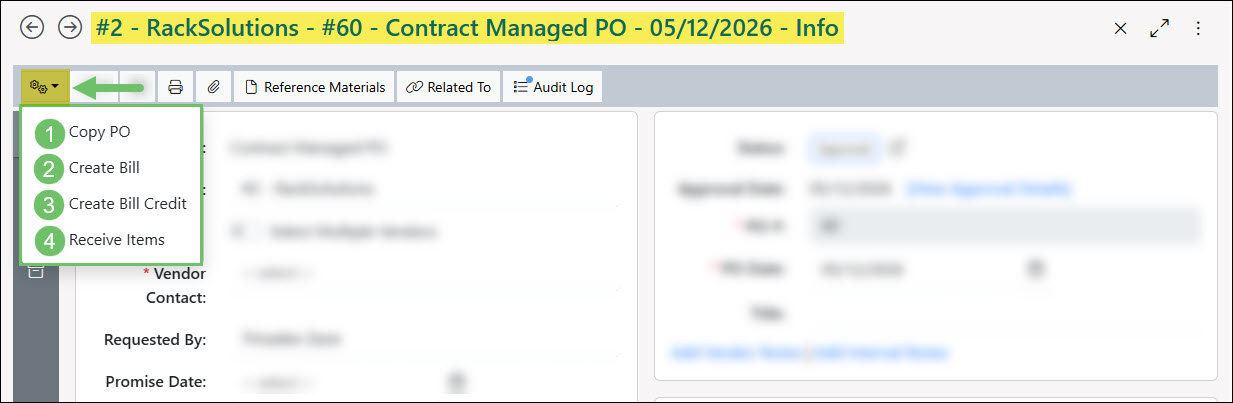
Example of Purchase Order Actions Menu

-
Recap
The Purchase Order Actions Guide details the process for utilizing the Purchase Order page in Striven to efficiently create linked records like Bill Credits, Bills, and Receiving Items. Furthermore, this guide outlines the steps needed to replicate an existing Purchase Order.
FAQs
-
Why is the Create Bill option not showing on the Purchase Order Actions menu?
To create a Bill in Striven you will need to make sure your administrator has added the “Bills – Add” permission to your User Role.