


Purchasing & A/P
Purchase Order Management
Support Guide
-
Overview
Purchase Order management is the process of overseeing a Vendor’s Order, tracking it from the beginning through to its final completion. Review steps for tracking order details and ensuring all related entities are managed efficiently. This guide is designed to help users master Striven’s tools for Purchase Order management, covering navigation, information viewing, and Template creation.
Read this guide if you are trying to:
✔ Navigate the Purchase Order List page.
✔ Understand Purchase Order Information that is available.
✔ Create Purchase Orders through saved templates.
-
Permissions
Access to Purchase Order information in Striven is managed by a variety of user permissions. To verify your current access, consult your system administrator or the individual responsible for assigning and managing User Roles within your organization.
You can also check the permissions specifically related to the page you are viewing in Striven by clicking on the kebab menu in the top right corner of the page and selecting Settings. This will display the Settings Info page, where the relevant permissions are listed, along with an indication of your current access status.
If there is a permission listed to which you do not have access, the system may offer the option to Request Access (depending on your organization’s system settings). Choosing this option will notify a designated individual, allowing them to grant you that specific permission.
-
Purchase Orders List
The Purchase Order List provides visibility and accessibility into critical data regarding orders that have been saved for your Vendors. Additionally, you can locate Purchase Orders within a Vendor’s record by selecting the Purchase Order option from the waffle menu on the Vendor’s Dashboard. To view the Purchase Orders List, navigate to Vendors → Purchasing → Purchase Orders.
- Add Purchase Order: Displays the Add Purchase Order page, where you can fill in the appropriate fields and set the Purchase Order status, or send to your Vendor for approval.
- Import: Allows you to import Purchase Orders in bulk.
- Information Displayed: Information such as the Purchase Order, Purchase Order Type, Status, Billing Status, Requested By, PO Date, Approved Date, and Promise Date are available when viewing the Purchase Order List page.
- Total: Displays the Purchase Order Total.
- View Log: Indicates if the Purchase Order has been viewed within the Customer/Vendor Portal with a magnifying glass icon. Clicking on this will display more information as to the dates and times the Purchase Order was viewed.
- Attachments: Indicates if the Purchase Order has attachments. An attachment icon is visible which highlights if attachments exist with a blue dot. Clicking it allows viewing, editing, or uploading new attachments.
- Actions: Provides a complete list of actions that can be taken from the Purchase Order List. Quickly navigate to the Purchase Order tabs, such as Discussions or Assignments. You can also take actions such as creating a copy of the PO or setting the status of the Purchase Order.
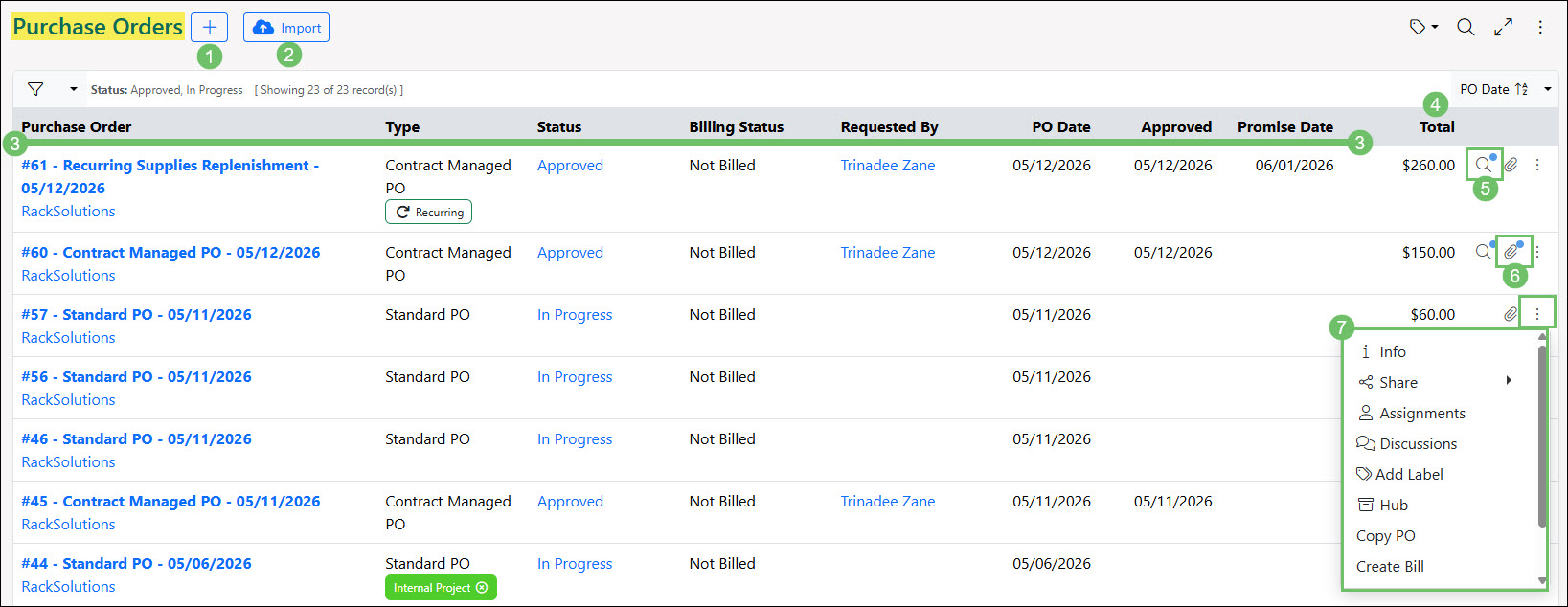
Example of the Purchase Order List Page

-
Purchase Order Navigation
Upon viewing a created Purchase Order, there are two navigation bars present. The Top Navigation Bar contains options for Purchase Order Actions, and ways to interact with the Purchase Order like printing or sharing. The Left Navigation Menu presents options to view information related to the Purchase Order like Assignments, Discussions, and more. The options available from each navigation bar are detailed in the section below.
-
Top Navigation Bar
- Purchase Order Actions: Provides options to create new entities related to the Purchase Order, like Bills, Bill Credits, and more. You can learn more about the options available here in our Purchase Order Actions Guide.
- Share: Allows you to share the Purchase Order via an Internal Link or a Vendor Portal Link.
- Email: Enables you to send the Purchase Order directly as an Email to contacts.
- Print: Allows you to choose the Purchase Order Format you would like to use for printing the Purchase Order, then generate a PDF of the Order for printing.
- Attachments: Enables you to upload and view attachments related to the Purchase Order. These attachments are visible in the Customer/Vendor Portal. If there are materials related to the Purchase Order that should only be available internally, please utilize the Purchase Order Hub for these documents.
- Reference Materials: Allows you to view supporting documentation related to the Purchase Order Items. Reference Materials are documentation or uploads that can be stored at the Item level.
- Related To: Displays a popup which will hyperlink each related entity such as Bills, Bill Credits, Sales Orders, etc.
- Audit Log: Displays timestamped changes made to the Purchase Order by users. When a change is made, the person who made the change, along with the date and time, will be listed.
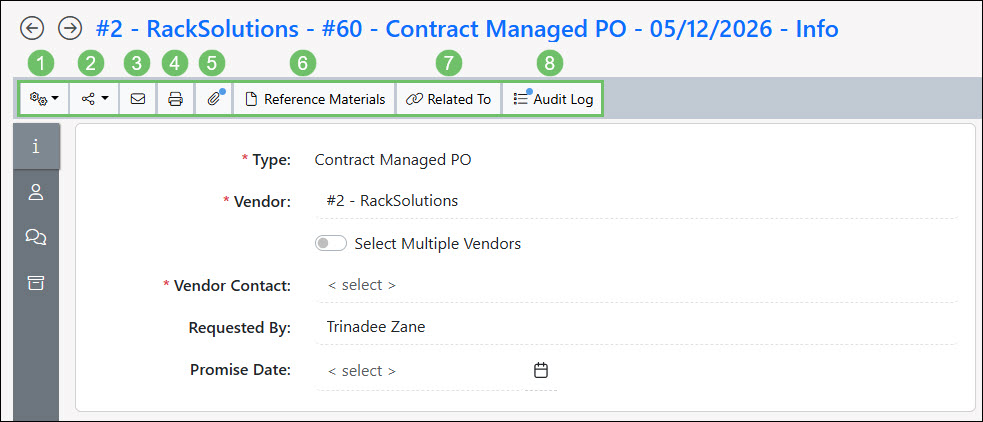
Example of the Top Navigation Bar on a Purchase Order
-
Left Navigation Menu
- Information: The default display when viewing a Purchase Order, the Purchase Order Info page allows you to view details such as Vendor and Contact information, Purchase Order information, and more. You can read more about the Purchase Order Info page in the Purchase Order Information section below.
- Assignments: Opens the Assignments pane, where you can view and manage any Assignments that have been given to the Purchase Order along with the associated Assignment Category. This allows you to designate specific work that each Employee will be in charge of when it comes to the Purchase Order. A globe icon will be present next to the assignments set as visible in the Portal.
- Discussions: Allows you to view all Purchase Order related Discussions that have been either sent or received. Viewing options for Discussions include Timeline or Thread view.
- Hub: Navigates to the Purchase Order Hub, where related attachments, documents, and notes can be stored for easy access. To learn more about Hub, visit our Hub Guide.
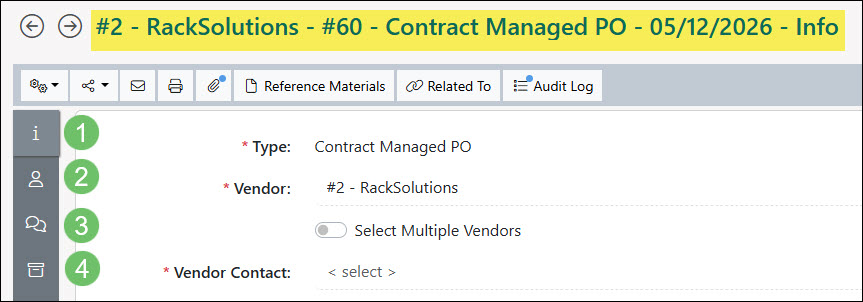
Example of the Left Navigation Menu on a Purchase Order
-
Purchase Order Information
The Purchase Order Info page will display all the Order information needed to process your request for goods or services. From the status to the related transactions, this can all be gathered from right from viewing the Purchase Order itself. While Standard Purchase Orders offer flexibility and allow for editing as needed, Contract Managed Purchase Orders follow a more strict editing process where line item editing is disabled once in fulfilled or closed status, unless you have the “Purchase Orders – Edit Contract Managed Approved PO” permission.
- Vendor Information: Allows you to enter the Vendor Information related to the Purchase Order. For example, the related Vendor, Vendor Contact, and preferred currency can be entered.
- Promise Date: Indicates the date that the Purchase Order is expected to be fulfilled and completed. A time can be added along with the Promise Date depending on how the PO Type is configured.
- Labels: Allows you to apply Labels to the Purchase Order for enhanced organization, or quickly manage your existing Purchase Order Labels directly from this page specifically for the PO’s associated type.
- Order Information: Displays additional Purchase Order information, such as the current Status of the Purchase Order. Additional information will be listed in this section including the PO # and PO Date. If the Purchase Order was set up as contract managed and went through an approval process, the date of approval will be listed as well with a link to view the Approval Details.
- Vendor/Internal Notes: Provides fields to store any communications that you would like to be saved with the Purchase Order for internal purposes or to share with the Vendor.
- Shipping Information: Allows for the selection of the Ship To and Ship Via options from the drop down menu. Using the Dropship this purchase order option gives the ability to select a Customer’s location to where the goods or services will be delivered or take place.
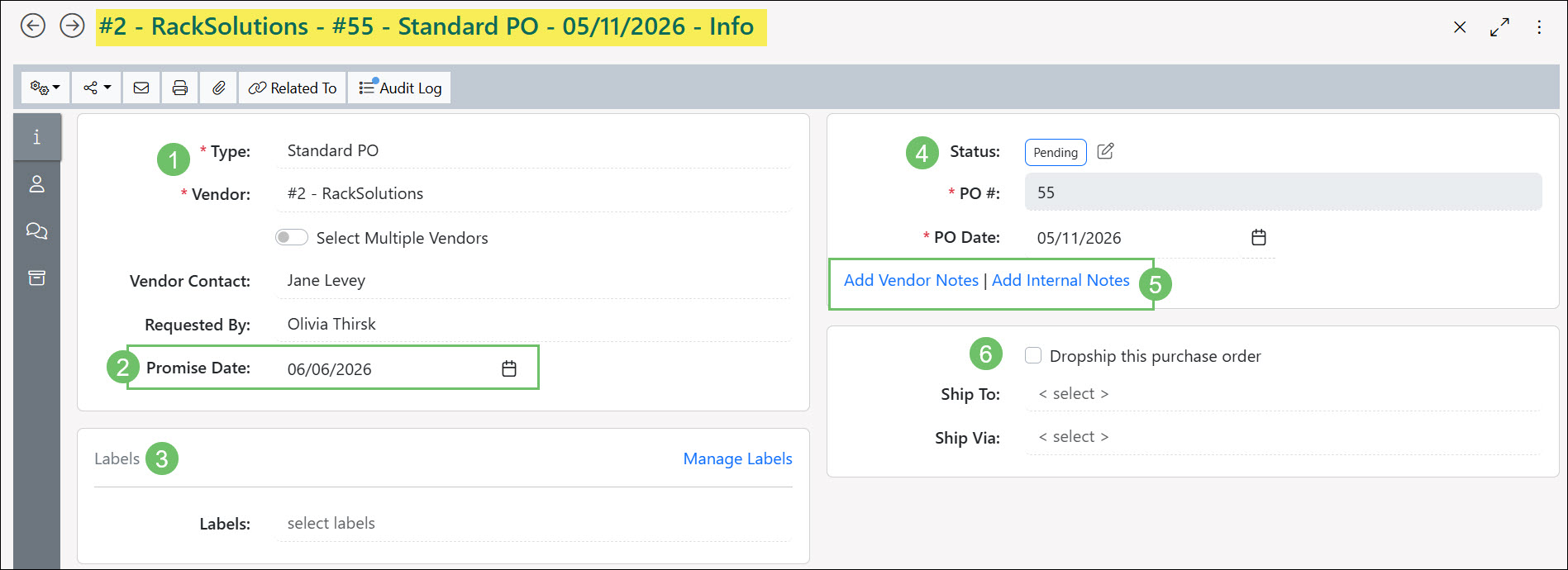
Example of the Purchase Order Info Page
-
Purchase Order Statuses
Once you begin creating Purchase Orders, you will notice they may reside in different statuses depending on the type of PO or where the order is currently within its lifecycle. Below is a detailed list of the Purchase Order Statuses and what each of them entail:
- Incomplete: Saves the Purchase Order in its current status without running a validation check to make sure all required fields are entered.
- Pending: Saves the Purchase Order with a validation check to make sure all required fields are filled in but has not been sent to a Vendor for approval. This status indicates the PO is waiting to be internally reviewed.
- Pending Approval: Indicates that the Contract Managed Purchase Order has been sent to Vendor(s) and is waiting to be approved.
- Approved: Indicates that the Purchase Order has either been approved by the Vendor or has been reviewed internally by another Employee.
- Declined: The Vendor has chosen to decline the Purchase Order through the Vendor Portal.
- In Progress: Once a PO has been approved, users can update the status manually to In Progress. A Purchase Order will also be set to In Progress if there are related Bills that have been created but not all Items from the Purchase Order have been billed yet.
- Fulfilled: The Purchase Order has related Bills with all Items being accounted for. If users have the “Purchase Orders – Fulfill” permission in their user role then they will be able to manually update the status of the PO to Fulfilled.
- Closed: The Purchase Order has manually been updated to Closed by an Employee. This typically indicates the PO has been completed and is finished being processed.
- Canceled: The Purchase Order has manually been updated to Canceled by an Employee. This typically is used to indicate the Purchase Order is no longer active or was made by mistake.
-
Purchase Order Templates
Purchase Order Templates save significant time and effort by eliminating repeated manual entry for Purchase Orders that are created on a regular basis for specific goods or services. After adding information to a Purchase Order, there’s an option available at the bottom of the page that allows you to Save this purchase order as a template.
Once selected, you may choose the name for the Purchase Order Template, and then choose which information will be copied to new Purchase Orders once the Template is used. You may select to Use template name as the purchase order name, Save pricing information, and Save Vendor and Shipping information.
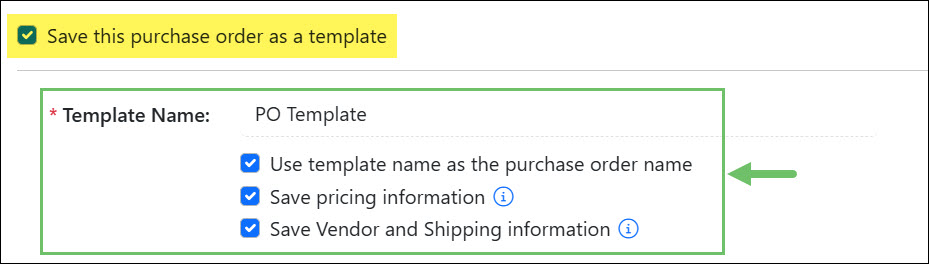
Example of the Save as Template Settings Options on a Purchase Order
-
Using Purchase Order Templates
To use a Template to create a new Purchase Order, navigate to the Add Purchase Order page, then select the Create from Template option at the top of the page.
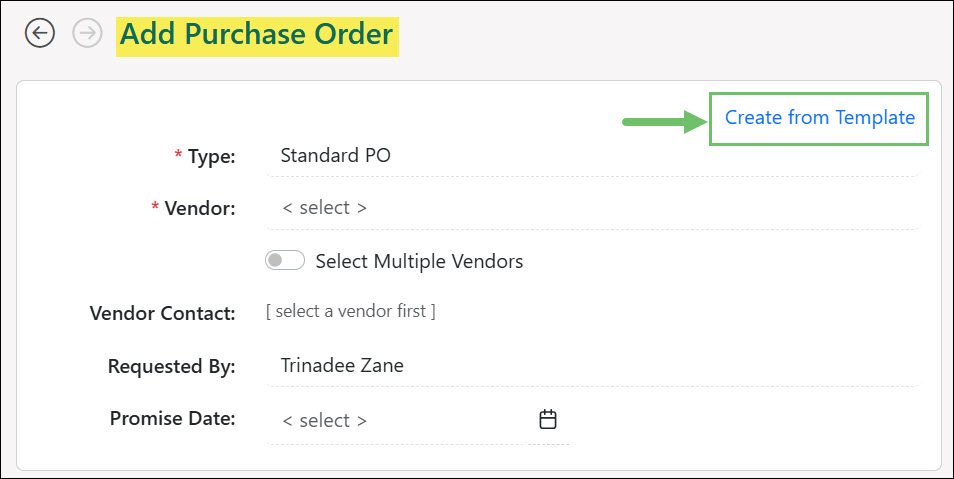
Example of the Create from Template Option on a Purchase Order
After selecting the Create from Template option, the following options will appear:
- Select Template: Allows you to search for a Purchase Order Template to use, or select a Template from the drop-down list.
- Hide: Collapses the available options, and you will need to select the Create from Template option again to manage or select a Template for use.
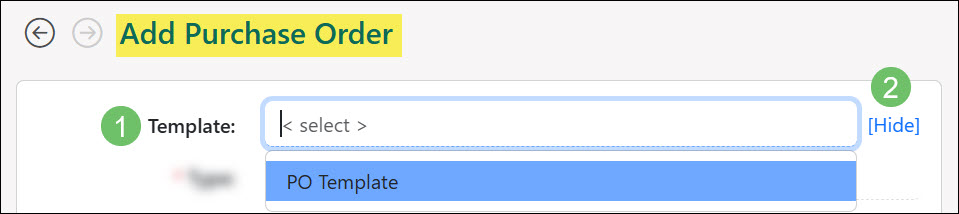
Example of the Available Options when Creating a Purchase Order from a Template
After a Purchase Order Template has been selected for use, the page title will indicate that you are now adding a Purchase Order using a Template. Select fields on the Purchase Order will be filled in with the information you saved to the Template, like Vendor, Vendor contact, shipping information, cost, and labels.
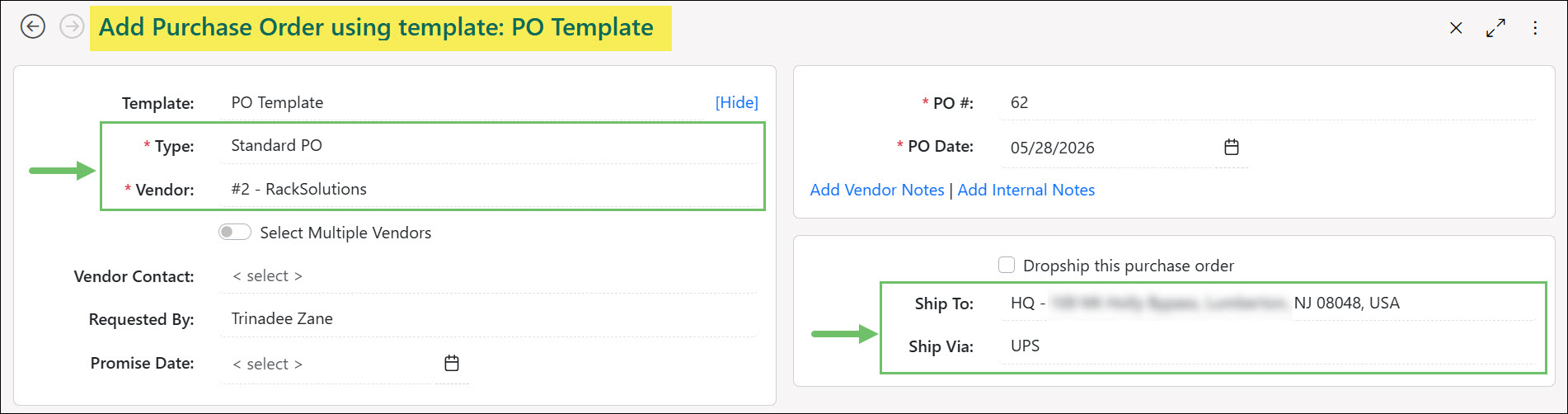
Example of the Information Carried Over to the New Purchase Order from the Template
-
Managing Purchase Order Templates
Purchase Order Templates can be managed by navigating to Company → Settings → Accounting → Purchasing → POs → Purchase Order Templates. From the Purchase Order Templates list, the following actions and information is available:
- Add: Initiates the process to create a new Purchase Order Template.
- Actions: Gives the following two (2) available actions:
- Create Purchase Order: Initiates the process of creating a new Purchase Order using the selected template.
- Copy Template: Creates a copy of the existing template.
- PO Template Name: A hyperlink listing the name of the template. Clicking on the template name will open the PO Template in order to make changes as needed.
- Type: Lists the Purchase Order Type that is selected on the template.
- Deactivate: Removes the template from the list of available Purchase Order Templates.
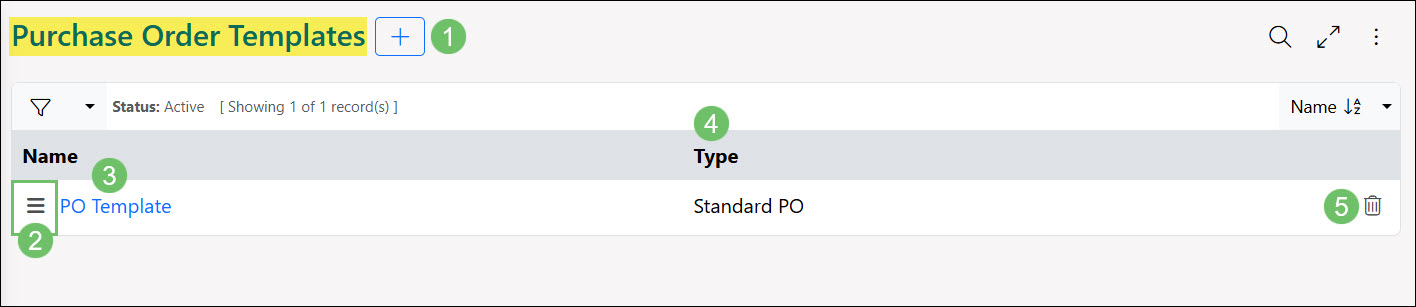
Example of the Purchase Order Templates List
You can also access templates from the Purchase Order List page. Templates will be identified by the label Template under the type column. From the Purchase Order List page, use the Actions menu to complete the following processes for the PO Template:
- Create Purchase Order: Initiates the process of creating a new Purchase Order using the selected template.
- Copy Template: Creates a copy of the existing template.
- Mark as Cancelled: Moves the template into a deactivated status.
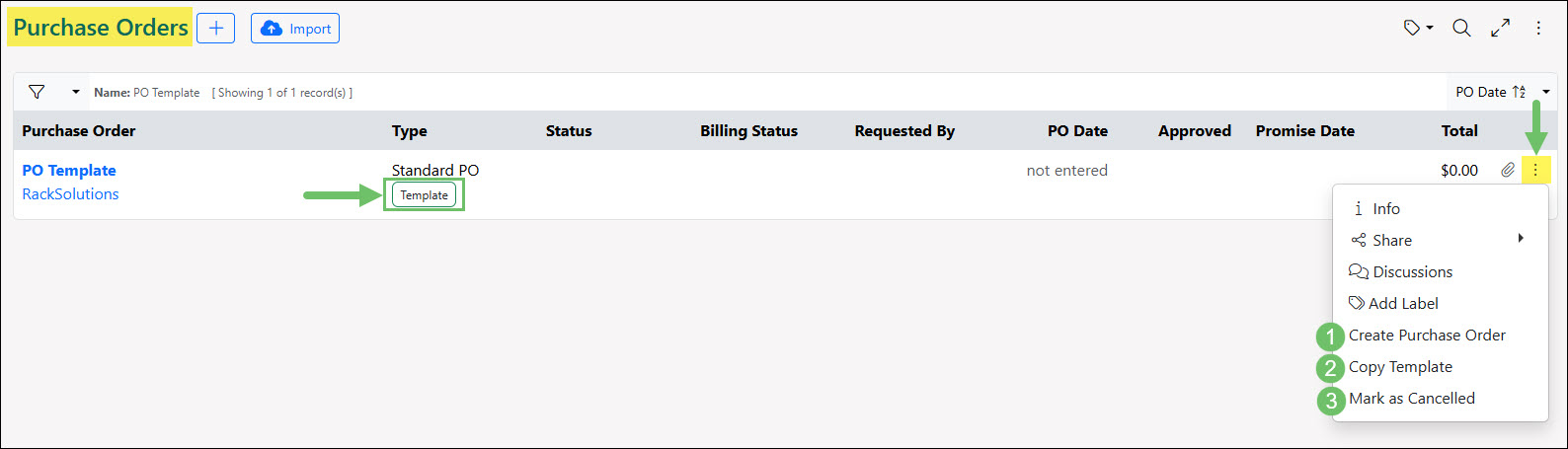
Example of PO Templates from the Purchase Order List
-
Recap
With this guide, we have discussed navigating the Purchase Order List page and how to effectively filter and find existing Purchase Orders. We’ve also reviewed the information that is available from a Purchase Order to assist you in finding the details you need regarding your Vendor Orders. We’ve also covered what information is saved and stored within a Purchase Order Template and how to create new Purchase Orders from saved Templates.
FAQs
-
Why am I unable to add an attachment to my Purchase Order?
This may be due to the current status of the Purchase Order. If the Purchase Order has already been reviewed and approved by the Vendor, this will lock the Purchase Order and prevent you from adding additional information such as attachments. The Purchase Order Hub can be utilized in these scenarios instead.
-
Why is my PO missing the option to enter a Promise Date and Time?
This may be due to how you have the PO Type configured. Review how the Display Fields section is set up in the PO Type to confirm if Promise Date is enabled.