


Sales Management
Sales Order Templates
Support Guide
-
Overview
In Striven, Sales Order Templates function as standardized blueprints designed to streamline the sales process by allowing users to generate Sales Orders without repeatedly entering standard details. Accessed via the Manage option when creating a Sales Order from a template, these presets are managed based on specific user permissions within the system. Within the central Sales Order Template view, users can easily search and filter through existing configurations or select the Add Template option to direct themselves to the Add Sales Order page, where brand-new templates with predefined line Items, terms, and Customer details can be created and saved.
Read this guide if you are trying to:
✔ Learn how Sales Order Templates can be used.
✔ How to create new Sales Order Templates.
✔ Discover the steps to manage existing Sales Order Templates.
-
Sales Order Templates
Sales Order Templates save significant time and effort by eliminating repeated manual entry for Sales Orders that are created on a regular basis for specific goods or services. After adding information to a Sales Order, there’s an option available at the bottom of the page that allows you to Save As Template.
Once selected, you may choose the name for the Sales Order Template, and then choose which information will be copied to new Sales Orders once the Template is used. You may select to copy the Sales Order Name, Customer and Location information, and pricing information for the Items on the Sales Order.
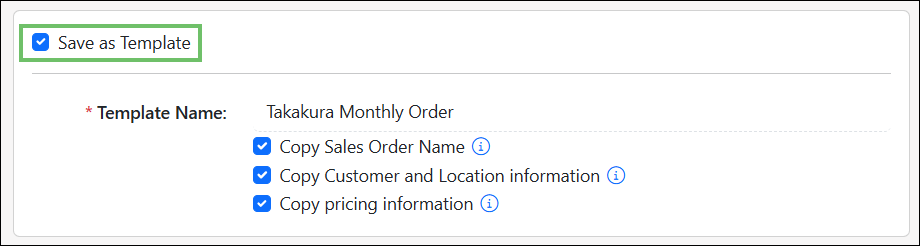
Example of the Save as Template Settings Options on a Sales Order

-
Using Sales Order Templates
To use a Template to create a new Sales Order, navigate to the Add Sales Order page, then select the Create from Template option.
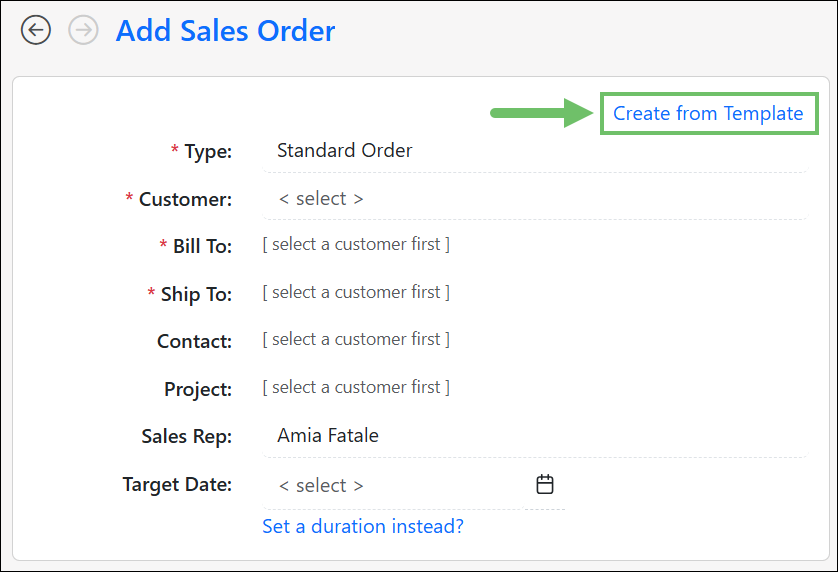
Example of the Create from Template Option on a Sales Order
After selecting the Create from Template option, several options will appear:
- Manage: Directs you to the Sales Order Templates page of your Sales Order Settings. From there, you can view all created Sales Order Templates, or create new ones.
- Hide: Collapses the available options, and you will need to select the Create from Template option again to manage or select a Template for use.
- Select Template: Allows you to search for a Sales Order Template to use, or select a Template from the drop-down list.
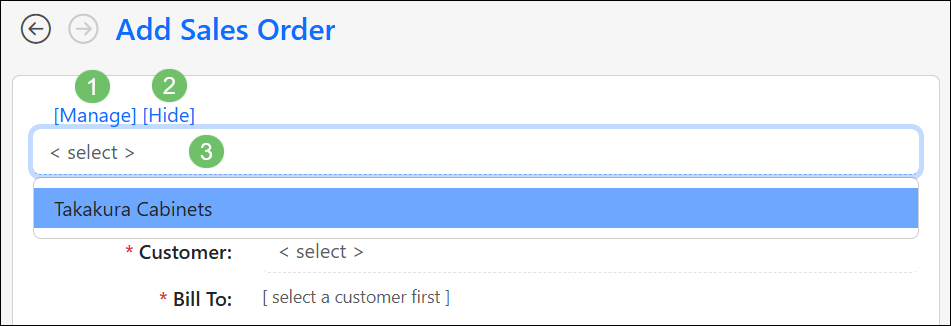
Example of the Available Options when Creating a Sales Order from a Template
After a Sales Order Template has been selected for use, the page title will indicate that you are now adding a Sales Order using a Template. The name of the Template chosen will be displayed there as well. Select fields on the Sales Order will be filled in with the information you saved to the Template, like Customer Name, Locations, and Sales Order Name.
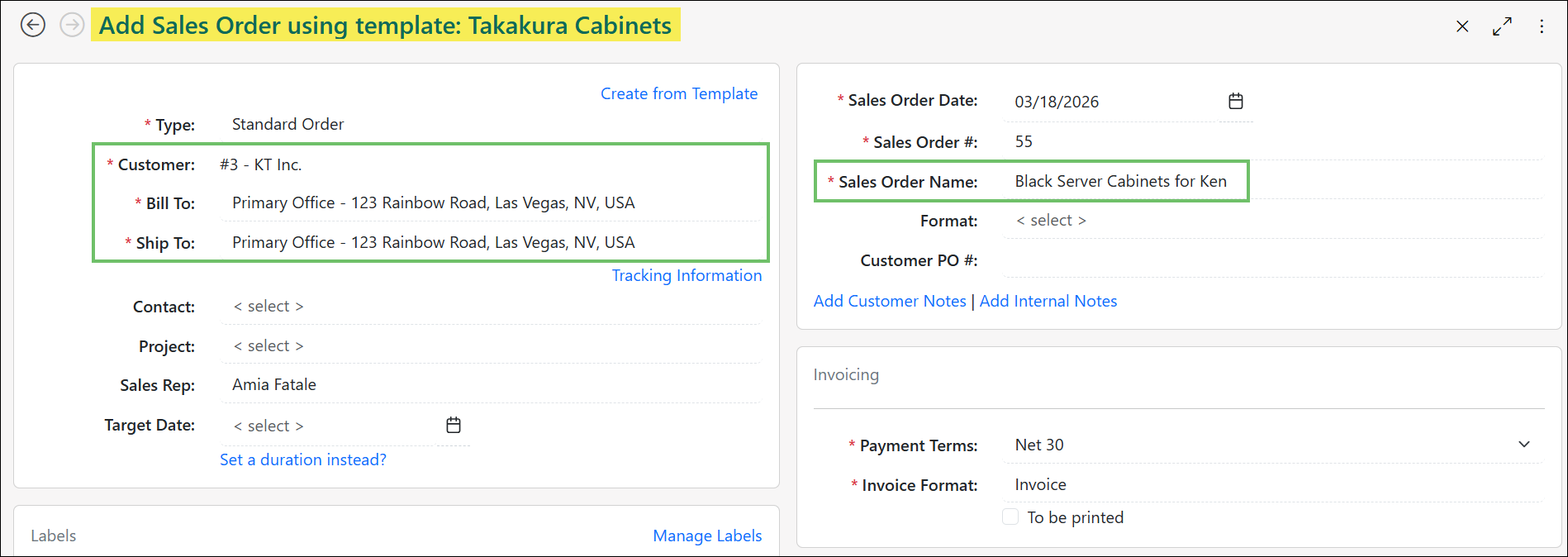
Example of the Information Carried Over to the New Sales Order from the Template
-
Managing Sales Order Templates
Sales Order Templates can be managed by selecting the Manage option available when choosing to create a Sales Order from a Template, or by navigating to Company > Settings > Accounting > Sales > Sales Orders > Sales Order Templates.
From the Sales Order Templates page, we have the ability to create, edit, or deactivate Sales Order Templates. The section below details the options available:
- Add Template: Allows you to create a new Sales Order Template by directing you to the Add Sales Order page.
- Search: Provides search filters to find a specific Template by Name or Type (referring to Sales Order Type).
- Expand/Collapse: Allows you to make the page fullscreen, or revert the page to a smaller view.
- Sort: Allows you to sort the list of Templates by Name, Type, or Created By.
- Sales Order Template: Allows you to view the Order the Template was created from, or the base Template.
- Deactivate: Enables you to deactivate the selected Template to prevent further use.
- Template Actions: The hamburger menu located next to the Template Name offers you two action options:
- Create Sales Order: Allows you to quickly create a new Sales Order using the selected Template.
- Edit Template: Selecting this option allows you to edit the Template via a pop-up window, where you can change the name of the Template, or adjust what information is copied from the original Order.
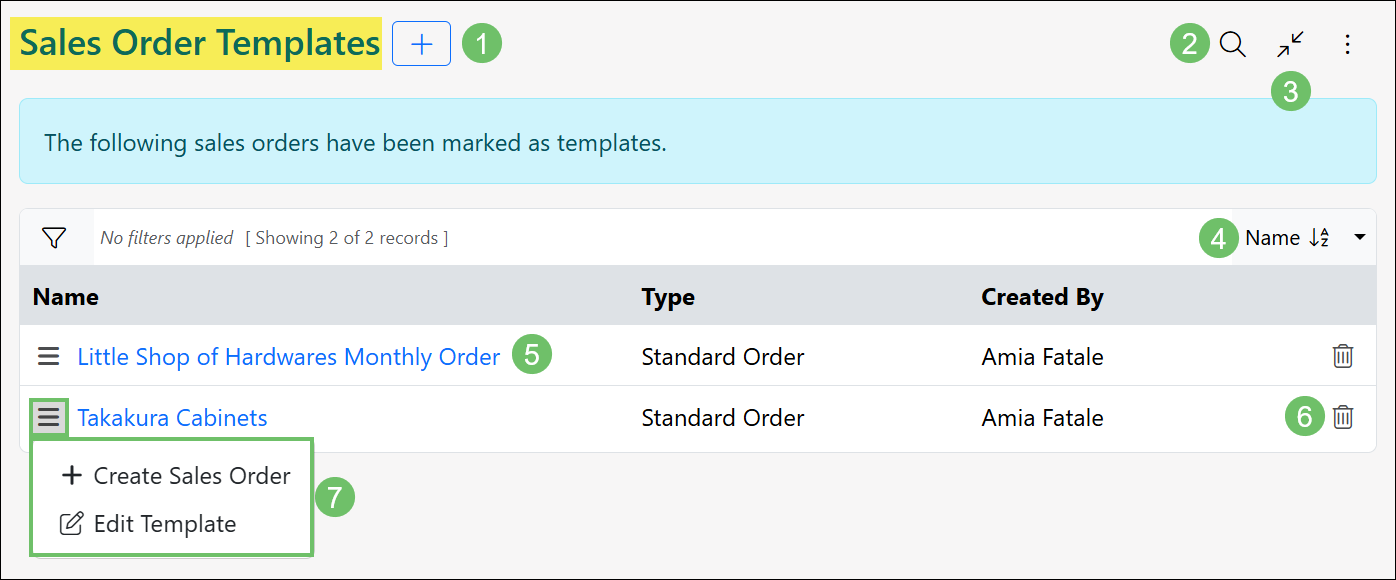
Example of the Sales Order Templates Page
-
Recap
Sales Order Templates serve as a permission-governed tool for maintaining operational efficiency and data consistency across frequent sales transactions. By centralizing management into a single hub accessible directly from the sales order workflow, the system allows users to seamlessly create, locate, and review standardized presets. Ultimately, leveraging these templates minimizes redundant data entry while ensuring that recurring orders adhere to established company terms and line-item configurations.