


Inventory & Items
Item Reporting
Support Guide
-
Overview
This guide provides an overview of key reporting and inventory tracking features in Striven, designed to support financial analysis and stock management. You will learn to utilize the Income by Item and Income by Item – Detail reports to gain insights into profitability and sales performance, as well as the Item Quick Report for managing inventory levels.
Read this guide if you are trying to:
✔ Analyze sales patterns and profitability across all inventory to inform pricing and promotional strategies.
✔ Drill down into specific transaction details to understand how income figures are calculated.
✔ Efficiently monitor current stock levels for items categorized as Inventory or Manufactured.
-
Income by Item
The Income by Item report offers a detailed financial analysis of company performance by product or service. Analyzing Transaction data, it reveals sales patterns and profitability across all inventory. Analyzing profitability by Item highlights high-margin offerings, crucial for focusing sales, promotions, and product/pricing strategies to maximize profitability. This report is a powerful tool for strategic decision-making to refine offerings and improve financial success.
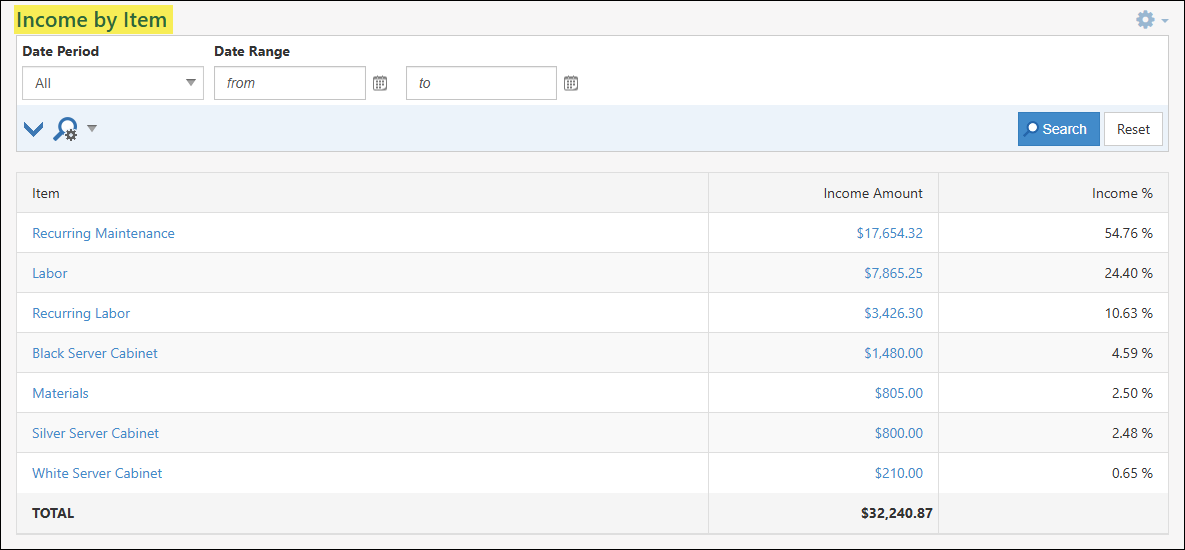
Example of the Income by Item Report

-
Permissions
There are two (2) User Role permissions related to the Income by Item Report.
- “Income By Item – Export”
- “Income By Item – View”
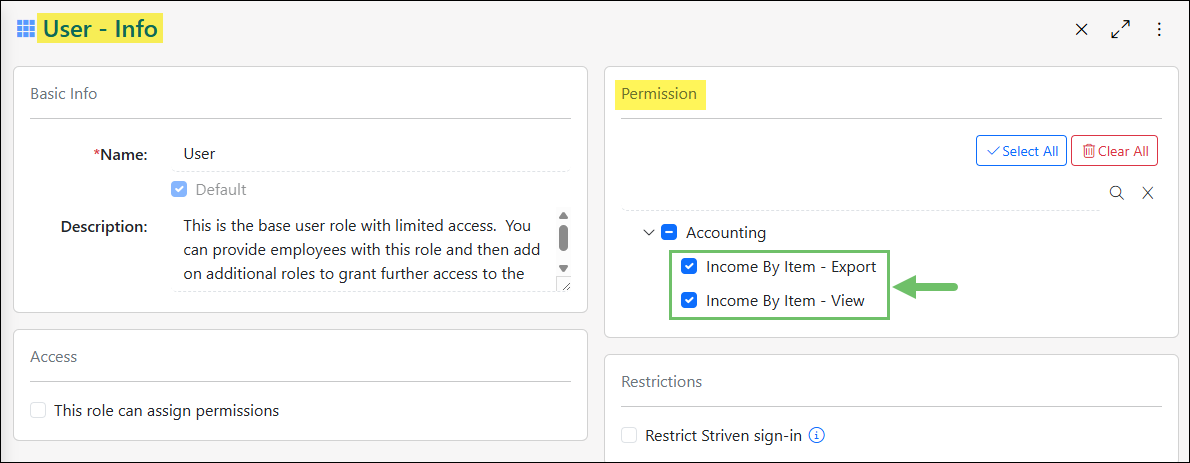
Example of Permissions Related to the Income by Item Report
Learn more about managing User Roles and Permissions in Striven by reviewing the User Roles Guide.
-
Viewing the Income by Item Report
To access the Income by Item report, navigate to Reports → Income & Receivables → Item.
Below is a screenshot illustrating how the Income by Item report appears and a description of what can be accomplished there.
- Search Filters: Narrows down results listed in the report based on available search filters. Search filters include selecting a date period or entering in a specified date range.
- Item: Lists the Item that has income associated with it based on related Transactions. Clicking on the Item name listed in this column will open the Item Info page for more information regarding the product.
- Income Amount: Calculates the total income based on related Transactions to the Item listed in the report. By clicking on the amount listed here, an Income by Item – Detail report will open to see which Transactions are being used to calculate the amount per Item.
- Income %: Calculates the total percentage amount that the Item is making up for the total amount of income being reported per Item.
- Total: Calculates the total amount listed from the Income Amount column in order to see the total amount of income being reported on in this report.
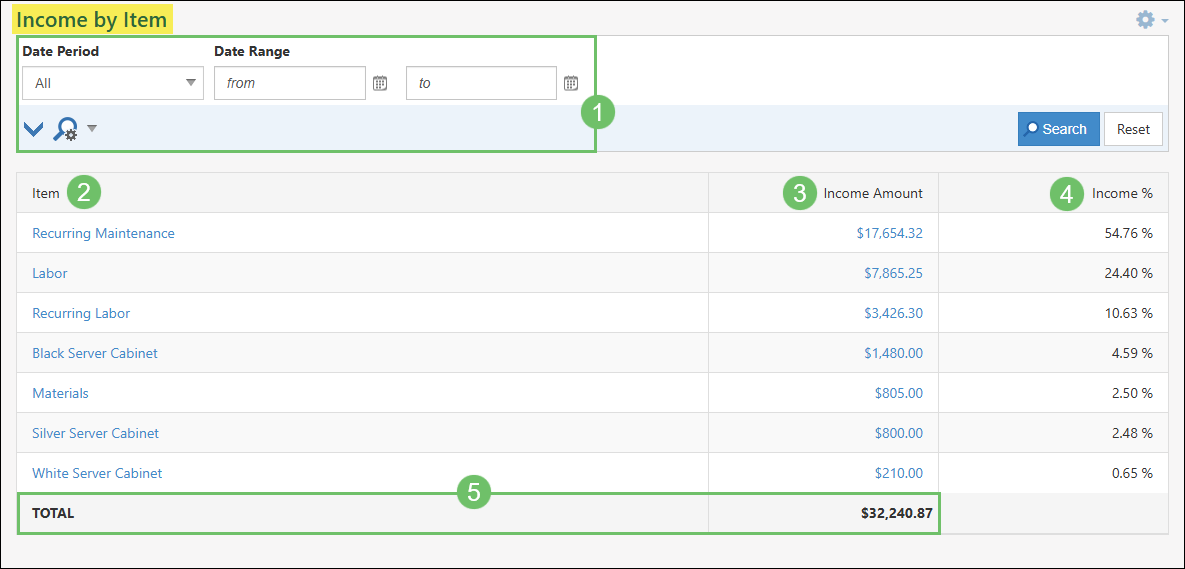
Example of the Information Available on the Income by Item Report
-
Income by Item – Detail
As mentioned above, clicking on the amount listed in the Income Amount column will open the Income by Item – Detail report which will display a more detailed report on how that amount is being calculated based on the related Transactions to the Item.
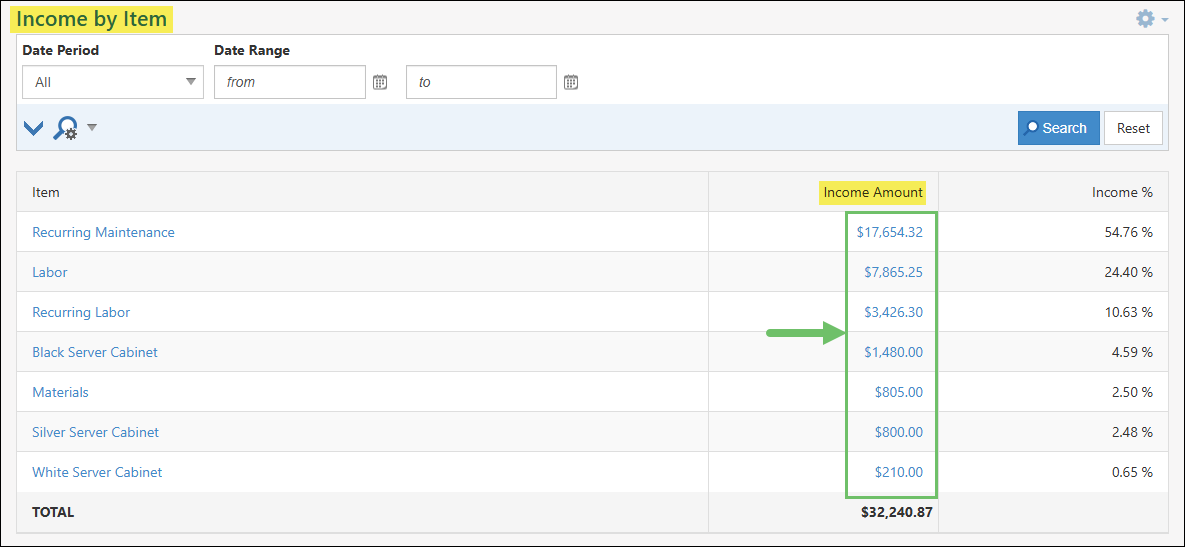
Example of the Location of the Income by Item – Detail Report
Below is a screenshot illustrating how the Income by Item – Detail report appears and a description of what can be accomplished there.
- Search Filters: Narrows down the results listed in the report based on the following criteria:
- Date Period: Adjust results based on a selected date period selected here.
- Date Range: Updates results based on a specified beginning and ending date range.
- Item Category: Allows you to filter the report based on the Item Category.
- Class: Will only display Transactions with a specific Class or multiple Classes selected.
- Show 0 Income: Includes Transactions in the report that do not have an amount associated and is listed on the Transaction as $0.
- Type: Lists the type of Transaction that is being included in the calculation for the Item’s income.
- Transaction #: Displays the Transaction number which can be clicked on in order to view the Transaction in more detail.
- Sales Order: If the Transaction has a Sales Order related, the Order number and name will be shown in this column. Clicking on the Sales Order listed will open the Order for additional details.
- Customer: Lists the Customer that is related to the Transaction included in the report’s results. Clicking on the Customer’s name will open their Customer profile page for more information.
- Date: Presents the date that is listed on the related Transaction.
- Memo: Shows the memo that is entered on the related Transaction.
- Amount: Displays the total amount that is calculated based on the related Transaction.
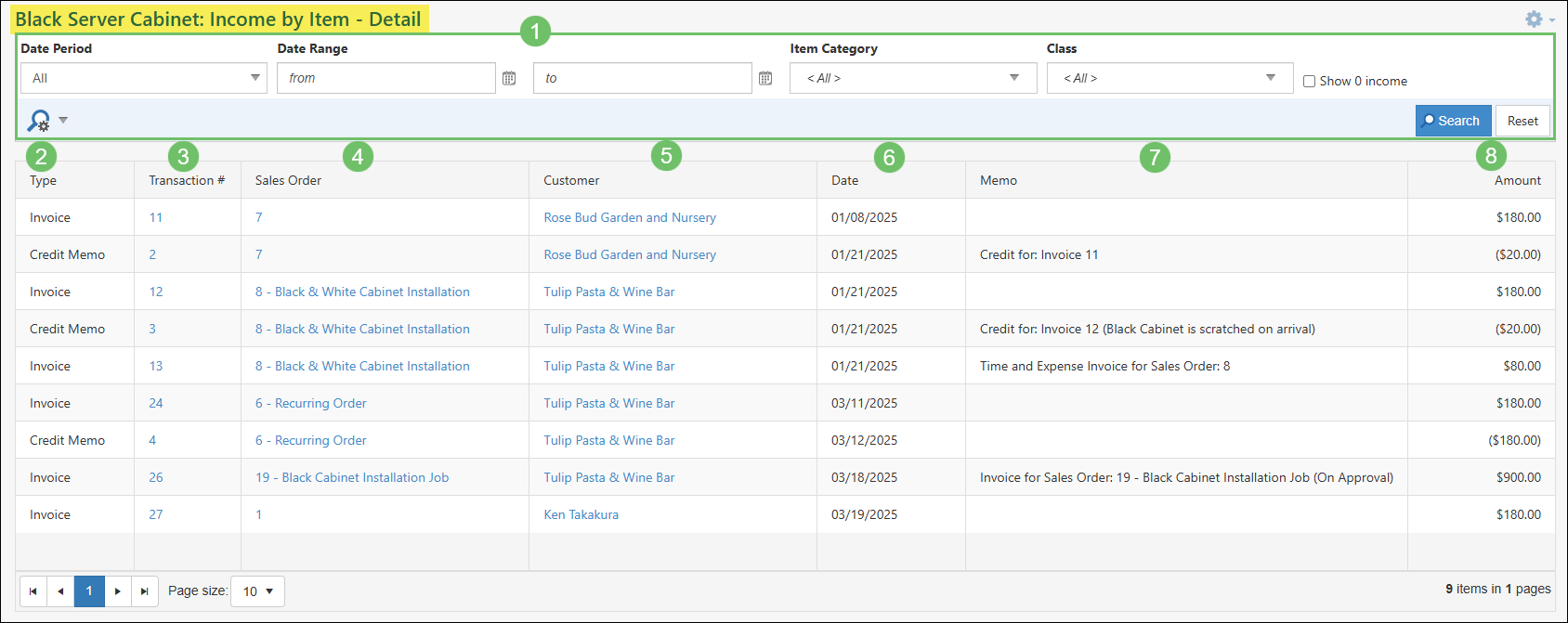
Example of the Income by Item – Detail Report
- Search Filters: Narrows down the results listed in the report based on the following criteria:
-
Item Quick Report
The Item Quick Report is a feature accessible within the Items list by selecting the numerical value displayed in the Qty on Hand column. It’s important to note that this quantity will only be present for items categorized as either Inventory or Manufactured types. Clicking this number will open the Item Quick Report, providing a more detailed view related to the on-hand quantity of that specific item.
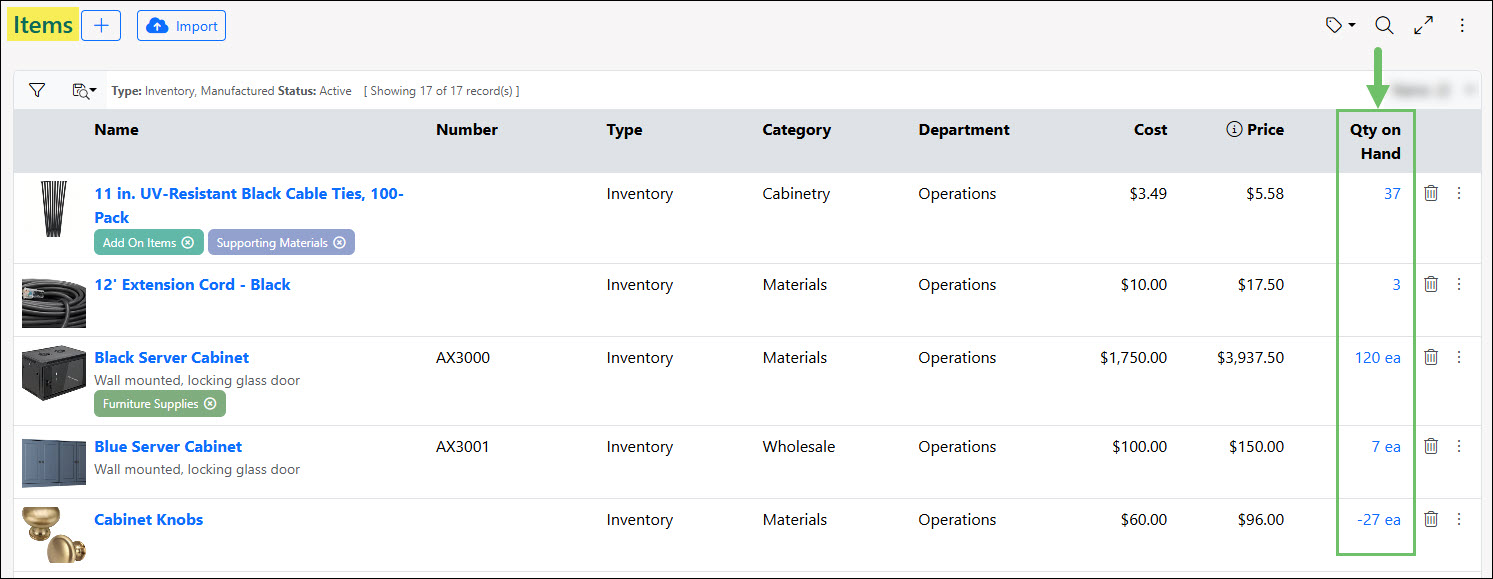
Example of the Item Quick Report Links from the Items List
This report provides a quick overview of the current on-hand quantity of a specific Item. It calculates this quantity based on Transaction data within a chosen date range, directly from the Items list, eliminating the need to navigate elsewhere. This efficient feature streamlines the process of checking inventory levels for Inventory and Manufactured type Items.
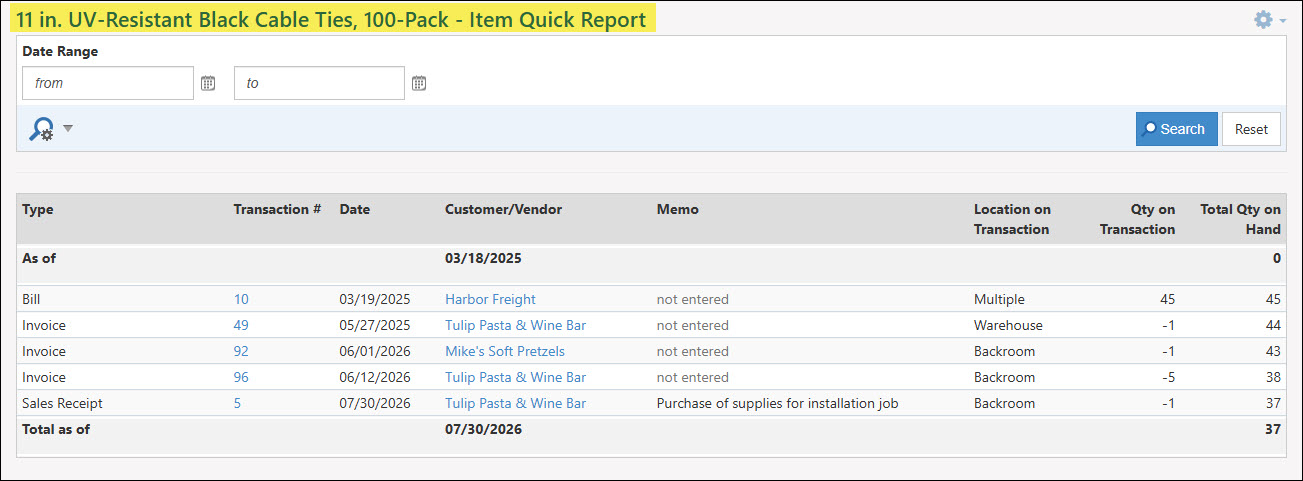
Example of the Item Quick Report
-
Viewing the Item Quick Report
The Item Quick Report displays an array of details about related transactions, including the associated Customer or Vendor and the memo from the transaction, alongside quantity information.
Below is a screenshot illustrating how the Item Quick Report appears and a description of what can be accomplished there.
- Date Range: Narrows down the results listed based on the specified date range selected within these search filters. Based on the date range selected, the beginning quantity and total quantity will adjust accordingly.
- Type: Lists the type of transaction that has the Item listed. Depending on whether the transaction is an Accounts Receivable or Accounts Payable type of transaction will determine if the quantity is being raised or lowered for the overall quantity on hand within the system.
- Transaction #: Transactions listed in the results can be accessed by clicking on the transaction number listed in this column to gain additional information.
- Date: Displays the date that is listed on the related transaction.
- Customer/Vendor: The Customer/Vendor profile can be accessed by clicking on the name listed in this column.
- Memo: Displays the memo that is listed on the related transaction in order to gain insight without having to open the transaction.
- Location on Transaction: Shows the Inventory Location that was used on the transaction to either increase or decrease the specified quantity of the Item. If multiple locations were used on the transaction, this column will display as Multiple.
- Qty on Transaction: Totals the quantity that is listed on the related transaction. Depending on whether the transaction is an Accounts Receivable or Accounts Payable type of transaction will determine if the quantity is listed as a negative or positive to either bring additional quantity into the system or remove quantity.
- Total Qty on Hand: Lists a running total of the quantity that is on hand in the system based on how much the related transaction is removing or adding additional quantity of the selected Item. This column represents the total quantity on hand of the Item and not just for the specified location in the Location on Transaction column.
- Total As Of: Displays the overall total quantity of the specified Item as of the ending date range selected.
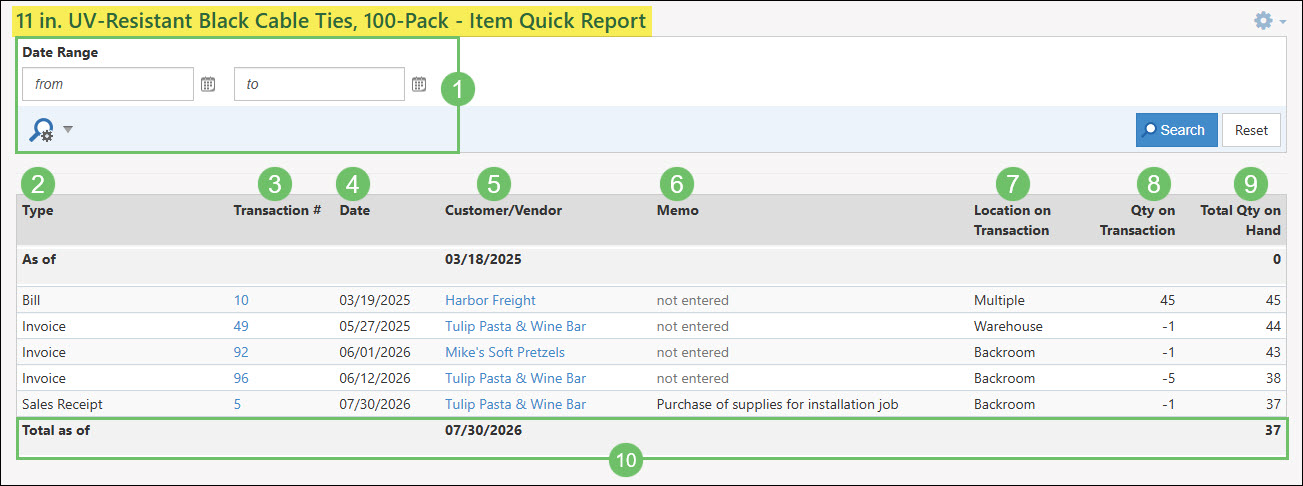
Example of the Information Available from the Item Quick Report
-
Recap
So with this guide, we’ve discovered how to utilize the Income by Item report to analyze sales patterns and profitability to support strategic pricing decisions. We’ve also discovered how to drill down into the Income by Item – Detail report to view specific transaction data and understand exactly how your income figures are calculated. Finally, we’ve discussed how to use the Item Quick Report to efficiently monitor current stock levels for your Inventory and Manufactured items.
FAQs
-
What permissions are required to view the Income by Item report?
To view the Income by Item report, a user must have the “Income By Item – View” permission. Users also require the “Income By Item – Export” permission to export the report data.
-
Why don’t I see a Qty on Hand value for some Items?
The Qty on Hand value is only displayed for Items specifically categorized as Inventory or Manufactured types. Items of a different type will not show a quantity on hand value.