


Purchasing & A/P
Purchase Order Printable Formats
Support Guide
-
Overview
This guide details the creation and tailoring of Striven’s Printable Formats, which serve as PDF representations for transactions and Purchase Orders. Customization is organized into three core areas: Content, for managing headers, text, and automated merge fields like Company Logos; Items, for adjusting column layouts, line item details, and custom fields; and Totals, for configuring summation displays and custom label overrides. Furthermore, the guide covers the implementation of Page Numbers and the adjustment of Currency Settings for codes and symbols.
Read this guide if you are trying to:
✔ Create different Purchase Order formats to suit your organization’s needs.
✔ Manage Custom Fields and Custom Columns for your Purchase Order formats.
✔ Configure printable format layouts for Headers, Items, Totals, and Currency settings.
-
Purchase Order Formats
Striven allows Vendors to access Purchase Orders through various channels, such as email, physical mail, or the Customer/Vendor Portal. To ensure a professional visual presentation outside the portal environment, creating Printable Formats is highly recommended. These formats enable the generation of PDF documents that can be delivered directly to your Vendors. For those using the Portal, these formats also allow them to view and print their own physical copies for record-keeping. While Striven provides out-of-the-box default formats, you have the creative freedom to develop and tailor your own.
You can access and manage your list of Purchase Order formats by navigating to Company → Settings → Accounting → Purchasing → POs → PO Formats.
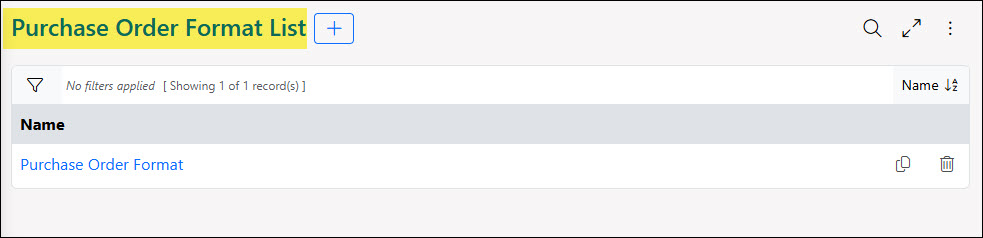
Example of the Purchase Order Formats List

When creating a new printable format, there are three main sections available for you to configure to suit your company’s needs: Content, Items, and Totals. Each of these sections helps you accomplish different goals within your printable formats.
Content: The Content section provides a comprehensive text editor where you can set up headers, footers, and sections for Terms & Conditions. Utilizing merge fields is essential here, as they automatically pull relevant information or transaction details, such as the Company Logo, directly into the PDF. This automation ensures that each Purchase Order is populated with the correct data without manual entry. Below is a screenshot illustrating how the Content section appears when configured with merge fields and specific formatting.
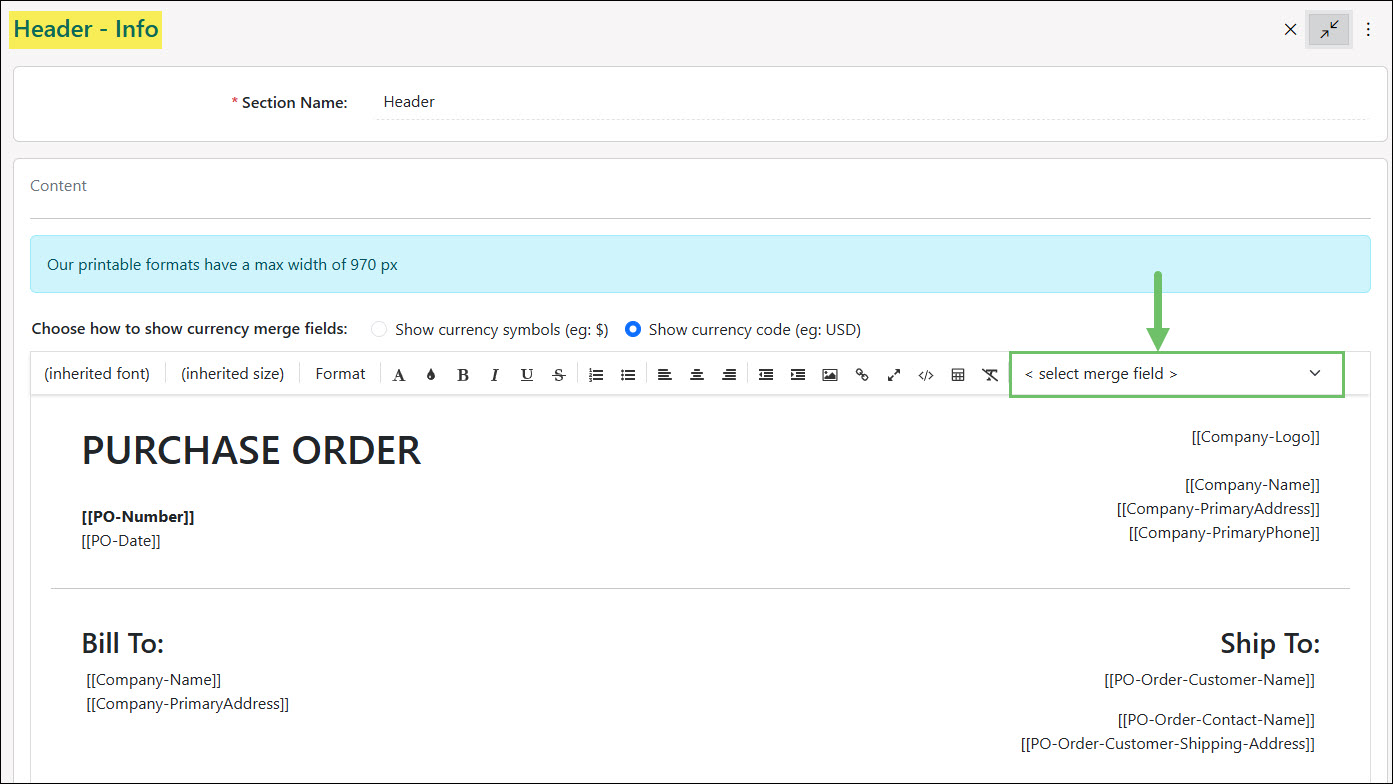
Example of Setting Up Content Section for Purchase Order Formats
Items: The Items section allows you to configure how Items appear on the printable format. You can customize the section header by choosing a background color, font size, and font color for the column headers. Within the Items section, you can choose which details to include or exclude, such as quantity, name, and description, and columns can be renamed or rearranged as needed. If barcoding is enabled, you will have additional options for Barcode Type and related columns. Furthermore, any Custom Columns established at the Item level can be integrated into the printable format. For more details on these options, please refer to our Item Management Guide.
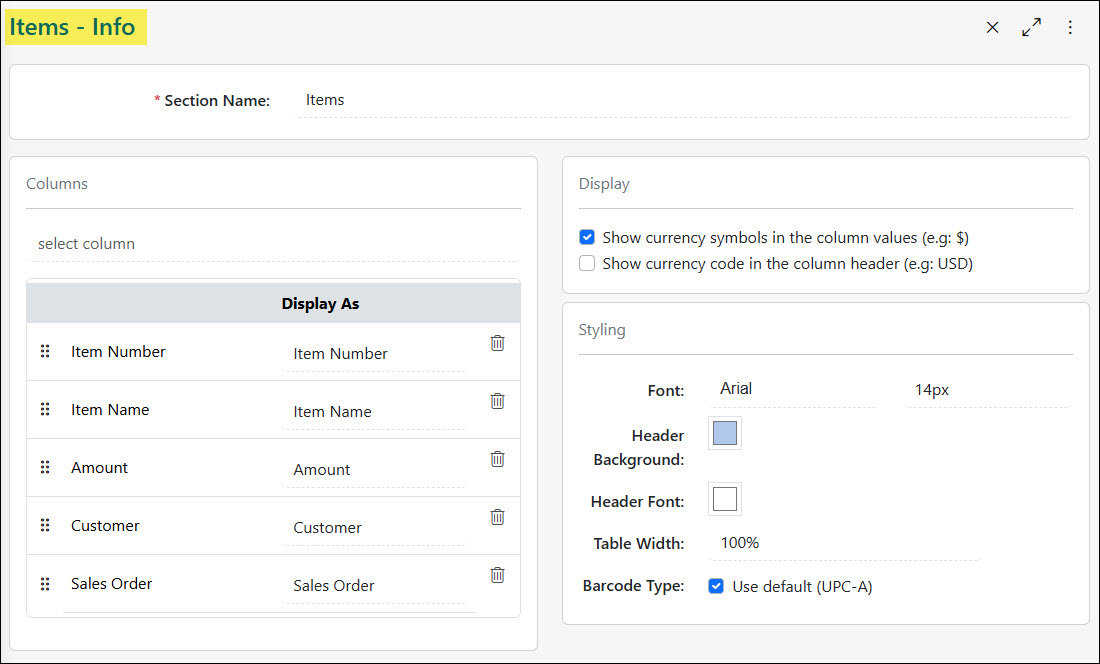
Example of Setting Up Item Section on Purchase Order Formats
Totals: The Totals section is responsible for calculating and displaying the cumulative line Items on your Purchase Order. This area includes several toggles that allow you to hide specific information that may not be essential for your organization. By enabling the Hide toggle, you ensure that particular details are omitted from the final format. Additionally, you can customize labels using the Display As field, such as changing Total to Item Total for better clarity. You also have control over the font settings to maintain a consistent visual style across the entire document.
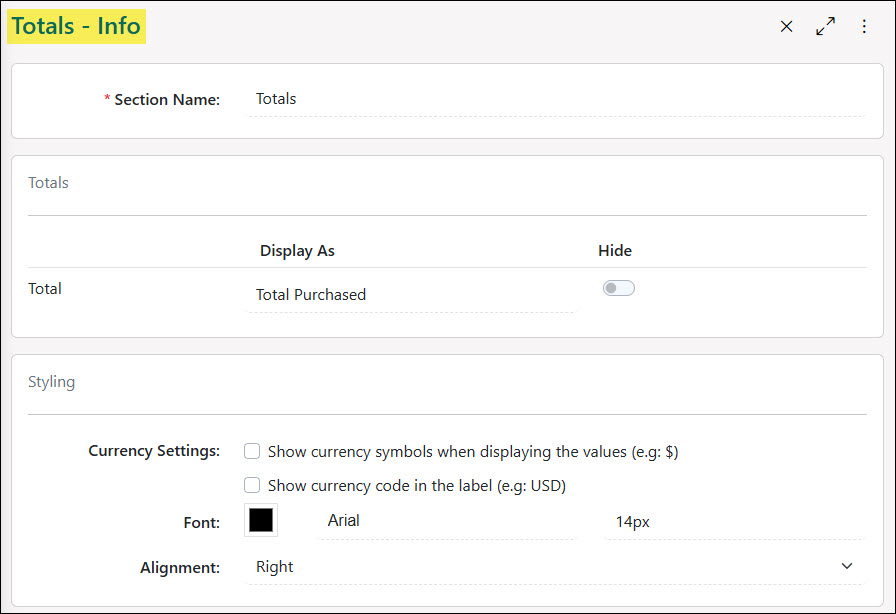
Example of Setting Up Totals Section of Purchase Order Formats
-
Item Custom Fields in Formats
In Striven, you can integrate Custom Fields as personalized columns within the Items section of various document formats. These Item Custom Fields are compatible across all seven format types, provided they are not attachments or encrypted fields. To implement these as Custom Columns, the fields must be established first within the Custom Fields Settings under the Items entity.
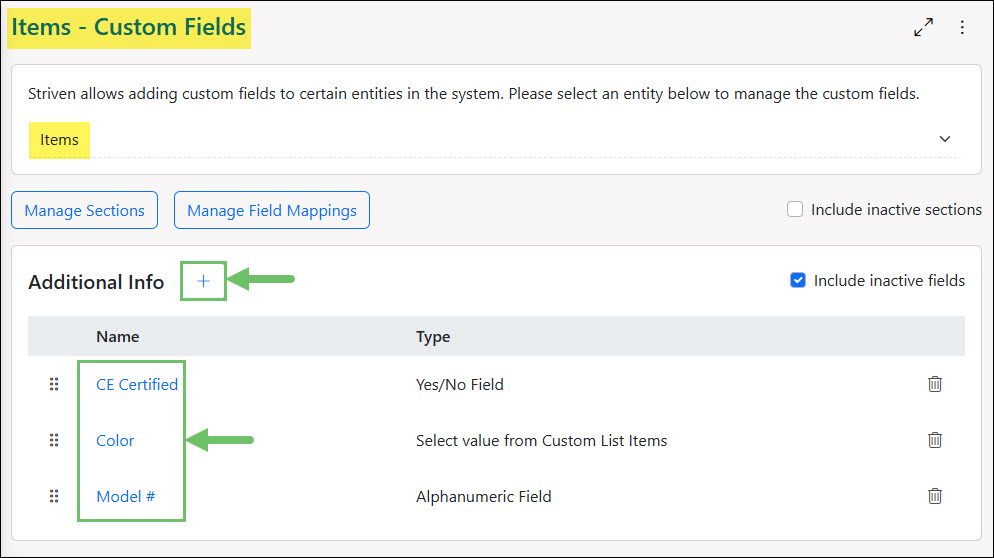
Example of Creating Custom Fields under Items Entity in Custom Fields Settings
Once these Custom Fields are established, they will be accessible in the Available Columns section of your format’s Items area. You can then easily drag and drop them to your preferred location on the document layout.
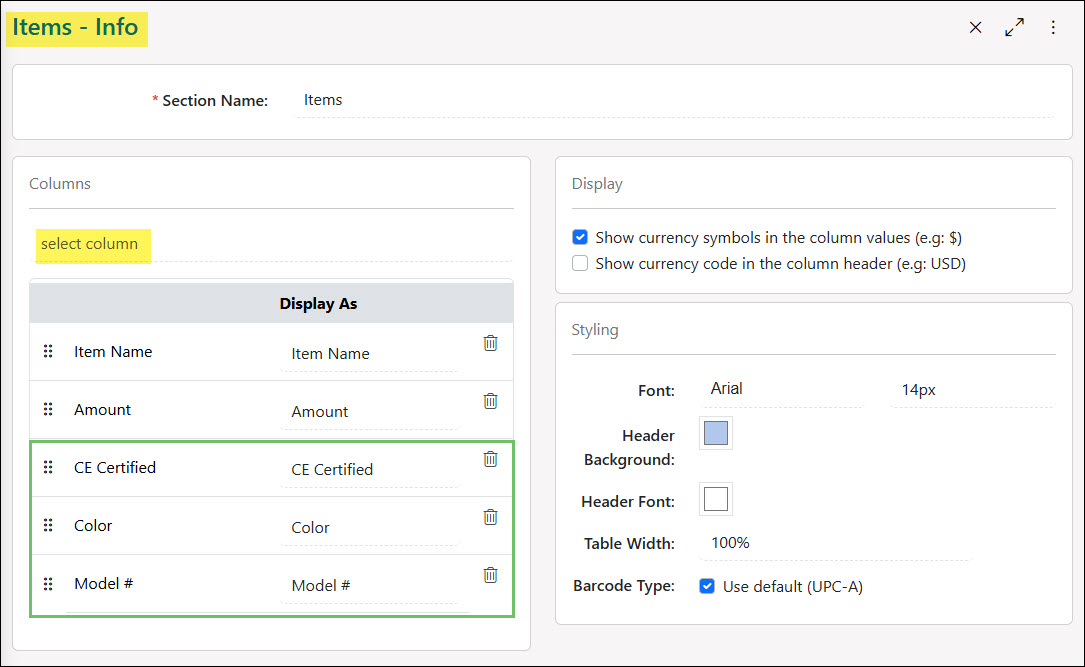
Example of Custom Fields in the Available Columns Area of an Items Section in a Printable Format
-
Page Numbers on Printable Formats
Striven provides the flexibility to incorporate page numbering within your printable formats. To activate this feature, navigate to the Format Settings page and locate the page number checkbox situated above the format sections. Once enabled, you can customize the appearance of the page numbers by selecting your preferred font type, size, and color from the additional options that appear.
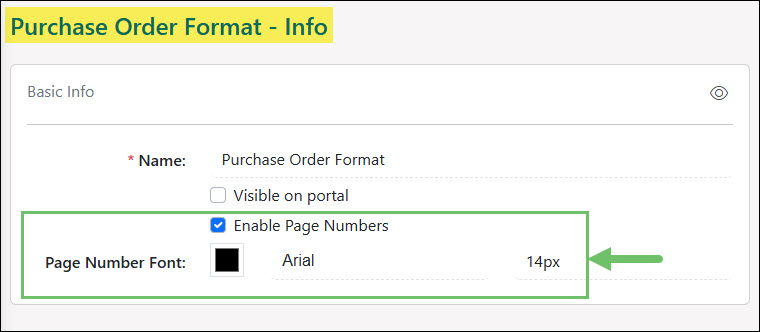
Example of Page Number Settings for a Purchase Order Printable Format
On the bottom of your Purchase Order pages, these page numbers will be shown in a Page / format; however, this only occurs when you are printing a specific Purchase Order.
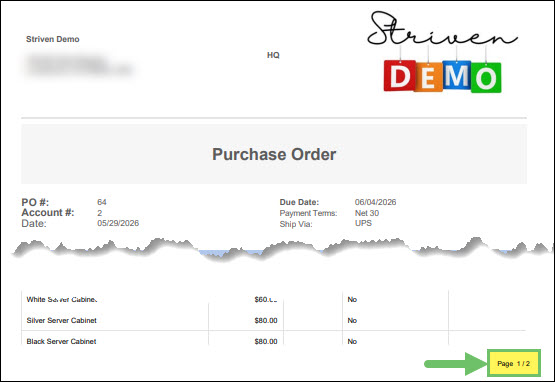
Example of Page Number Displaying on a Purchase Order
-
Currency Settings on Printable Formats
You can configure currency display preferences for Purchase Order printable formats within the Content, Items, and Totals sections. Striven allows you to choose between displaying currency symbols, currency codes, or both.
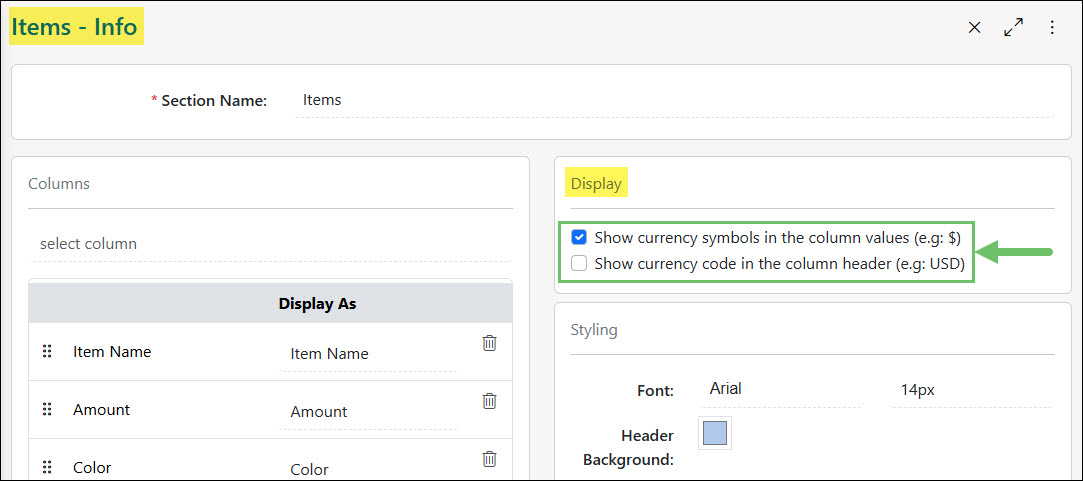
Example of Default Currency Settings for Items Section of a Purchase Order Printable Format
To hide a specific currency setting, you can simply uncheck the corresponding box for the display option you prefer not to show. While the default configuration for printable formats is to display Currency Symbols (such as $, £, or €), you also have the flexibility to show Currency Codes (like USD, EUR, AUD, or CAD) either alongside the symbols or as a replacement.
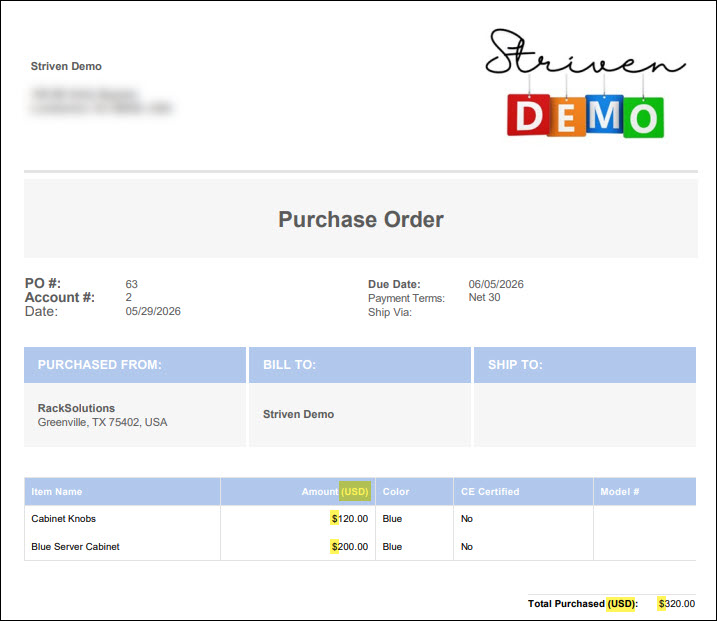
Example of Purchase Order Printable Format Displaying Currency Symbols & Currency Codes
-
Recap
This guide provides detailed information on Striven’s Printable Formats, focusing on the customization of external-facing PDF documents like Purchase Orders. Users can design custom formats by configuring three main areas: Content (including headers, footers, and merge fields), Items (for detail arrangement, custom fields, and barcodes), and Totals (to manage calculations and line-item visibility). Additional configurable features covered include adding Item Custom Fields as columns, enabling Page Numbers, and adjusting Currency Settings.
FAQs
-
What is the difference between Currency Symbols and Currency Codes in my formats?
Striven allows you to choose how currency is displayed across the Content, Items, and Totals sections. By default, formats show Currency Symbols (e.g., $, £, €), but you have the flexibility to display Currency Codes (e.g., USD, EUR, AUD) instead of, or in addition to, the symbols.
-
Is it possible to add specific Terms & Conditions or footers to my PO?
Yes. The Content section of the printable format configuration provides a text editor where you can set up headers, footers, or dedicated sections for Terms & Conditions. This section also supports merge fields, allowing you to automatically pull in relevant data like the Company Logo or specific transaction details.