


Sales Management
Sales Order Printable Formats
Support Guide
-
Overview
This guide focuses on creating and customizing Printable Formats in Striven, which are PDF versions of Sales Orders and transactions. Customization is done across three main sections: Content (for text, headers, and merge fields like the Company Logo), Items (for configuring line item appearance, columns, and custom fields), and Totals (for summing line items and overriding display names for totals). The guide also covers enabling Page Numbers and adjusting Currency Settings (symbols or codes).
Read this guide if you are trying to:
✔ Create different Sales Order formats to suit your organization’s needs.
✔ Manage Custom Fields and Custom Columns for your Sales Order formats.
✔ Configure printable format layouts for Headers, Items, Totals, and Currency settings.
-
Sales Order Formats
Customers can view Sales Orders in many ways from the Customer/Vendor Portal, email, or mail. To provide a visual outside of the Customer/Vendor Portal, however, it is recommended you create Printable Formats. Using the Sales Order formats will allow a PDF printable version to be sent to the Customer. If they are using the Portal, they will be able to view and print out the Sales Order so they have a hard copy for their records. There are default formats in Striven for your use, but you can also create your own. Below is an image of the Sales Order Format List from which you can edit or add printable formats. To view Sales Order Printable Formats, navigate to Company > Settings > Accounting > Sales > Sales Orders > Sales Order Formats.
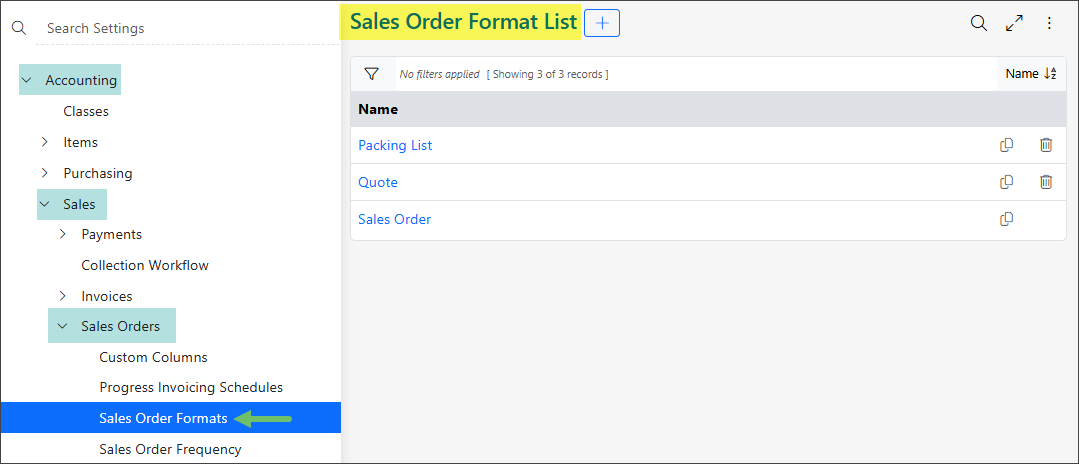
Example of the Sales Order Formats List

When creating a new printable format there are three main sections available for you to configure to suit your Company’s needs including Content, Items, and Totals. Let’s discuss each section one by one and explore what each section can help you accomplish with printable formats.
Content: This section will allow you to utilize a text editor. Using merge fields is very important when setting up Sales Order Printable Formats. The merge fields will take information from the Sales Order or transaction and merge it into the PDF automatically. Things like the Company Logo can also be added using merge fields. Content sections can serve as headers, footers, or Terms & Conditions sections. Below is a screenshot demonstrating how this section appears with merge fields and formatting.
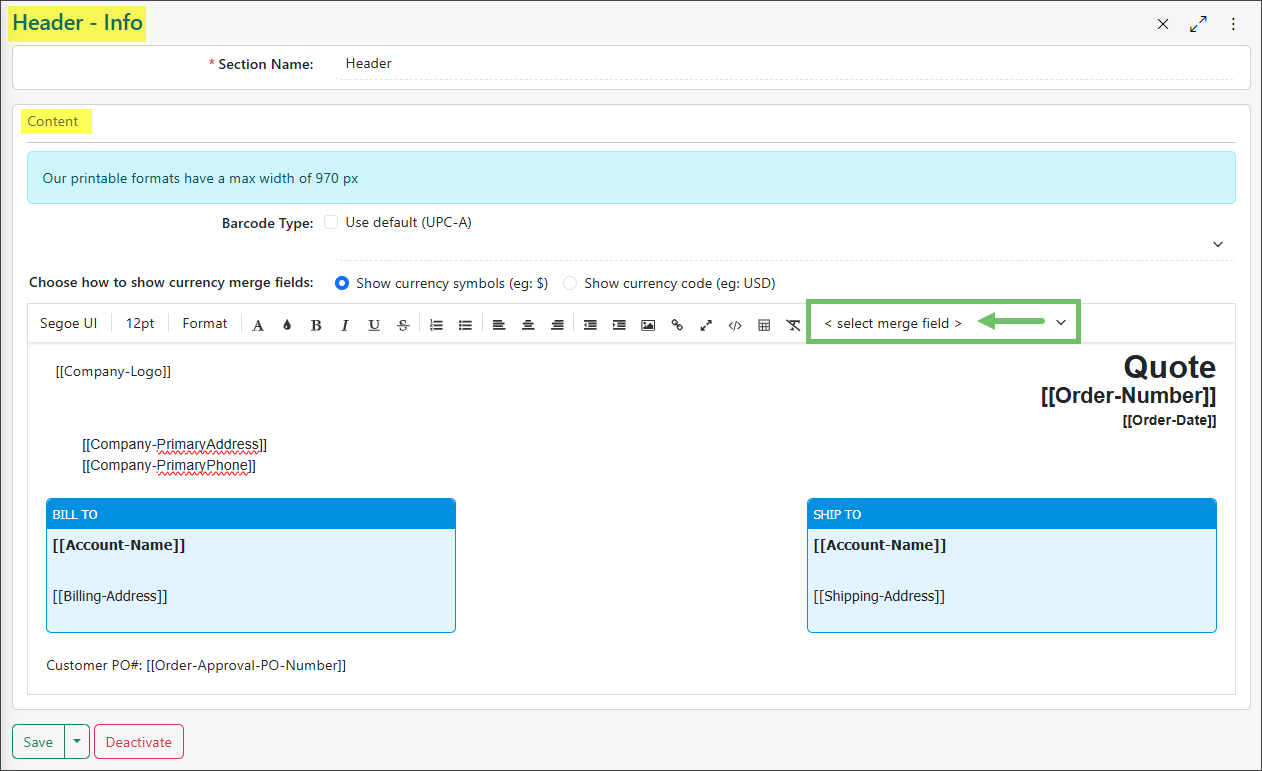
Example of Setting Up Content Section for Sales Order Formats
Items: This section will allow you to configure how the Items appear on the printable format. To configure the section header, you can choose a column header background color and font size and color. Within the Items, you can also choose what to include and exclude in the section, from quantity, name, description, and more. The columns can also be renamed and rearranged to fit your needs. If barcoding is enabled, there will be an additional option to select the Barcode Type as well as additional columns to add to your format. Any Custom Columns at the Item level can also be added into the printable format within the Item section. To learn more about these options for Items, please review our Item Management Guide. Below is a screenshot displaying how the Items section appears.
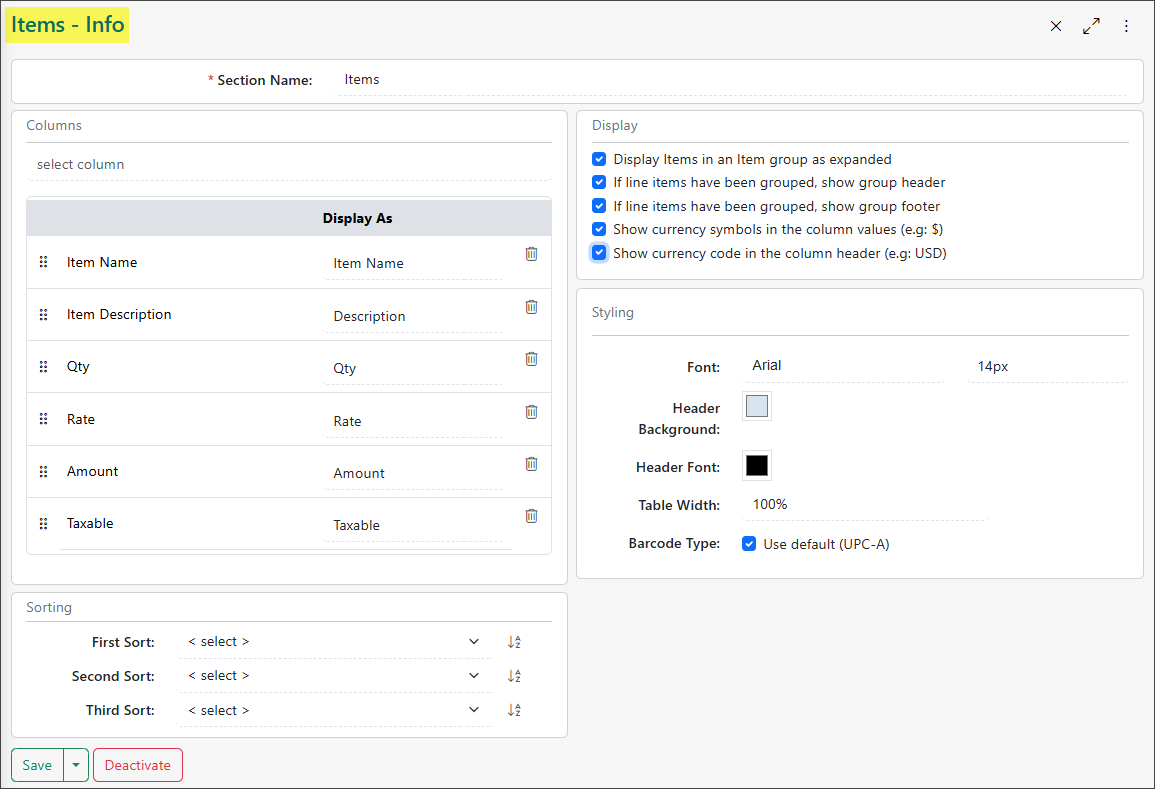
Example of Setting Up Item Section on Sales Order Formats
Totals: The Total section will add everything up and total Line Items on the Sales Order. This section also allows you to hide information deemed less vital to your Company using a series of toggles. By using the Hide toggle, this notes that the section will be hidden on the format. Override the text for each piece of information by updating the Display As field. For example, rather than having Shipping & Handling shown on the Printable Format, this can instead be relabeled as S&H or Freight Charges. Options on changing the font are also available to keep a uniform look throughout your whole format. Below is an image that will help illustrate how this appears and what can be configured here:
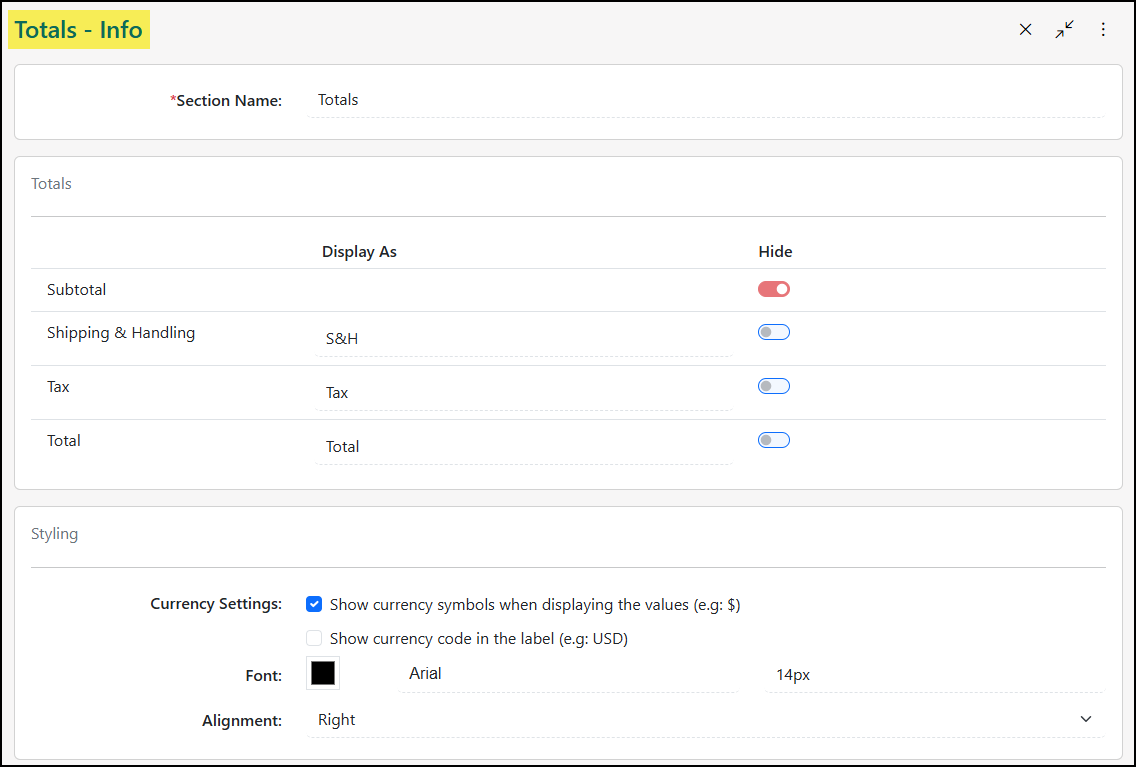
Example of Setting Up Totals Section of Sales Order Formats
-
Item Custom Fields for Formats
Striven allows the use of Custom Fields as Custom Columns in the Items section of the various formats within Striven. With the exception of encrypted Custom Fields and attachments, all other Item Custom Fields are available for use on all seven format types.
To create Custom Columns using the Custom Fields, you must first create the Custom Fields under the Items entity in the Custom Fields Settings.
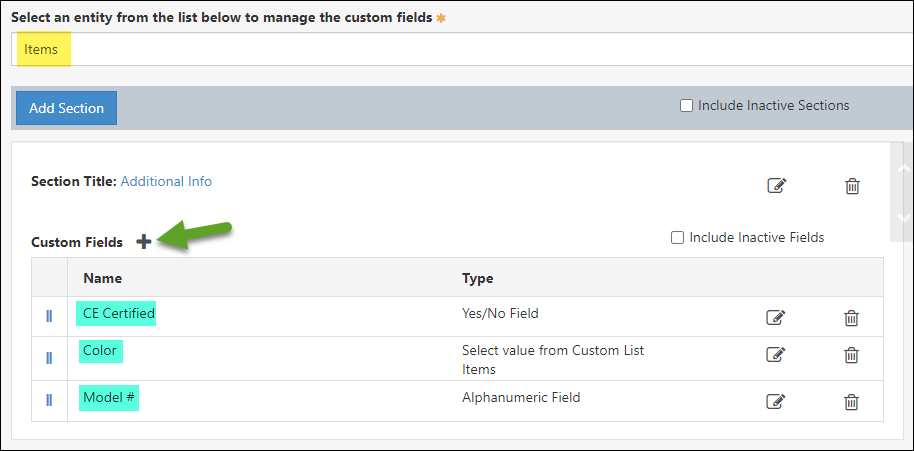
Example of Creating Custom Fields under Items Entity in Custom Fields Settings
These Custom Fields will display in the Available Columns area of the Items section in your formats for you to drag/drop where you would like them to display on the format.
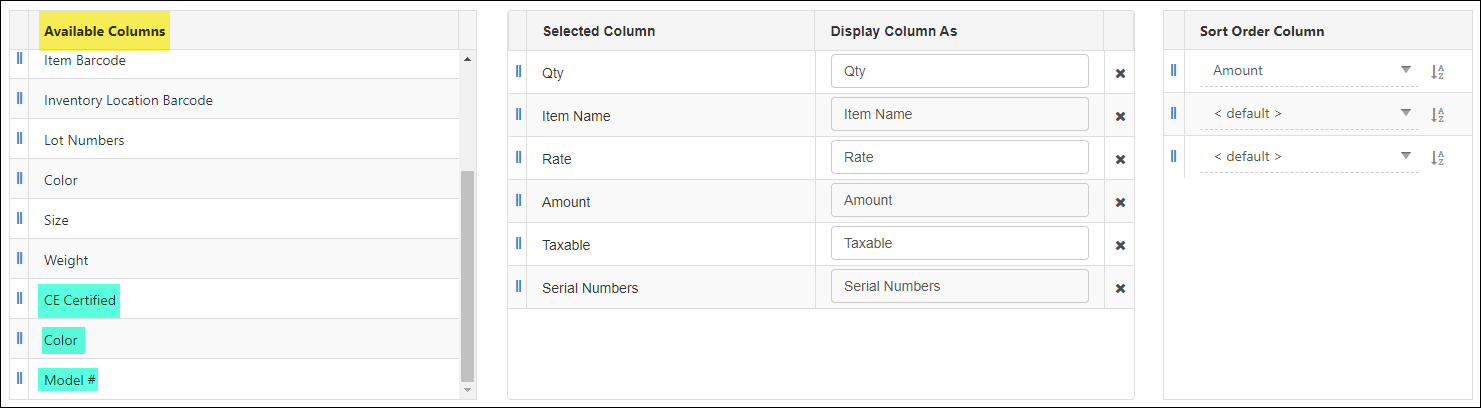
Example of Custom Fields in the Available Columns Area of an Items Section in a Printable Format
-
Page Numbers in Printable Formats
Striven’s Printable Formats have the option to include page numbering on transactions. To turn on page numbering for your transaction formats, you will need to find the page number checkbox on the Format Settings page, above your format sections.
When the box is checked, further options appear for you to select the page number font color, type, and size.
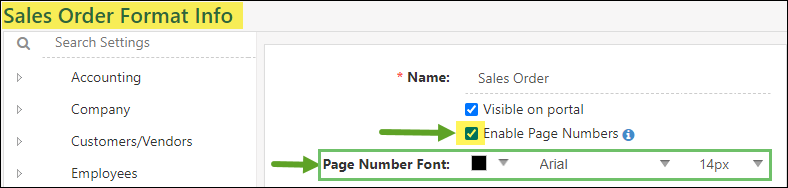
Example of Page Number Settings for a Sales Order Printable Format
These page numbers will display in a “Page __/__” format on the bottom of your transaction pages, but only when printing a particular transaction. Printing in batches from the Invoice Print Queue, for example, will not display the page numbers.
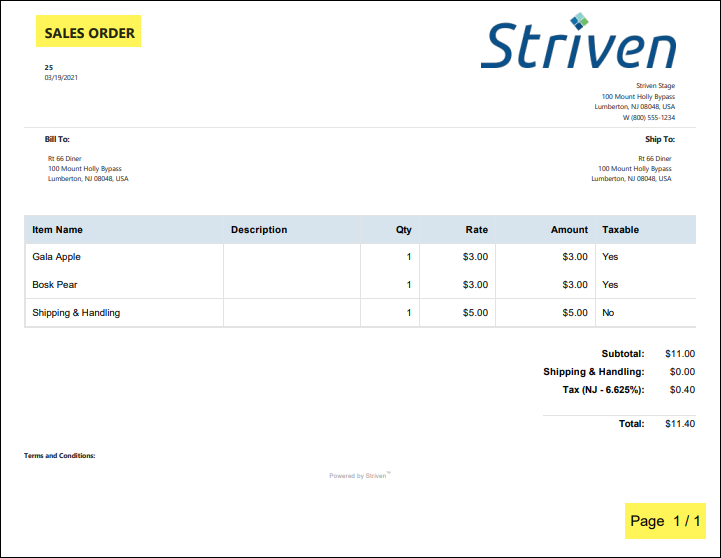
Example of Page Number Displaying on a Sales Order
-
Currency Settings on Printable Formats
Currency display settings can be determined for transaction printable formats. These settings options are located on the Content, Items, and Totals sections of your formats. Striven provides the ability to select whether currency shows with currency symbols or currency codes.
The default setting for all printable formats will be to show the Currency Symbols (i.e. $, £, €, etc.), but you will also have the option to show the Currency Codes (i.e. USD, EUR, AUD, CAD, etc.) in addition to, or instead of the symbols.
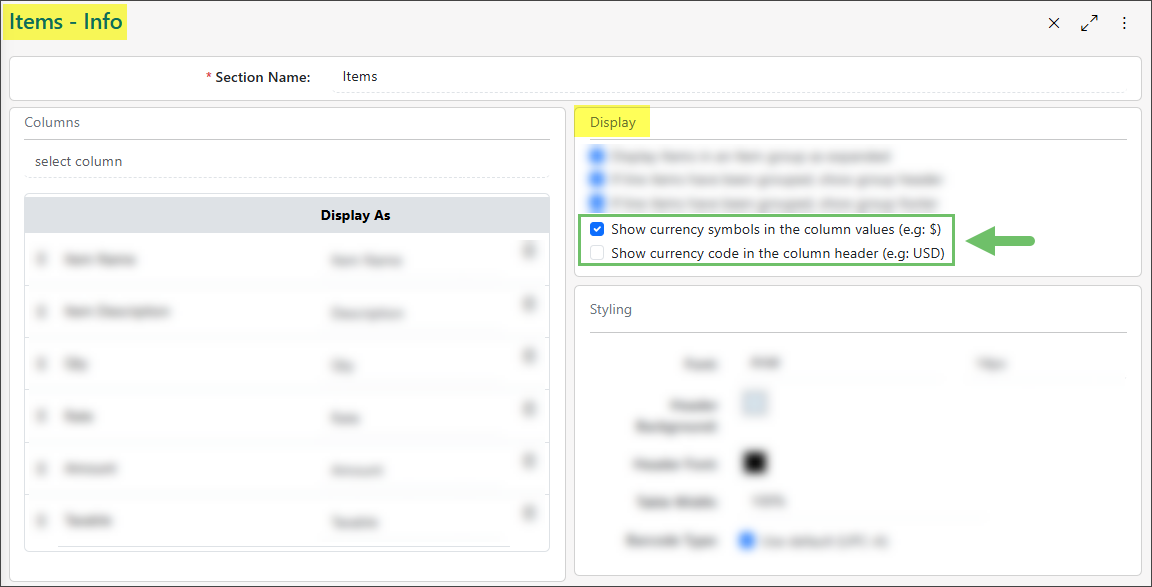
Example of Default Currency Settings for Items Section of a Sales Order Printable Format
If you wish to remove a currency setting from displaying, simply uncheck the box next to the display option you do not want to be displayed.
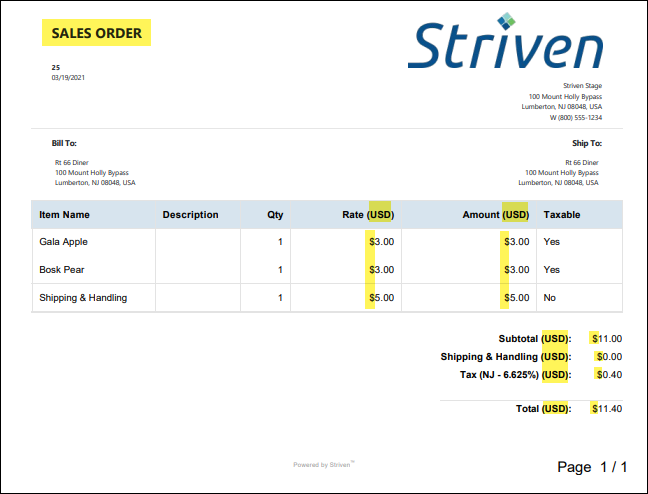
Example of Sales Order Printable Format Displaying Currency Symbols & Currency Codes
-
Recap
This guide covers multiple topics related to Striven’s Printable Formats. We’ve covered details relating to the customization of PDF documents (e.g., Sales Orders) for external use. Users can create custom formats by configuring Content (headers, footers, merge fields), Items (detail arrangement, custom fields, barcodes), and Totals (calculations, line-item visibility). Other features include adding Item Custom Fields as columns, enabling Page Numbers, and setting Currency Settings.
Have a Question?
Ask the Striven Community
User-sourced how-to’s, feedback, and more!