


Sales Management
Sales Order Actions
Support Guide
-
Overview
This guide is designed to walk users through the many Actions that can be taken right from the Sales Order page. From creating related entities, such as Purchase Orders or Tasks, to generating Invoices, there are plenty of accomplishments that can be made right from this screen without having to navigate away.
Read this guide if you are trying to:
✔ Create a copy of a Sales Order.
✔ Create an Opportunity, Purchase Order, Project, or Task from the Sales Order.
✔ Generate an Invoice related to a Sales Order.
-
Permissions
Access to Sales Order Information in Striven is managed by a variety of user permissions. To verify your current access, consult your system administrator or the individual responsible for assigning and managing User Roles within your organization.
You can also check the permissions specifically related to the page you are viewing in Striven by clicking on the kebab menu in the top right corner of the page and selecting Settings. This will display the Settings Info page, where the relevant permissions are listed, along with an indication of your current access status.
If there is a permission listed to which you do not have access, the system may offer the option to Request Access (depending on your organization’s system settings). Choosing this option will notify a designated individual, allowing them to grant you that specific permission.
-
Sales Order Actions
There are many actions geared to quickly create related entities within Striven. This allows you to keep the relationship with the Sales Order by utilizing the Related To tab throughout the system. Entities to create from a Sales Order include Opportunities, Purchase Orders, Projects, Tasks and Default Tasks. Creating a copy of the Sales Order and invoicing the Customer can be done right from the actions menu as well. Default Tasks that will be available to select will be based on the Items on the Sales Order. Review the Default Tasks List section in the Item Management Guide to learn more about utilizing Default Tasks in Sales Orders.
- Copy Sales Order: Creates a new, duplicate order with its own unique order number and timestamp, acting as a fully modifiable template. The system ensures all essential field details, like the Customer info, Contact, Sales Rep, Order details, Items, Quantity, Price, etc., are accurately copied to the new order.
- Create Change Order: Used to modify approved Contract Managed Sales Orders while maintaining a complete, transparent history of all adjustments made to the agreement. You can use Change Orders to alter costs, modify Recurring Order quantities, add new Items, or remove Items from an existing Sales Order.
- Create Opportunity: Generates an Opportunity associated with the Sales Order. This will serve to track potential sales of goods or services to the Customer by gathering key information about the potential work, such as the Estimated Value, Probability Percentage, Priority, and the Opportunity Type. For further details related to Opportunities, please consult our Opportunity Type. For detailed guidance, please consult the Opportunities Guide.
- Create Purchase Order: Generates a Purchase Order linked to the Sales Order. This new Purchase Order automatically includes the Customer Name and Address from the Sales Order, as well as the specific Items that must be sourced from a Vendor. For more information related to Purchase Orders, refer to our Purchase Order Management Guide.
- Create Project: Creates a Project in Striven to establish a dedicated workspace for tracking the completion of services and ensures a secure, seamless link between the original Sales Order, the Project, and all related Tasks.
- Note: This association is vital for the Project Profitability Report, as it accurately pulls the Sales Order’s revenue against Project expenses (Labor, Bills, and Materials) to determine the exact Profit Margin. Please refer to our Project Management Guide for further details about Projects in Striven.
- Create Task: Creates a Task directly from a Sales Order to effectively organize and track the work required for successful order fulfillment. This ensures a clear link between the Task and the specific Sales Order. For detailed information relating to Tasks, refer to our Task Navigation & Management Guide.
- Note: To ensure the Order Name, Customer Notes, Internal Notes, and/or Contact info carry over to the Task from the Sales Order, you will need to configure the settings at the Sales Order Type level. Visit our Sales Order Settings Guide for further information about these settings.
- Create Default Tasks: Enables you to generate Tasks from the
Default Tasks associated with specific Items listed on the Sales Order. Default Tasks can be configured at the Item level. When those Items are added to a Sales Order, you can use this feature to quickly generate those Tasks required to fulfill that product or service. These Default Tasks are pulled from your Task Library. To learn how to configure Default Tasks for individual Items, please consult the Default Tasks section of our Item Management Guide.
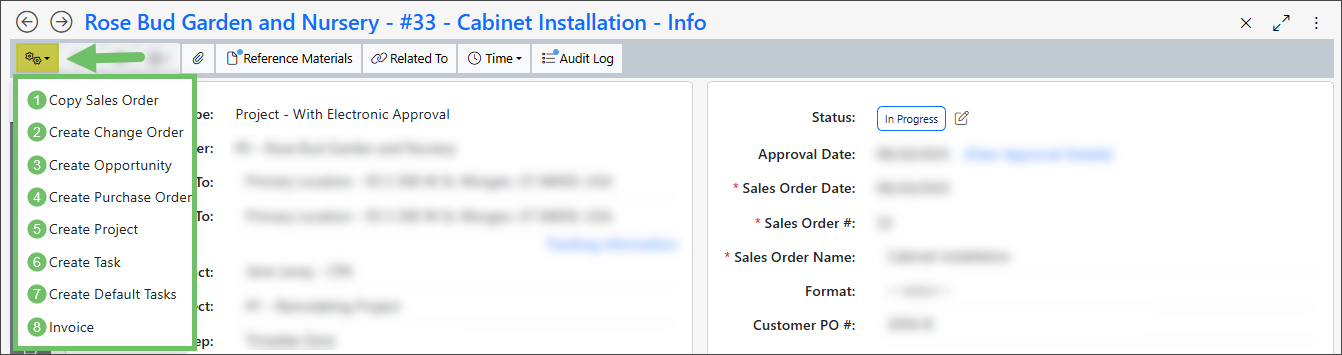
Example of Sales Order Actions Menu

-
Recap
The Sales Order Actions Guide explains how to use the Striven Sales Order page to quickly generate associated entities such as Opportunities, Purchase Orders, Projects, Tasks, Change Orders, and Invoices. Additionally, the guide provides instructions on how to duplicate a Sales Order and how to efficiently create Default Tasks based on Items within Striven.
Have a Question?
Ask the Striven Community
User-sourced how-to’s, feedback, and more!
FAQs
-
Why is the Create Change Order option not showing on the Sales Order Actions menu?
The Create Change Order option is missing because the Sales Order must be Approved or In Progress status to be available. It is not available in pre-approval statuses of Quoted, Pending Approval, or closed statuses of Completed or Closed. Furthermore, the feature is only available for Contract Managed Sales Orders; the option is removed if the setting for Turn on contract management is disabled on the Sales Order Type.