


Sales Management
Sales Order Management
Support Guide
-
Overview
Sales Order management is the essential process of overseeing a Customer’s Order from its initial stage to final fulfillment. It involves carefully tracking order details, setting statuses, and ensuring all related entities are managed efficiently. This guide is designed to help users master Striven’s tools for Sales Order management, covering navigation, information viewing, and the internal review process for quotes.
Read this guide if you are trying to:
✔ Navigate the Sales Order List page.
✔ Understand what is tracked in the Sales Order Information.
✔ Access the Internal Quote Review Queue.
-
Permissions
Access to Sales Order Information in Striven is managed by a variety of user permissions. To verify your current access, consult your system administrator or the individual responsible for assigning and managing User Roles within your organization.
You can also check the permissions specifically related to the page you are viewing in Striven by clicking on the kebab menu in the top right corner of the page and select Settings. This will display the Settings Info page, where the relevant permissions are listed, along with an indication of your current access status.
If there is a permission listed that you do not have access to, the system may offer the option to Request Access (depending on your organization’s system settings). Choosing this option will notify a designated individual, allowing them to grant you that specific permission.
-
The Sales Orders List
The Sales Order List will display important information in which you can view if you have the appropriate permissions. Sales Orders are also stored within the Customer’s Information and can be viewed by navigating to the waffle menu on the Customer’s Dashboard, then selecting the Sales Order option. To view the Sales Orders List, navigate to Customers > Sales > Sales Orders.
- Add Sales Order: Displays the Add Sales Order page, where you can fill in the appropriate fields and set the Sales Order status, or send to your Customer for approval.
- Import: Allows you to import Sales Orders in bulk.
- Information Displayed: Information such as the Sales Rep, Type, Status, and important Dates are available when viewing the Sales Order List page.
- Totals: Displays the Sales Order Total and Invoiced Total for a quick overview of the Sales Order.
- View Log: Indicates if the Sales Order has been viewed within the Customer/Vendor Portal with a magnifying glass icon. The number displayed will be the number of Contacts who have viewed the Sales Order. Clicking on this will display more information as to the dates and times the Sales Order was viewed.
- Attachments: Indicates if the Sales Order has attachments.
- Actions: Provides a complete list of actions that can be taken from the Sales Order. Quickly navigate to the Sales Order tabs, such as Tasks or Assignments. You can also create new entities related to the Sales Order from the Actions menu, like Opportunities, Tasks, and more.
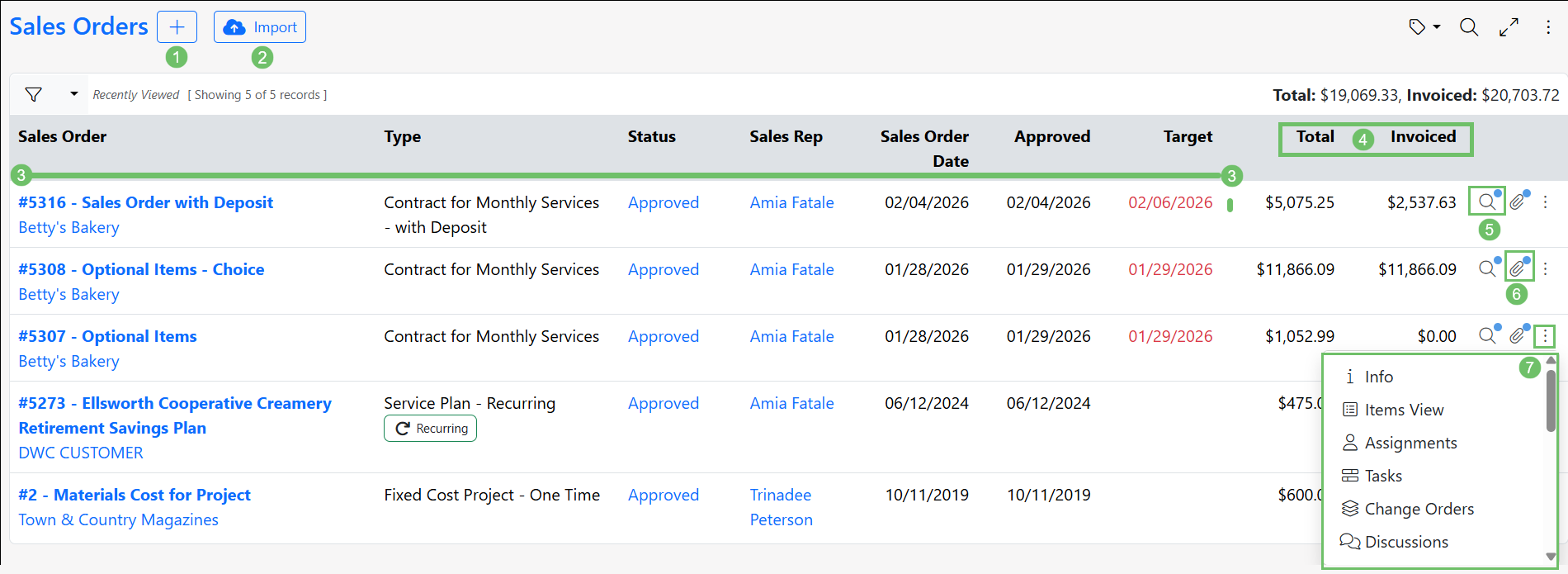
Example of the Sales Order List Page

-
Sales Order Navigation
Upon viewing a created Sales Order, there are two navigation bars present. The Top Navigation Bar contains options for Sales Order Actions, and ways to interact with the Sales Order like printing or sharing. The Left Navigation Menu presents options to view information related to the Sales Order like Assignments, Discussions, and more. The options available from each navigation bar are detailed in the section below.
Top Navigation Bar
- Sales Order Actions: Provides options to create new entities related to the Sales Order, like Tasks, Purchase Orders, and more. You can learn more about the options available here in our Sales Order Actions Guide.
- Share: Allows you to share the Sales Order via an Internal Link or a Customer Portal Link.
- Email: Enables you to send the Sales Order to a Customer Contact or Employee via email.
- Print: Allows you to choose the Sales Order Format you would like to use for printing the Sales Order, then generate a PDF of the Order for printing.
- Attachments: Enables you to upload and view attachments related to the Sales Order. These attachments are visible in the Customer/Vendor Portal. If there are materials related to the Sales Order that should only be available internally, please utilize the Sales Order Hub for these documents.
- Reference Materials: Allows you to view the Reference Materials related to the Order. Reference Materials are documentation or uploads that can be stored at the Item level.
- Related To: Displays a popup which will hyperlink each related entity such as Invoices, Payments, Opportunities, Projects, etc.
- Time: Allows the user to add a Time Entry or start the Time Clock related to the Sales Order.
- History: This option allows users to view a comprehensive audit log tracking the lifecycle of the Sales Order. Selecting this will open a log displaying all actions performed on the order, the employee or portal user who executed the changes, and the exact date and timestamp of each modification.
- Audit Log: Logs changes that have been made to the Sales Order. When a change is made, the person who made the change, along with the date and time, will be listed.
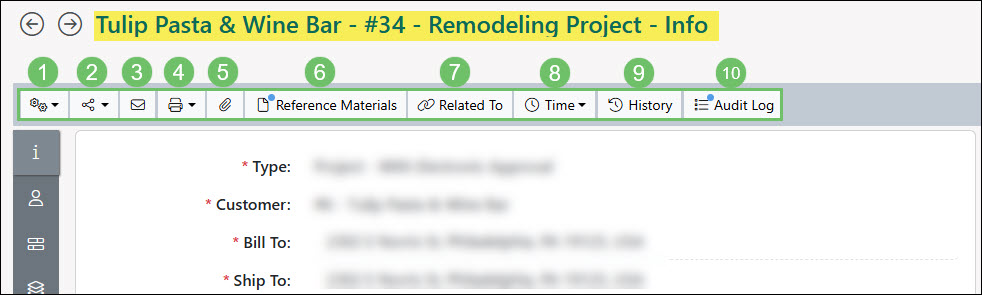
Example of the Top Navigation Bar of a Sales Order
Left Navigation Menu
- Information: The default display when viewing a Sales Order, the Sales Order Info page allows you to view details such as Customer and Contact information, Sales Order information, and more. You can read more about the Sales Order Info page in the section below.
- Assignments: Opens the Assignments pane, where you can view and manage any Assignments that have been given to the Sales Order along with the associated Assignment Category. This allows you to designate specific work that each Employee will be in charge of when it comes to the Sales Order. A globe icon will be present next to the assignments set as visible in the Portal.
- Tasks: Directs you to the Tasks List page related to the Sales Order. From this page, you may create new Tasks, or manage existing tasks for the Order.
- Change Orders: Enables users to view Change Orders linked to the Sales Order.
- Discussions: Allows you to view all Sales Order related Discussions, both sent and received, in either a Timeline or Thread view.
- Hub: Navigates to the Sales Order Hub, where related attachments, documents, and notes can be stored for easy access. To learn more about Hub, visit our Hub Guide.
- Purchase Orders: Allows you to view, create, and manage Purchase Orders related to the Sales Order. This enables you to quickly and easily purchase Items or services that are needed for your Customer’s Order. To learn more about how Purchase Orders can be set up and used in Striven, review our Purchase Order Management Guide.
- Profitability Statement: Displays the Profitability Statement for the Sales Order. This statement allows you to view the revenue and expenses associated with the Sales Order to give you a visual breakdown of your anticipated profit margin.
- Surveying: Allows you to view any Surveys, Quizzes, Assessments, and/or Forms related to the Sales Order.
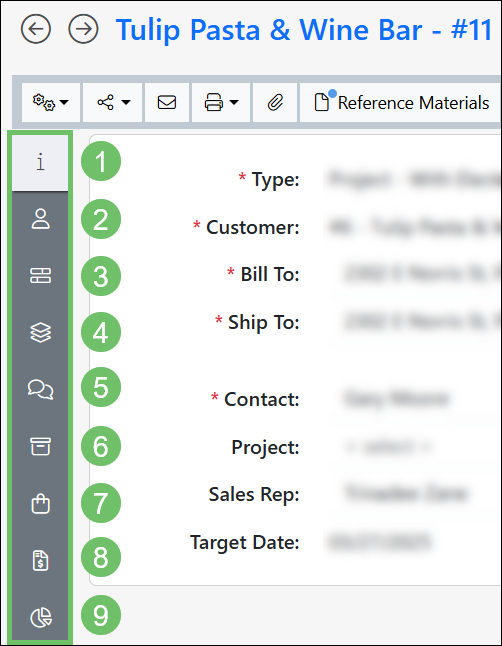
Example of the Left Navigation Menu on a Sales Order
-
Sales Order Information
The Sales Order Info page will display all the Order information needed to process your Customer’s request for goods or services. From the status to the related transactions, this can all be gathered from right from viewing the Sales Order itself. While Standard Orders offer flexibility and allow for editing as needed, Contract Managed Orders follow a more strict editing process where only unapproved Sales Orders can be updated and edited. Change Orders can be used to make any increases or decreases to the overall Sales Order that have been configured as a Contract Managed Order.
- Customer Information: Allows you to enter the Customer Information related to the Sales Order. For example, the related Project or Sales Rep can be entered along with the relevant Bill To and Ship To Locations for the Sales Order.
- Target Date: Indicates when the Sales Order is expected to be completed. An exact date can be chosen, or the option to set a duration period is available as well. Setting a duration for the Target Date allows the date to be calculated based on when the Sales Order has been approved.
- Labels: Allows you to apply Labels to the Sales Order for enhanced organization, or quickly manage your existing Sales Order Labels.
- Order Information: Displays additional Sales Order information, such as the Order Status, Order Date, Order Number, as well as the Customer’s Purchase Order Number, if they have provided one. The available Order Status options are hard-coded in the system and cannot be edited or customized. These options include Quoted, Pending Approval, Approved, In Progress, Completed, Declined, Canceled, and Lost.
- Note: The Sales Order ID in your browser’s URL bar is Striven’s permanent system identifier for the order, while the Sales Order Number is your customizable document label. Because Sales Order Numbers can be adjusted manually or updated when revisions occur, they may not always match the system ID in the web address.
- Notes: Provides fields to store any notes that you would like to be saved with the Sales Order. The Customer Notes allow you to enter a note that can be visible to the Customer in the Customer/Vendor Portal. The Internal Notes allow Employees to enter a note that will only be visible to internal Employees signed into the Striven system.
- Invoicing Information: Allows you to select Payment Terms and when the Sales Order should be invoiced. The options in this section may vary depending on how you configured your Sales Order Type. There are two checkboxes available, To be printed and Do not charge convenience fee. Toggling the To be printed option will send the selected Sales Order’s related Invoices into an Invoice Printing Queue to be printed en masse at a later time. If the Do not charge convenience fee option is selected, convenience fees related to the Payment Method used to pay the related Invoice will not be applicable.
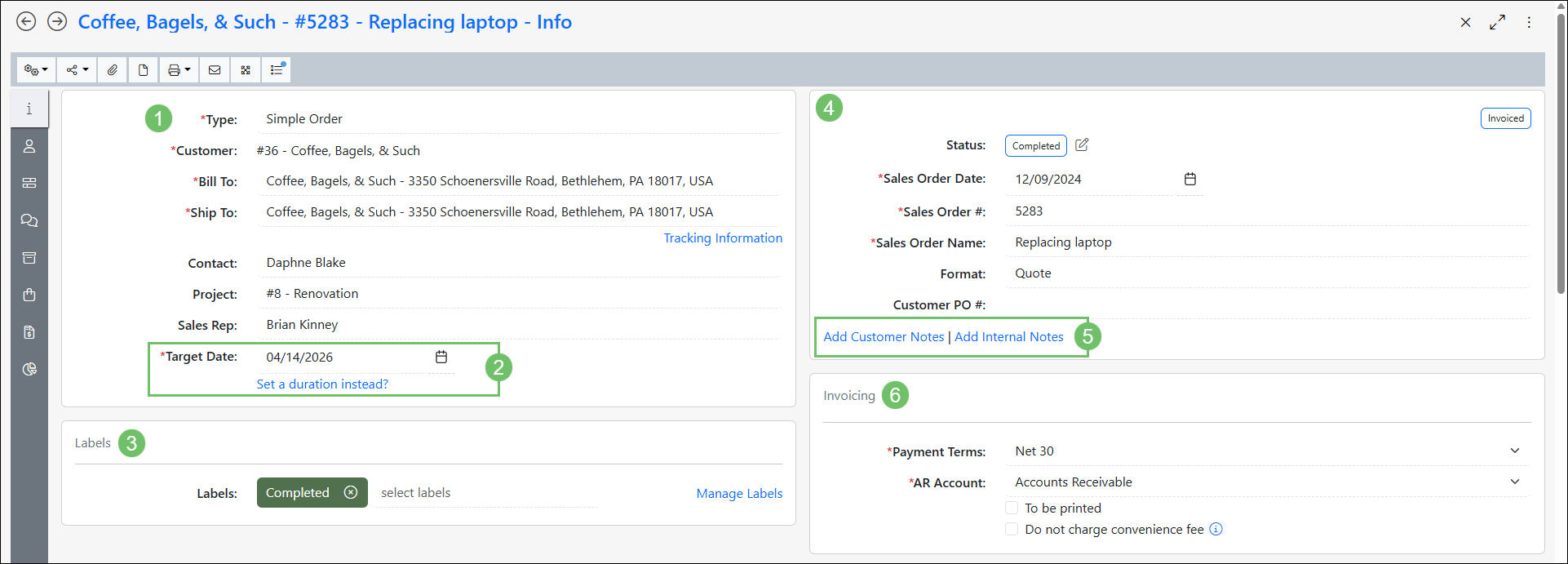
Example of the Sales Order Info Page
-
Invoiced Sales Orders
Once a Sales Order has been Invoiced in full, an Invoiced tag is displayed in the top-right corner of the Sales Order. Striven determines whether a Sales Order is fully Invoiced based on specific logic depending on the order type and billing setup:

Example of the Invoiced Tag on a Sales Order
- Quantity-Based Invoicing Logic: For the order types listed below, Striven determines full invoicing by performing a quantity-based comparison. A Sales Order is considered fully Invoiced when the quantity of each individual line Item on the order matches the total quantity recorded on related Accounts Receivable (A/R) transactions, including Invoices, Sales Receipts, and Credit Memos:
- Non-Contract Managed Sales Orders
- Contract Managed Sales Orders configured with Manual Invoicing
- Contract Managed Sales Orders marked Complete where the user selected Do Not Generate the Final Invoice, allowing the Invoice to be created manually
- Amount-Based Invoicing Logic: Other types of Sales Orders use an amount-based comparison, where an order is considered Invoiced when the total billed dollar amount matches the total Sales Order amount:
- Sales Orders configured with Bill on Approval
- Sales Orders configured with Bill on Completion
- Sales Orders with a Progress Invoicing Schedule set up
- Quantity-Based Invoicing Logic: For the order types listed below, Striven determines full invoicing by performing a quantity-based comparison. A Sales Order is considered fully Invoiced when the quantity of each individual line Item on the order matches the total quantity recorded on related Accounts Receivable (A/R) transactions, including Invoices, Sales Receipts, and Credit Memos:
-
Sales Order Statuses
Once you begin creating Sales Orders, you will notice they may reside in different statuses depending on the type of Sales Order or where the order is currently within its lifecycle. Below is a detailed list of the Sales Order Statuses and what each of them entail:
- Incomplete: Stores the Sales Order in its present state without performing a validation check to verify that all mandatory fields are completed.
- Quoted: The Sales Order has been created with a validation check to verify that all mandatory fields are filled in but has not been sent to the Customer Contact for review yet. A Sales Order may automatically go into this status if it is selected in the Sales Order Creation Status field on a Sales Order Type. Contract Managed Sales Orders cannot be changed directly to the Quoted status by the Employee.
- Pending Approval: The Sales Order has been created and sent to the Customer Contact for review. Contract Managed Sales Orders can only be changed to the Pending Approval status by sending an electronic approval request to the Customer Contact.
- Declined: The Customer Contact has chosen to decline the Sales Order that was sent for them to review. Contract Managed Sales Orders cannot be changed directly to the Declined status by the Employee.
- Approved: Indicates that the Customer Contact has approved the Sales Order that was sent to them for review. If a Sales Order has been approved and has active Invoices related, the Sales Order cannot be marked Canceled. A Sales Order may automatically go into this status if it is selected in the Sales Order Creation Status field on a Sales Order Type.
- Canceled: Indicates a Sales Order was created by mistake or should not be included in standard records throughout the system when including Sales Orders. Contract Managed Sales Orders can only be changed to Canceled status when they are not in the Completed or Declined status and have not been Invoiced.
- Lost: The Sales Order has been moved into a Lost status by an Employee. The Lost status indicates that a Sales Order may have been in the process of being filled in or reviewed but the Customer decided not to pursue.
- In Progress: The Sales Order has been moved into an In Progress status by an Employee. This status indicates that the order is currently being fulfilled for the Customer. A Sales Order may automatically go into this status if it is selected in the Sales Order Creation Status field on a Sales Order Type.
- Completed: The Sales Order has been moved into a Completed status by an Employee. Completed Recurring Sales Orders can be reverted back to Approved or In Progress when the following conditions are met:
- There are no Change Orders in the statuses of Pending Approval, Approved, or In Progress.
- Today’s date is within the current billing period of the Sales Order.
-
Sales Order Notifications
Sales Orders can generate various types of notifications, which may vary depending on how and where they are processed. The section below explains each Sales Order Notification available in the Notification & Portal Content.
- Sales Order – Marked as Cancelled: This notification is dispatched to both the Sales Rep and the Contact designated on the Sales Order whenever its status is updated to Canceled.
- Sales Order – Marked as Completed: Whenever a Sales Order’s status changes to Completed, this alert is sent to both the designated Contact and the Sales Rep.
- Sales Order – Marked As Completed (With Feedback Link): Should the Sales Order Type be set up to incorporate feedback (such as a form, assessment, quiz, or survey), this specific notification will be triggered instead so that a link to the selected feedback is provided.
- Sales Order – Marked as Lost: This alert is delivered to the assigned Contact as well as the Sales Rep whenever a Sales Order’s status is changed to Lost.
- Sales Order – Needs Internal Review: This notification is sent to the designated user when a Sales Order requires internal review prior to being dispatched to the Customer.
- Sales Order Approval Email: Sent directly to the Contact listed on the Sales Order, this notification provides a link to review and approve the order within the Customer Portal.
- Sales Order Approval Email – T&M: Provided the Sales Order Type enables the Used for Time & Expenses setting, this notification is dispatched to the Contact containing a Customer Portal link for review and approval.
- Sales Order Approved Message: This alert is sent to the assigned Sales Rep on the Sales Order to notify them when a Contact approves the order via the Customer Portal.
- Sales Order Declined Message – To Contact: Upon electing to decline the Sales Order via the Customer Portal, the Contact will be sent this notification.
- Sales Order Declined Message – Internal: If a Contact declines a Sales Order via the Customer Portal, this notification is sent to the assigned Sales Rep.
- Sales Order Information: When viewing a Sales Order, clicking the Email button to send extra notifications uses this email template to contact the recipient.
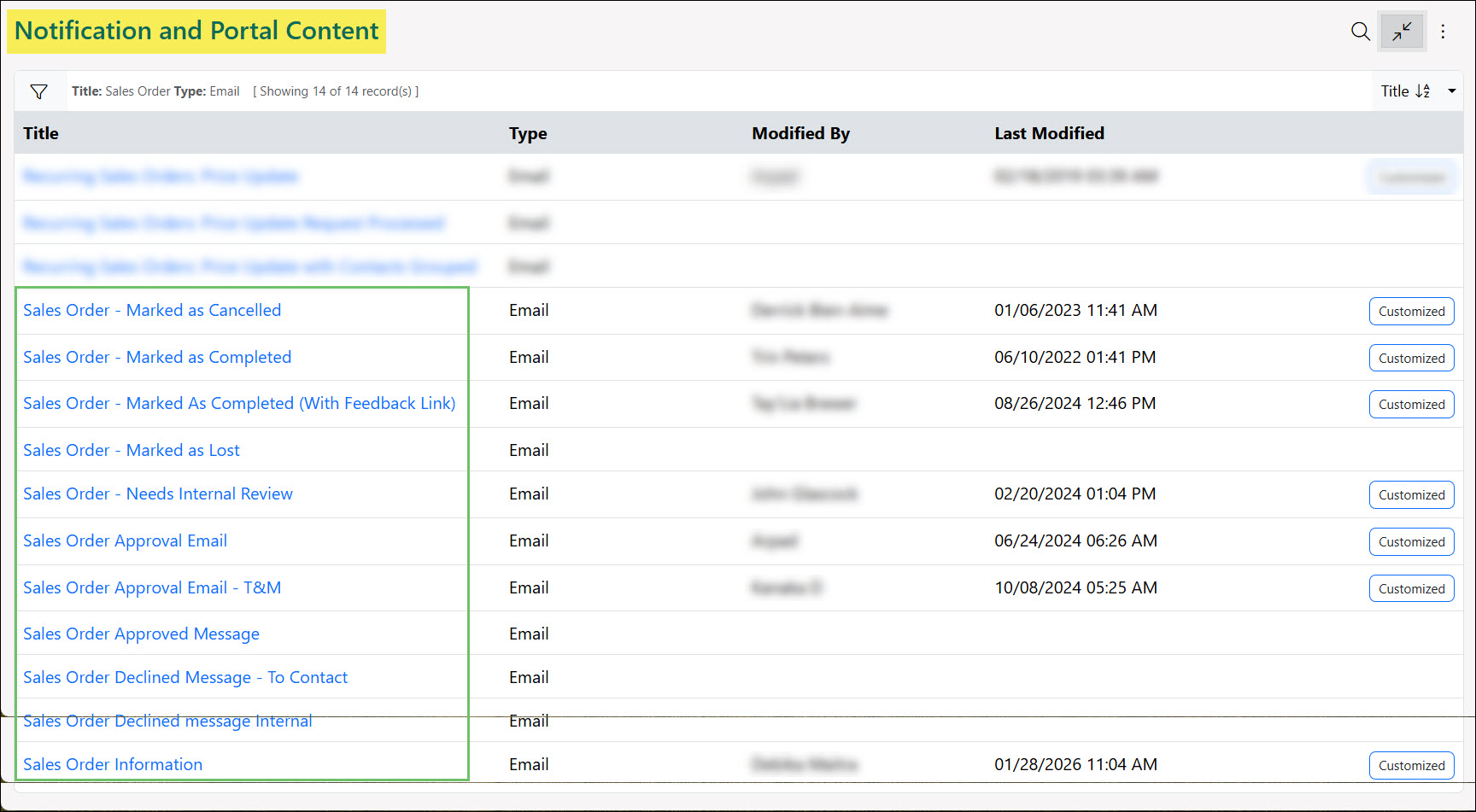
Example of Notifications Related to Sales Orders
-
Sales Order Templates
Sales Order Templates save significant time and effort by eliminating repeated manual entry for Sales Orders that are created on a regular basis for specific goods or services. After adding information to a Sales Order, there’s an option available at the bottom of the page that allows you to Save As Template.
Once selected, you may choose the name for the Sales Order Template, and then choose which information will be copied to new Sales Orders once the Template is used. You may select to copy the Sales Order Name, Customer and Location information, and pricing information for the Items on the Sales Order.
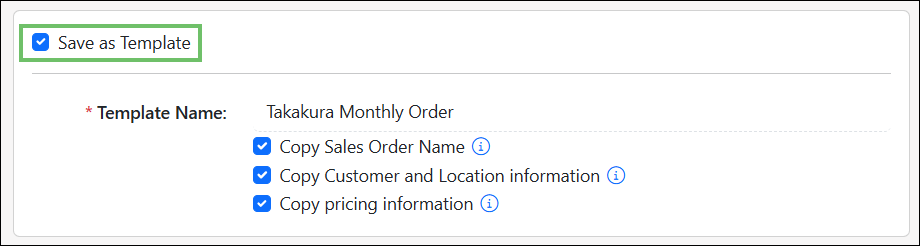
Example of the Save as Template Settings Options on a Sales Order
-
Using Sales Order Templates
To use a Template to create a new Sales Order, navigate to the Add Sales Order page, then select the Create from Template option.
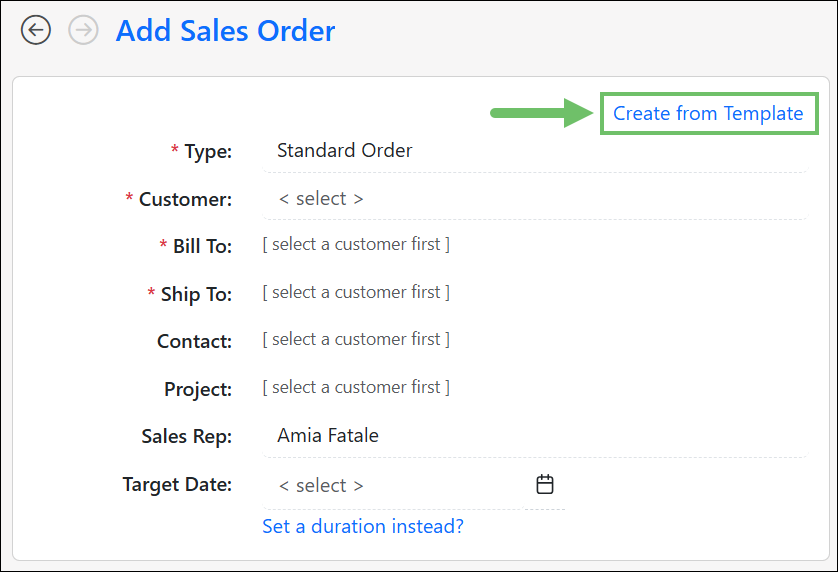
Example of the Create from Template Option on a Sales Order
After selecting the Create from Template option, several options will appear:
- Manage: Directs you to the Sales Order Templates page of your Sales Order Settings. From there, you can view all created Sales Order Templates, or create new ones.
- Hide: Collapses the available options, and you will need to select the Create from Template option again to manage or select a Template for use.
- Select Template: Allows you to search for a Sales Order Template to use, or select a Template from the drop-down list.
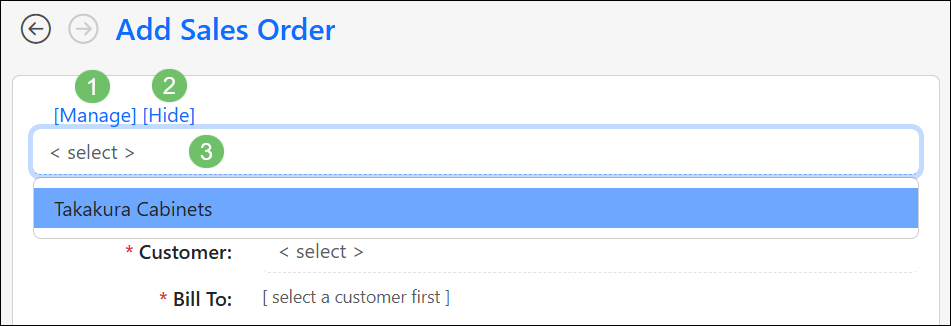
Example of the Available Options when Creating a Sales Order from a Template
After a Sales Order Template has been selected for use, the page title will indicate that you are now adding a Sales Order using a Template. The name of the Template chosen will be displayed there as well. Select fields on the Sales Order will be filled in with the information you saved to the Template, like Customer Name, Locations, and Sales Order Name.
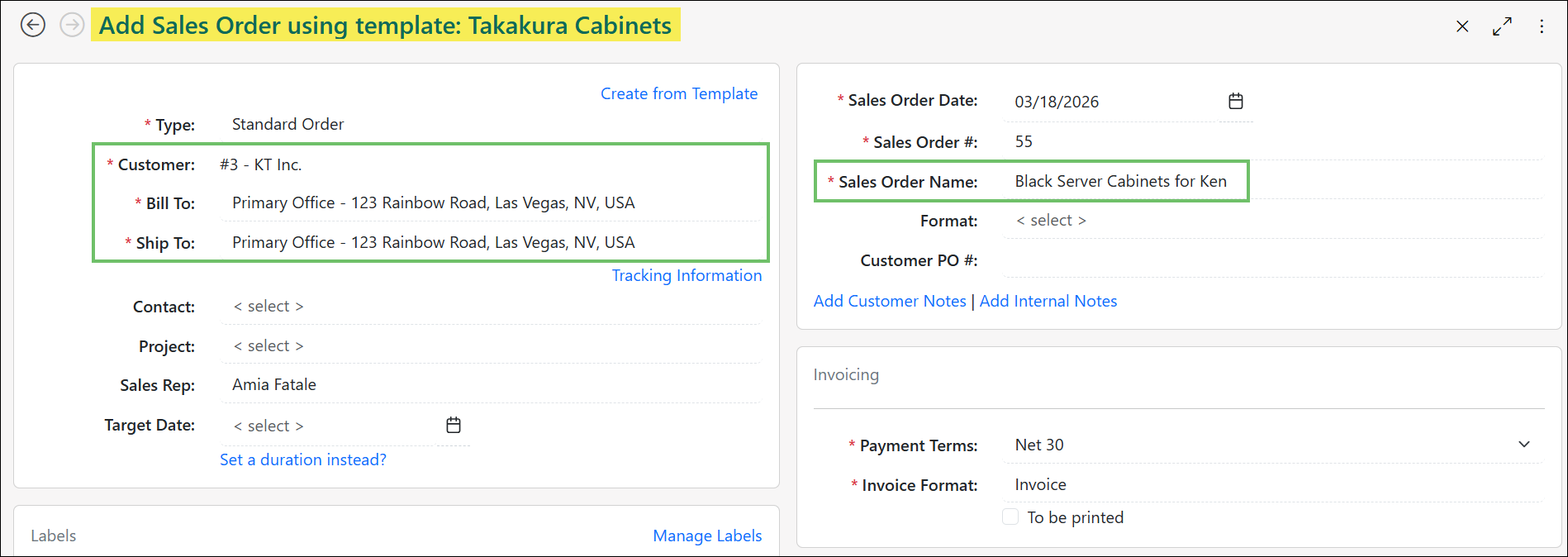
Example of the Information Carried Over to the New Sales Order from the Template
-
Managing Sales Order Templates
Sales Order Templates can be managed by selecting the Manage option available when choosing to create a Sales Order from a Template, or by navigating to Company > Settings > Accounting > Sales > Sales Orders > Sales Order Templates.
From the Sales Order Templates page, we have the ability to create, edit, or deactivate Sales Order Templates. The section below details the options available:
- Add Template: Allows you to create a new Sales Order Template by directing you to the Add Sales Order page.
- Search: Provides search filters to find a specific Template by Name or Type (referring to Sales Order Type).
- Expand/Collapse: Allows you to make the page fullscreen, or revert the page to a smaller view.
- Sort: Allows you to sort the list of Templates by Name, Type, or Created By.
- Sales Order Template: Allows you to view the Order the Template was created from, or the base Template.
- Deactivate: Enables you to deactivate the selected Template to prevent further use.
- Template Actions: The hamburger menu located next to the Template Name offers you two action options:
- Create Sales Order: Allows you to quickly create a new Sales Order using the selected Template.
- Edit Template: Selecting this option allows you to edit the Template via a pop-up window, where you can change the name of the Template, or adjust what information is copied from the original Order.
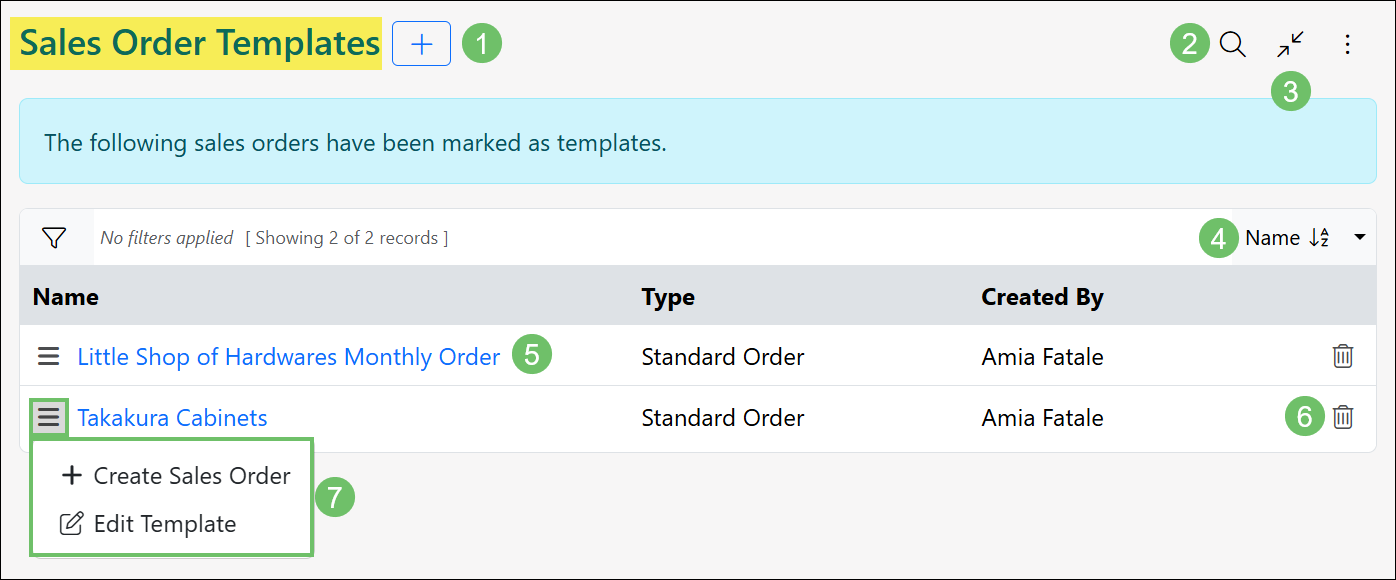
Example of the Sales Order Templates Page
-
Recap
With this guide, we have discussed navigating the Sales Order List page and the information available from a Sales Order to assist you in finding the details you need regarding your Orders. We have also discussed Sales Order Templates and the Internal Order Review Queue, which are available to enhance your Sales Order creation process.
Have a Question?
Ask the Striven Community
User-sourced how-to’s, feedback, and more!
FAQs
-
Are the Sales Order Status options customizable?
To ensure data consistency, the system utilizes a fixed set of Sales Order Statuses, which include Quoted, Pending Approval, Approved, In Progress, Completed, Declined, Canceled, and Lost. For any classification needs that extend beyond these standard statuses, users should utilize the customizable Sales Order Labels feature.