


Sales Management
Sales Order Settings
Support Guide
-
Overview
This guide is designed to walk users through the detailed configuration options available for Sales Orders within Striven. Sales Orders offer extensive flexibility, allowing you to tailor your system for everything from standard sales and quotes to complex contracts and recurring subscriptions. The settings covered here provide granular control over permissions, Custom Fields, internal approval processes, line item appearance, invoicing frequencies, and specialized views to ensure your Sales Order process aligns perfectly with your business operations.
Read this guide if you are trying to:
✔ Configure settings for Sales Order Types in Striven.
✔ Establish Line Item Grouping Settings.
✔ Arrange Internal Approval settings for Sales Orders.
-
Permissions
Access to Sales Order Information in Striven is managed by a variety of user permissions. To verify your current access, consult your system administrator or the individual responsible for assigning and managing User Roles within your organization.
You can also check the permissions specifically related to the page you are viewing in Striven by clicking on the kebab menu in the top right corner of the page and selecting Settings. This will display the Settings Info page, where the relevant permissions are listed, along with an indication of your current access status.
If there is a permission listed to which you do not have access, the system may offer the option to Request Access (depending on your organization’s system settings). Choosing this option will notify a designated individual, allowing them to grant you that specific permission.
-
Sales Settings
The Sales Settings page is the primary location for managing general system-wide configurations that affect all Sales Orders within Striven. This page controls fundamental aspects of your sales process, including default, display, and financial settings.
- Note: The configuration details provided in this guide section are typically reserved for system administrators or users with specific permissions or User Roles. If you do not have this access, you will be unable to make changes to these settings.
This section will walk through the settings available on the Sales Settings page, explaining its function and impact on your Sales Order workflow. You can access this page by navigating to Company > Settings > Accounting > Sales > Sales Orders > Settings.
- Automated Jobs Notice: Informational notice to let users know that automated jobs, such as Recurring Sales Orders, will run after 3:00 am EST on weekdays, and 10:00 am EST on weekends and how long the process is expected to take to complete.
- General Sales Settings: Offers the following general Sales settings options:
- Require Bill To & Ship To: Sets whether the Bill To and Ship To Locations are required on a Sales Order.
- Default Sales Rep on Creation: Designates the category for the default Sales Rep that is auto-selected on Sales Orders when creating them. If a Category is selected, the Sales Rep will be whomever is assigned at the Customer level for that Category. If no one is assigned, the default Sales Rep will be the person creating the Sales Order.
- Allow Line Item Grouping: Enables users to configure Line Item Grouping on Sales Orders to organize and customize the arrangement of the Items section.
- Show Cost & Markup for Line Items: Sets whether the Cost and Markup for Line Items is displayed on the Sales Order during creation. If enabled, another option will display for the selection to prompt the user to update the Item cost at the Item level if the cost is changed while creating the Sales Order.
- Show Profit in Subtotals: Determines whether the Profit is displayed in the Subtotals section of the Sales Order Info page.
- Sales Order Settings: Offers the following Sales Order specific settings:
- Auto-Expire Recurring Sales Orders: When enabled, the system will automatically stop invoicing once the Term is satisfied. If disabled, invoicing will continue indefinitely regardless of the Term set on the Sales Order.
- Lead Time for Invoice Generation: Allows you to set the number of days before the scheduled billing date that the system will automatically generate the Invoice.
- Allow 0 Quantity Line Items on Sales Orders: Enables users to create Sales Orders that include 0 Quantity Line Items. This allows for agreement on the pricing of Items, materials, or services that might be needed in the future but are not required right now.
- Invoice Memo: Used when Invoices are created automatically from Sales Orders that are set as recurring. This feature is helpful for clearly identifying the source of the recurrence and includes a short list of available merge fields for specific order-related details.
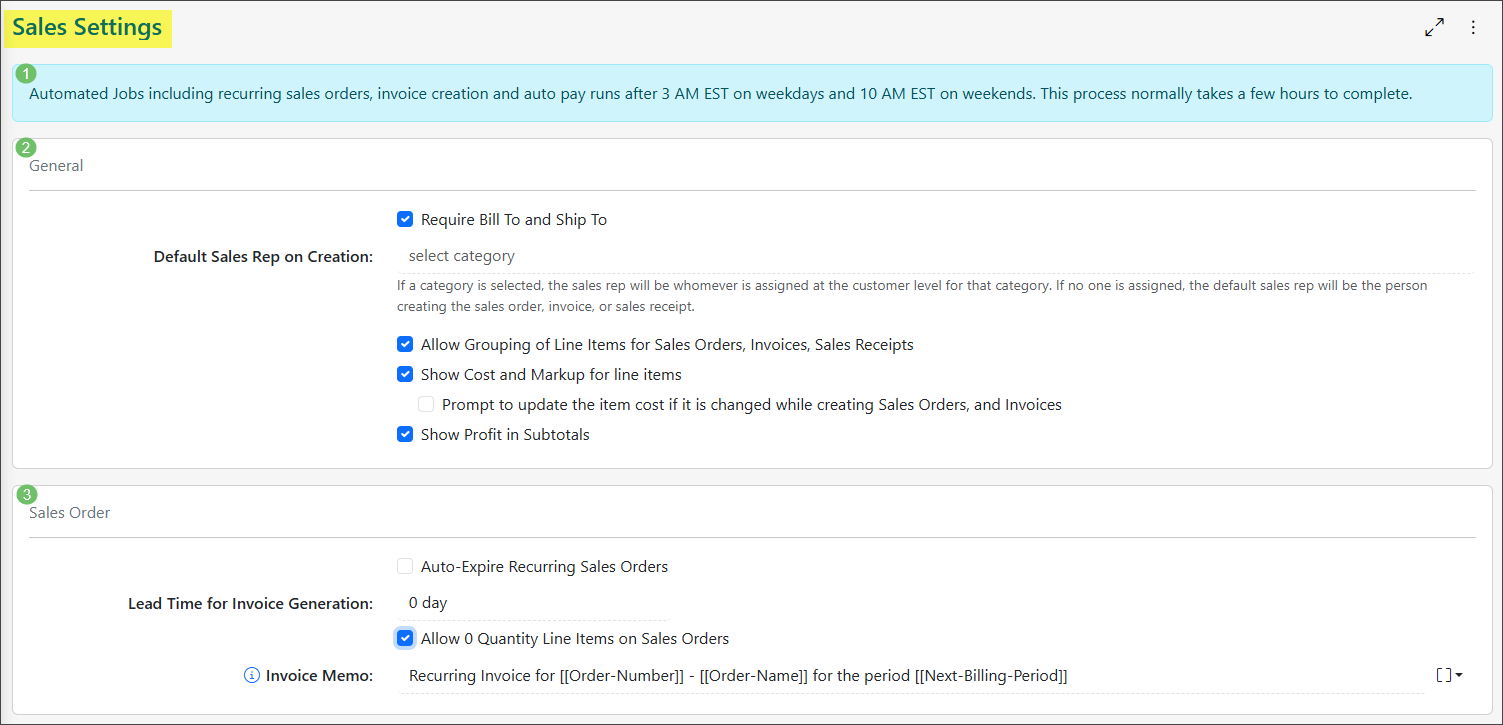
Example of the Sales Settings Page in Striven

-
Labels Library
Located within the Sales Order Settings menu, the Labels Library allows users to compile a comprehensive bank of Labels that can be assigned to specific Sales Order Types. This library gives you the ability to Create new Labels and assign a unique color to each, saving them for immediate use on your Sales Order Types.
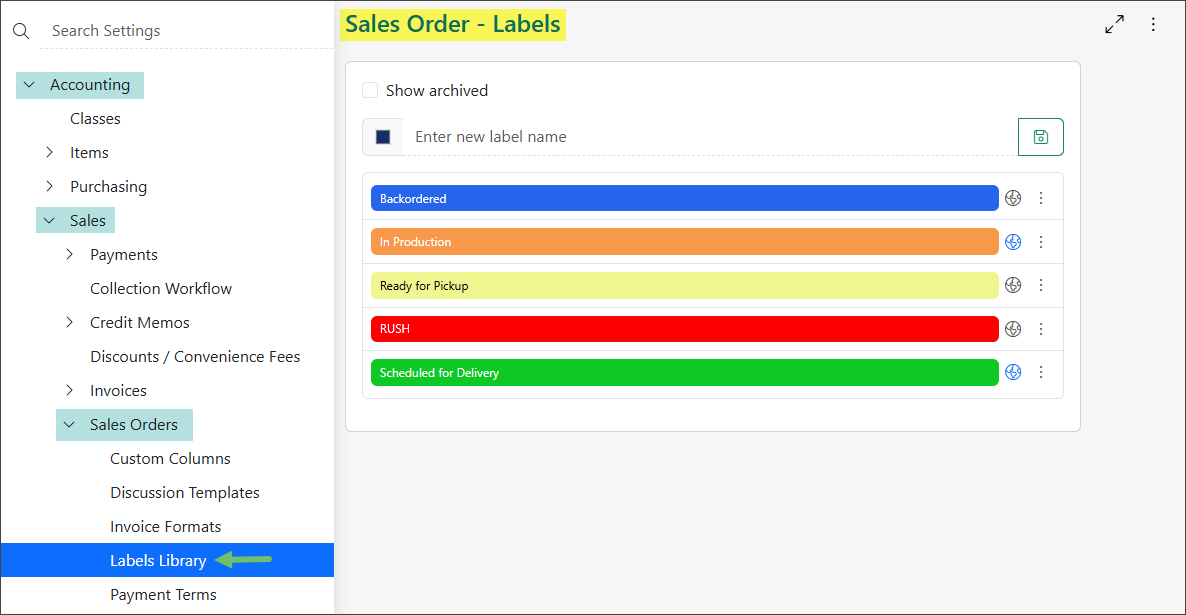
Example of the Labels Library Page
Once your Labels are created, you will have the following options:
- Edit: Allows you to modify the Label’s Name and Color.
- Delete: Permanently removes the Label from the system.
- Note: Exercise caution when deleting a Label, as this action can un-mark Sales Orders currently tagged with it. This loss of tagging may subsequently impact your reporting or filtering capabilities.
- Archive: Removes the Label from the active list while retaining it in a separate archive. Archiving is the recommended action for Labels that are no longer in active use but need to be retained for historical context on existing Sales Orders. Archiving preserves the classification on existing Sales Orders without cluttering the current selection menus.
- Sales Order Types: Opens a popup showing a list of the Sales Order Types associated with that particular Label, along with a trash icon to remove the association.
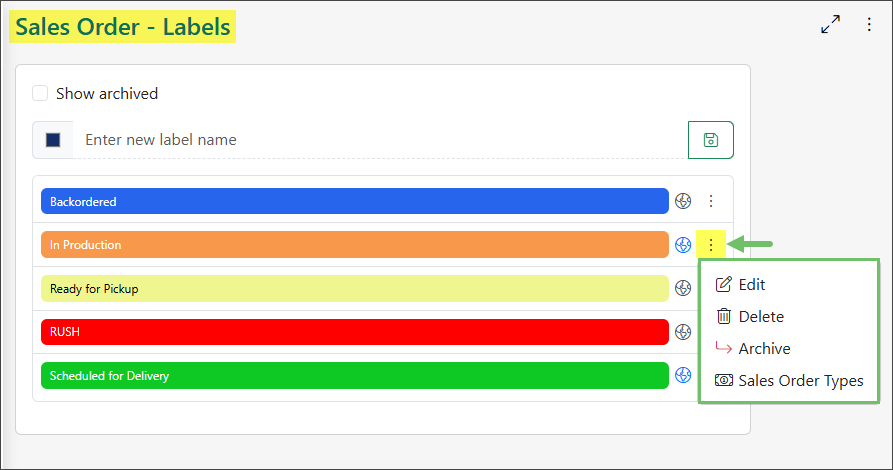
Example of the Kebab Menu on a Sales Order Label in the Labels Library
Furthermore, Labels in the Labels Library can be made visible in the Customer Portal by simply clicking the globe icon. Toggling this globe icon to blue will seamlessly turn a Label’s Customer Portal visibility on, and toggling it to gray indicates the Label is not visible in the Portal.
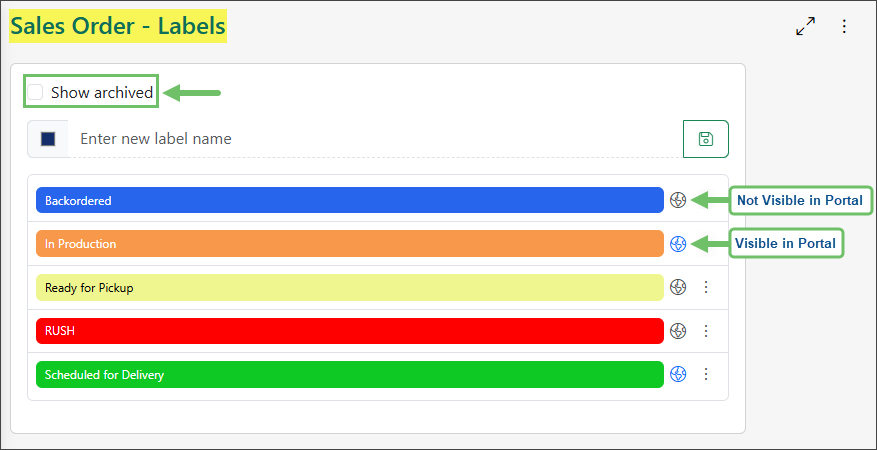
Example of Customer Portal Visibility for Sales Order Labels in the Labels Library
If you need to view any Labels that have previously been marked as Archived, you can simply mark the Show Archived checkbox to display them.
-
Sales Order Types
Before selling goods and services, it is essential to review and set up your Sales Order Types in Striven. These Types can be tailored to meet the specific needs of your organization’s sales department.
The system provides two (2) versions of Sales Order Types:
- Standard Orders: These are flexible, and do not require Customer approval. Edits or additions can be made at any time.
- Contract Managed Orders: These are more stringent, requiring either Customer or internal approval before work can commence. Changes are supported by the use of Change Orders which require.
To manage or create Sales Order Types, view the Sales Order Type List by navigating to Company > Settings > Accounting > Sales > Sales Orders > Sales Order Types.
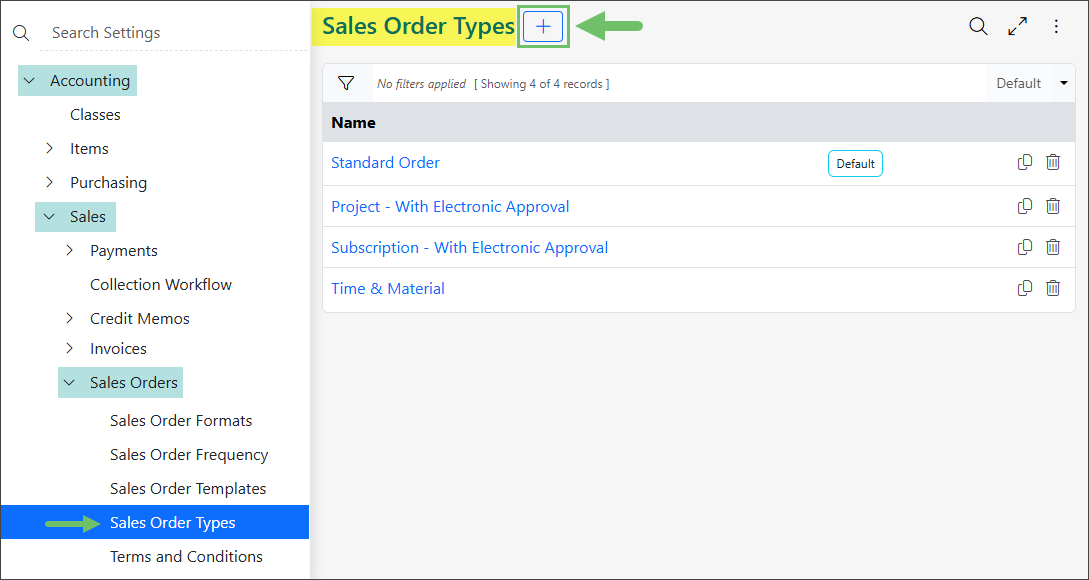
Example of the Add Button on the Sales Order Types Page
From there, you can click the Add button to create a new Sales Order Type or click on the name of an existing Type to modify its settings. An example of the configuration settings for a Sales Order Type are demonstrated below.
- Order Type Name: The name of the Sales Order Type you are configuring. This will appear on Sales Orders to select a Type from a drop-down list.
- Default: Sets the current Sales Order Type as the default selection when creating a new Sales Order.
- Payment Terms: Choosing a default Payment Term for the Sales Order Type will assign them as the default for Sales Orders when using this Type, but can be changed on a Sales Order later. If a Customer has default Payment Terms saved, their Terms will be used. For further details about configuring Payment Terms, visit the Payment Terms section of our Invoicing & Contract Management Guide.
- Invoice Format: Allows you to choose a default printable format for the Invoices generated from Sales Orders of this Type. For details about creating and managing printable formats for your Sales Orders, review our Sales Order Printable Formats Guide.
- Sales Order Creation Status: Sets the default creation status for Sales Orders of this Type. You can choose between Quoted, Approved, or In Progress.
- Display Fields: Notes the information that can be captured and displayed on Sale Orders of this Type. If the Sales Order Name is selected, it will be required. Once the Target Date has been toggled on, you can then choose if this field should be required when creating Sales Orders in Striven. You can also select to display a Customer Contact or Project field on Sales Orders of this Type.
- Default Format: Enables you to set the default Sales Order Format for printing Sales Orders of this Type.
- Default Print Formats: Allows you to select multiple Sales Order Formats to choose from when printing the Sales Orders of this Type. This will limit the selection to only those formats selected for this Sales Order Type.
- Show Advanced Features: Enabling this option reveals additional configuration settings, which will be detailed later in this guide.
- Save: Offers the options to Save, Save & Add New, or Save & Close the Sales Order Type settings.
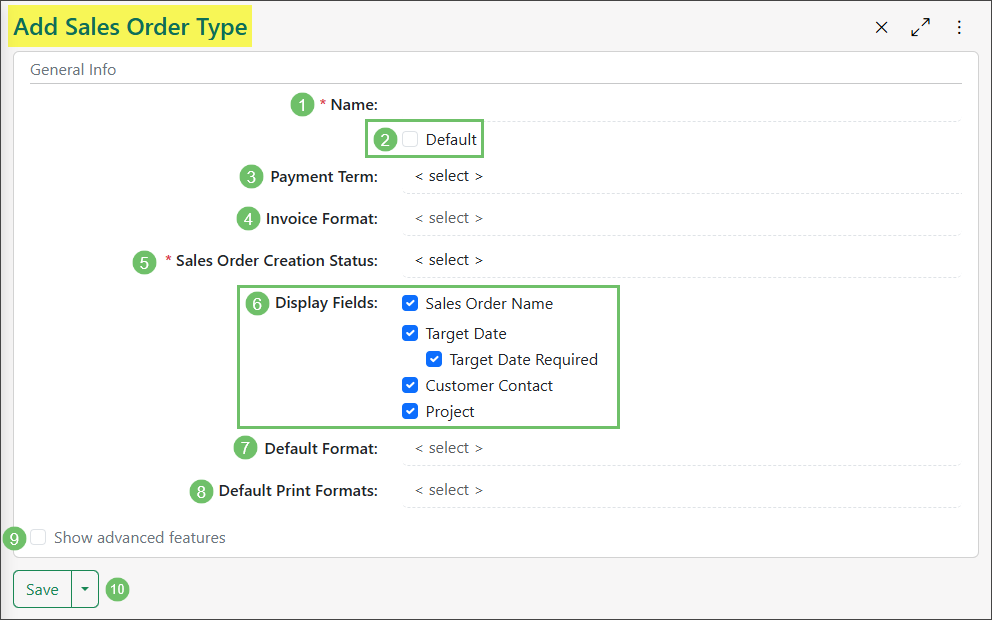
Example of the General Info Settings on the Add Sales Order Type Page
If you select the Show Advanced Features checkbox, you will see the following options:
- Used for Time & Expenses: Makes Time Entries and Expenses associated with this Sales Order Type billable by default. To learn more about managing Time Entries and/or Expenses in Striven, please review our Time & Expenses Guide.
- Collect Feedback: Allows you to send a Survey, Quiz, Assessment, or Form when the Sales Order is marked complete. To learn more about setting up Surveys and other feedback, review our Surveying & Feedback Guide.
- Fulfill Dates: Allows you to choose when Line Items on Sales Orders of this type must be fulfilled by. Whereas the Target Date indicates when the Sales Order as a whole is to be completed, the Fulfill By date per Line Item allows you to indicate the dates of each Item should be fulfilled.
- Completed Sales Order Prompt: Checking this box will prompt the user to send a completion email once a Sales Order of this Type has been marked Completed. The To section will be prepopulated with Sales Order Contacts or Contacts that are supposed to receive Invoice notifications.
- Note: This will not be applicable in the case of an API.
- Create Task from Sales Order Settings: Allows you to choose from the following settings:
- Copy Name to Task Name: Sets the Task Name to match the Sales Order Name.
- Copy Customer Notes to Task Description: Copies the Sales Order Customer Notes to the Task Description, if applicable.
- Copy Internal Notes to Task Description: Copies the Sales Order Internal Notes to the Task Description, if applicable.
- Copy Contact to Task Requested By: Sets the Task’s Requested By field with the Sales Order Contact info.
- Copy Attachments to Task Attachment: When generating a Task from a Sales Order, any existing attachments from that Sales Order are automatically included in the Task’s attachments.
- Turn on Contract Management: Used for Sales Orders wherein explicit approval (either internally or from the Customer) must be granted before any work can begin or goods are delivered, effectively acting as a binding contract. These settings will be detailed in the next part of this guide.
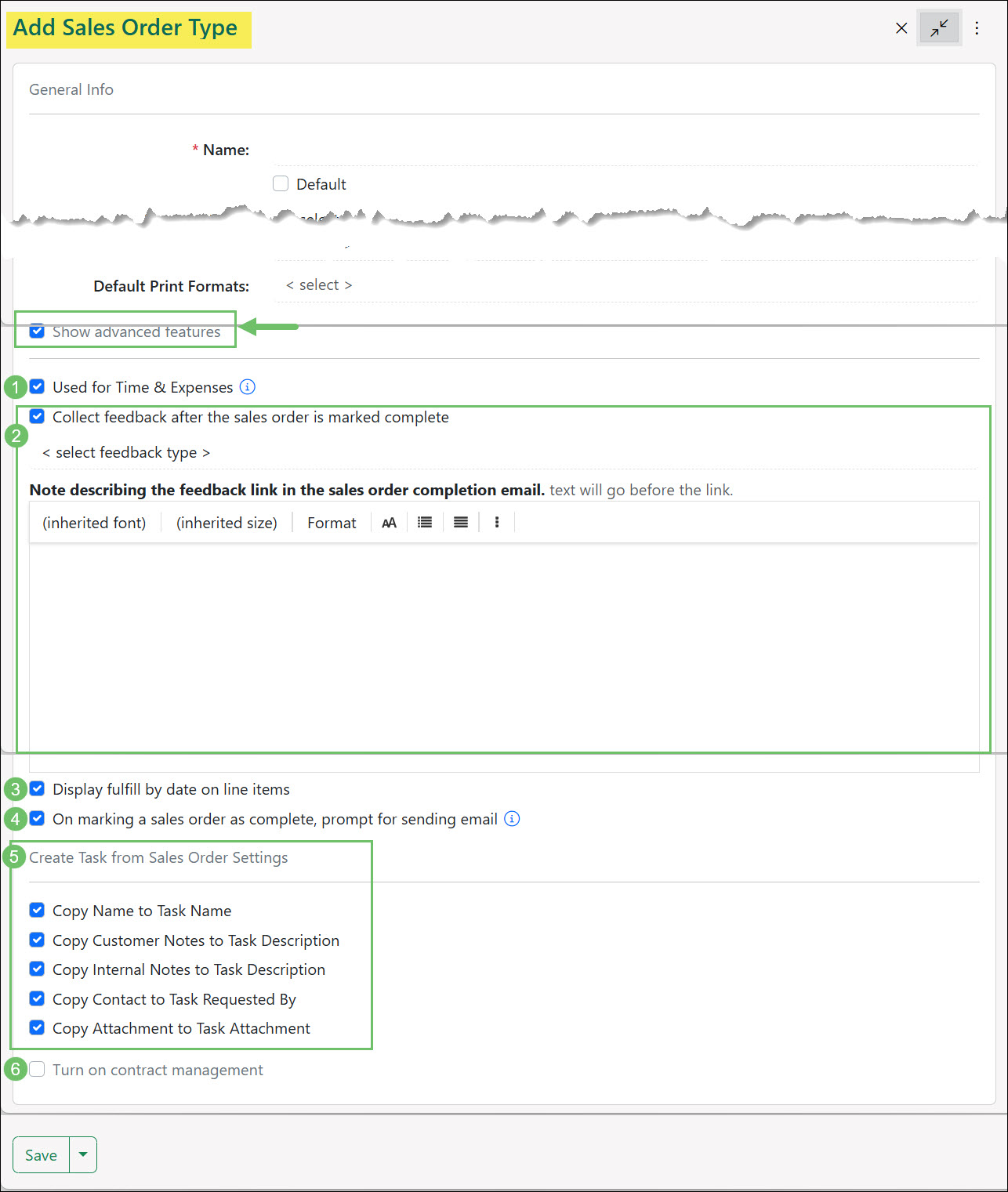
Example of the Advanced Sales Order Features Settings on the Add Sales Order Type Page
Contract Management
When you turn on Contract Management for a certain Sales Order Type, that work becomes a Contract. This feature lets you outline the Terms & Conditions, set automatic invoicing options when certain triggers occur, and customize how your Customers can approve the Sales Orders.
- Terms & Conditions: Allows you to set the default Terms & Conditions for this Sales Order Type. The Terms must be agreed upon by the Contact before the Sales Order can be approved. This setting will be detailed further in our Invoicing & Contract Management Guide.
- Invoicing Type: Allows you to select whether the invoicing should be done on a one-time basis or set up on a recurrence. If the Sales Order Type will have both One-Time and Recurring invoicing, Either can be selected to allow for additional flexibility.
- When to Invoice: Allows you to choose when to invoice a Sales Order of this type. The choices on when to invoice are On Completion, On Approval, Manual Invoicing, or Progress Invoicing. To learn more about invoicing Customers, please review our Accounts Receivable Transactions Guide.
- Item Visibility: Provides the option to hide the Items on a Sales Order when it is viewed in the Customer/Vendor Portal by the Contact.
- Approval Methods: Allows you to choose how Contacts approve the Sales Orders of this type. Once the Approval method is selected, there will be a Configure option to choose specific settings related to that method. The following Approval Method options are available for selection:
- Electronic: Enables an electronic signature field to be added to your Sales Order in the Customer/Vendor Portal. Once your Customer is ready to approve, they can simply sign digitally and your Contract is now in effect.
- Written: This is ideal if your Customer sends over documentation regarding his approval of the Sales Order. By clicking the configure hyperlink you will have the ability to require a document before an approval can be made.
- Verbal: Allows for approval of the Sales Order to be indicated as a conversation that happened. Requiring an attachment is also available for the verbally approved option.
- Additional Options: Additional options are available at the bottom of your Sales Order Type settings that are related to Payment Methods and AutoPay configuration. These settings can give you a wide variety of automation with regard to receiving Payments from Customers.
- Require Payment Method: Requires your Customer Contact to enter a Payment Profile before the Sales Order of this type can be approved.
- AutoPay Option: Allows for a Contact to sign up for AutoPay for all Invoices related to the Sales Order they will be approving.
- AutoPay Required: Having this option turned on means a Sales Order of this type cannot be approved unless the Contact has agreed to and turned on the AutoPay feature.
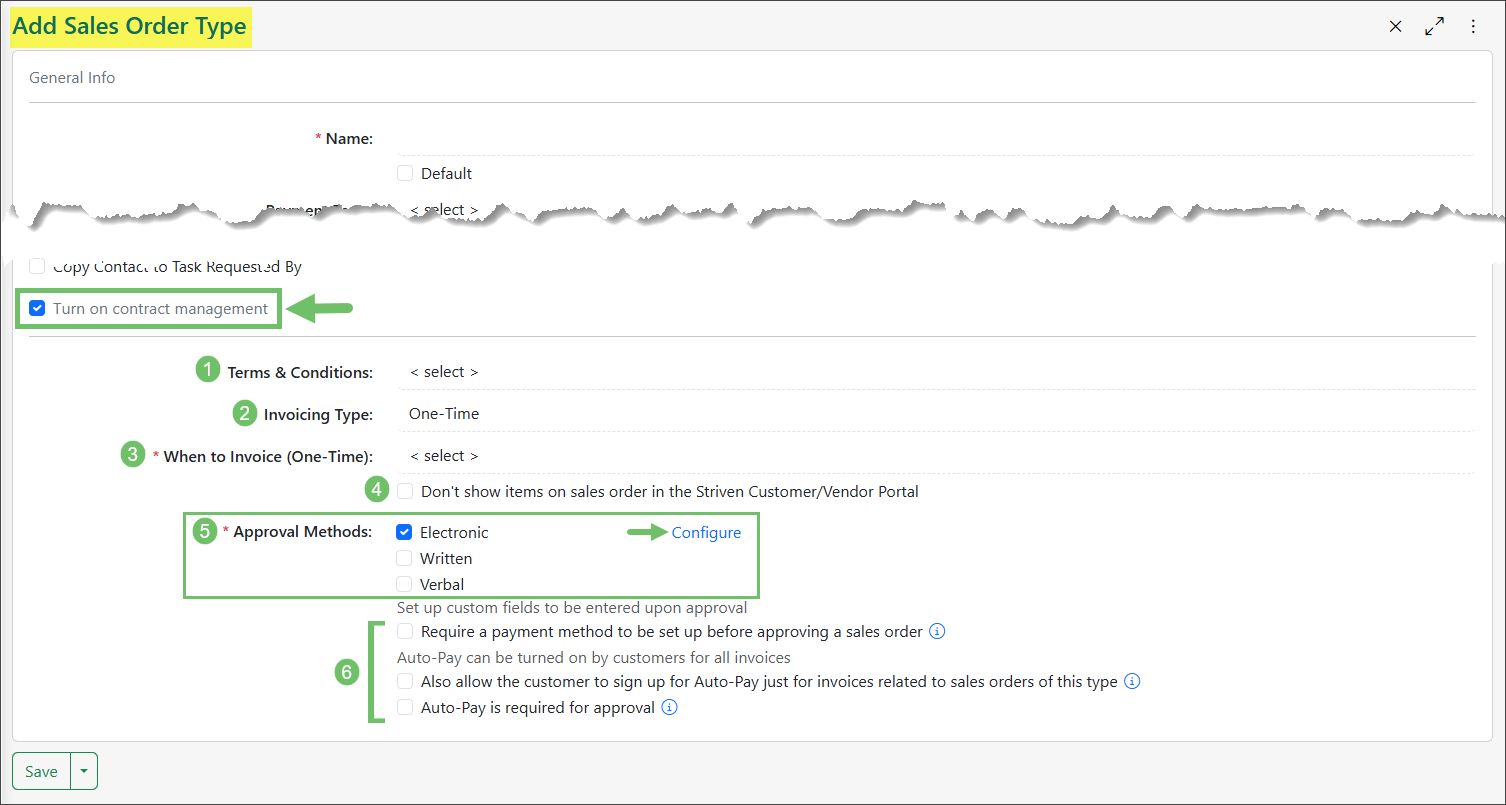
Example of the Turn On Contract Management Settings on the Sales Settings Page
Contract Management will be covered in more detail in our Invoicing & Contract Management Guide.
-
Type Level Custom Fields
To collect additional information on a Sales Order, you can create Custom Fields. These fields can be set up in two ways:
- Globally: Appear on all Sales Orders, regardless of their Type.
- Sales Order Type Level: Created for specific Sales Order Types, allowing you to gather information relevant only to that particular Sales Order Type.
To configure Custom Fields at the Sales Order Type level, use the waffle menu located next to the Sales Order Type – Info title in the top left corner of the page to navigate to the desired option. You will be presented with the following Custom Fields options:
- Custom Fields – Sales Order Info: Custom Fields intended to be filled in on the Sales Order Info page when using this Sales Order Type.
- Custom Fields – Approval: Custom Fields that only display when a Sales Order of this Type is approved. This type of Custom Field will only be available on Sales Order Types that have approval methods enabled.
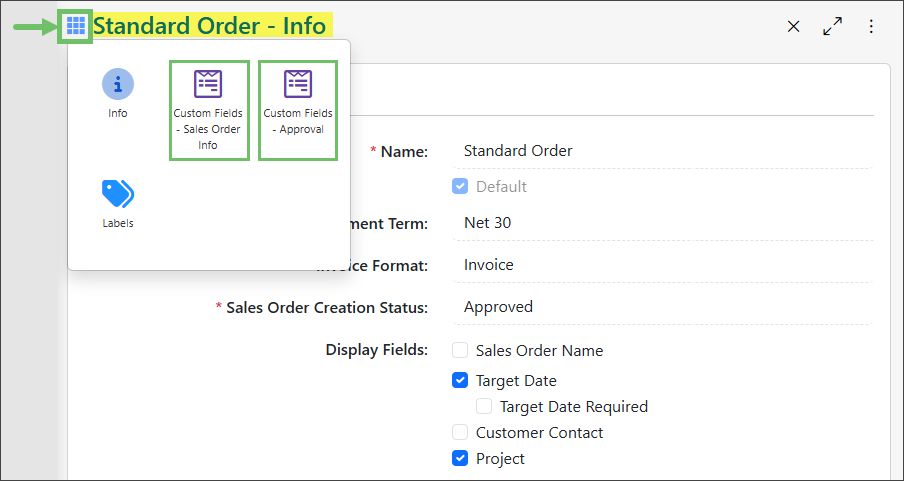
Example of Sales Order Type Custom Fields
Please visit our Custom Fields Guide for more information about using or configuring Custom Fields in Striven.
-
Custom Columns
Custom Columns can be configured to capture specific information per Line Item within a Sales Order. These fields can be useful for tracking information with regard to commissions, shipping information, backorder status, or product-specific detail such as product variations. To add Custom Columns to your Sales Orders, use the following steps:
Company > Settings > Accounting > Sales > Sales Orders > Custom Columns.
- Add: Creates a new Custom Column to display on Sales Orders. A total of three (3) additional columns can be added to Sales Orders and the Custom Column Name is limited to 15 characters.
- Manage Field Mappings: Option available if you plan to add Custom Columns to your Sales Orders that should also carry over to the related Invoices. This will be explained in more detail in the sub-section below.
- Include Inactive: Toggle the checkbox to include deactivated Custom Columns to the list.
- Custom Columns List: Lists all of the Custom Columns and indicates whether each is set as required (noted by the red asterisk * symbol by the Column Name) or visible on the Customer/Vendor Portal (indicated by the globe icon). You may also deactivate a Custom Column by clicking on the trash icon, or click on the Column Name to open the Column Info page to make edits. The order in which the Custom Columns appear on Sales Orders can be rearranged by clicking and dragging the drag/drop icon next to each column name.
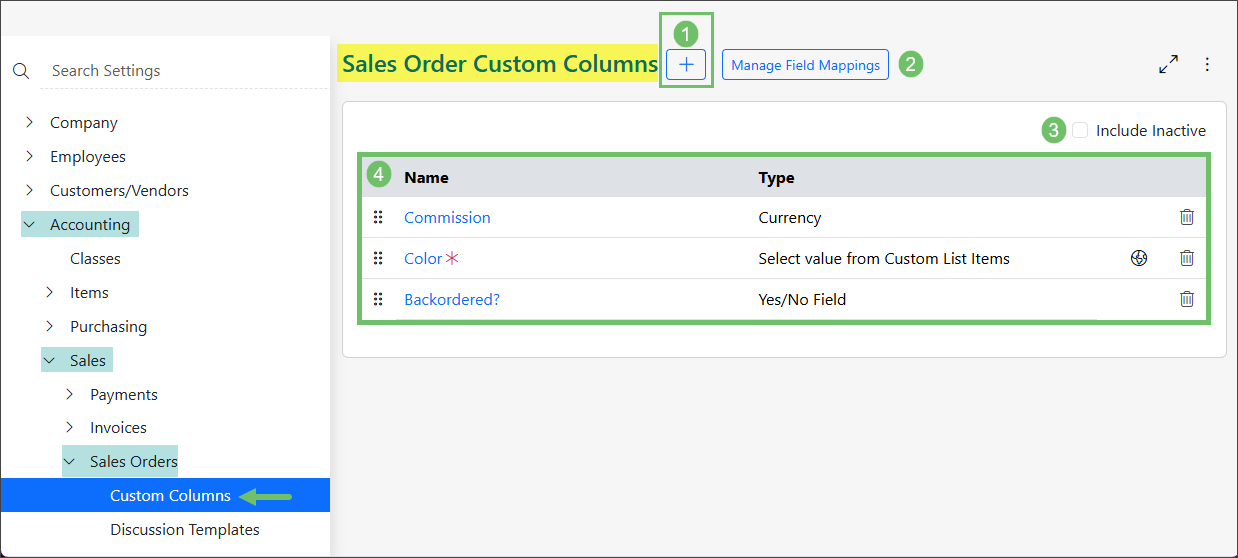
Example of Sales Order Custom Columns
-
Sales Order & Invoice Custom Mapping
Custom Field Mapping is an automation tool in Striven that acts as a bridge. It enables Striven to pull information from one part of the system to be carried over to another part in an effort to eliminate the need for manual data entry. This also ensures that specific, custom information stays consistent throughout the process.
To link custom Sales Order fields to the corresponding Invoice, navigate to the Sales Order Custom Columns page and click Manage Field Mappings. This action opens the Custom Field Mappings page. The following steps will walk you through the process of mapping your Custom Fields to the Custom Columns on Sales Orders:
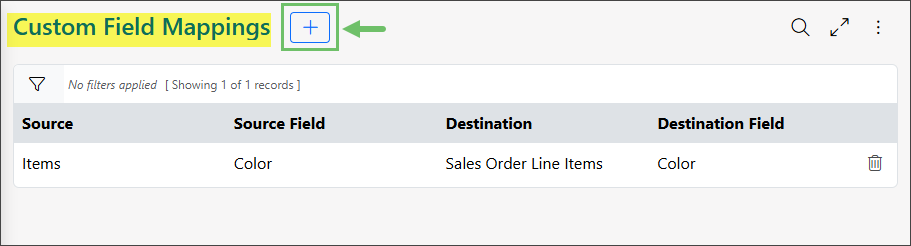
Example of the Custom Field Mappings Page
To start the mapping process, click the Add [ + ] button. This will open the Add Custom Field Mapping popup with the following fields:
- The Source is the origin of the data; the system entity that currently holds the data. For example, if the Source is set to Items, the system will look to the Items records for the data.
- The Destination is the record where the data needs to be added, such as a Custom Column on the Sales Order Line Item level.
- The Field resource designates the specific Custom Field or Custom Column where the data is stored and where it should land, such as the “Color” Custom Field on the Items records (i.e. the Source) and the “Color” Custom Column on the Sale Order Line Items (i.e. the Destination), as in the example.
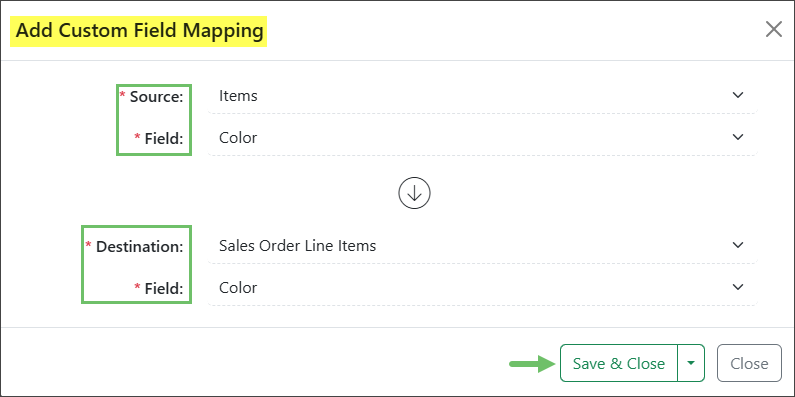
Example of the Add Custom Field Mapping Popup
For Custom Field Mapping to work smoothly, the Field on both the Source and Destination should ideally share the same data type (i.e. text to text, or number to number).
-
Editable Costs
Line Item costs can be edited on both Sales Orders and Invoices in Striven. When an Item cost is edited on a Sales Order, the new cost is stored at the Sales Order level. This stored cost will then be used as the default cost when creating a Purchase Order directly from that Sales Order.
- Note: Although you can modify Item costs on an Invoice, this cost change is not stored at the Invoice level.
Before your Employees can use this feature, you will need to ensure they have the proper permission included in their User Role. The permission is called “Update Item Cost from Invoices and Sales Orders”. Employees who lack this permission will not be able to update an Item cost at the Item or Cost List level.
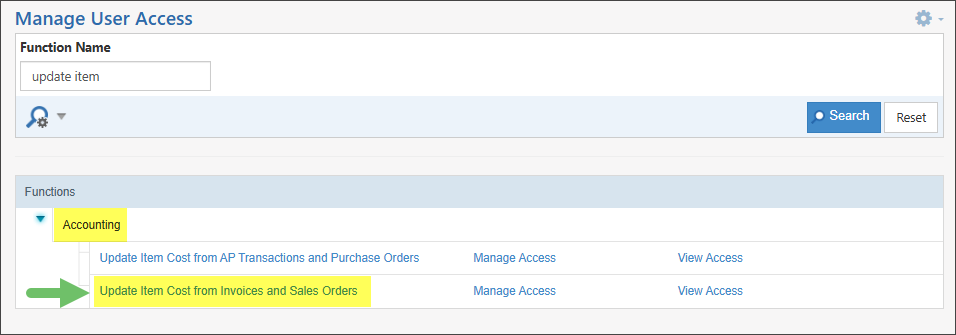
Example of the Permission Required to Update an Item Cost at the Item or Cost List Level
To enable this feature, navigate to the Sales Settings page. In the General section, you must first enable the Show Cost & Markup for Line Item option. Once this is enabled, you can then select the checkbox for Prompt to Update the Item Cost if it is Changed While Creating Sales Orders & Invoices.
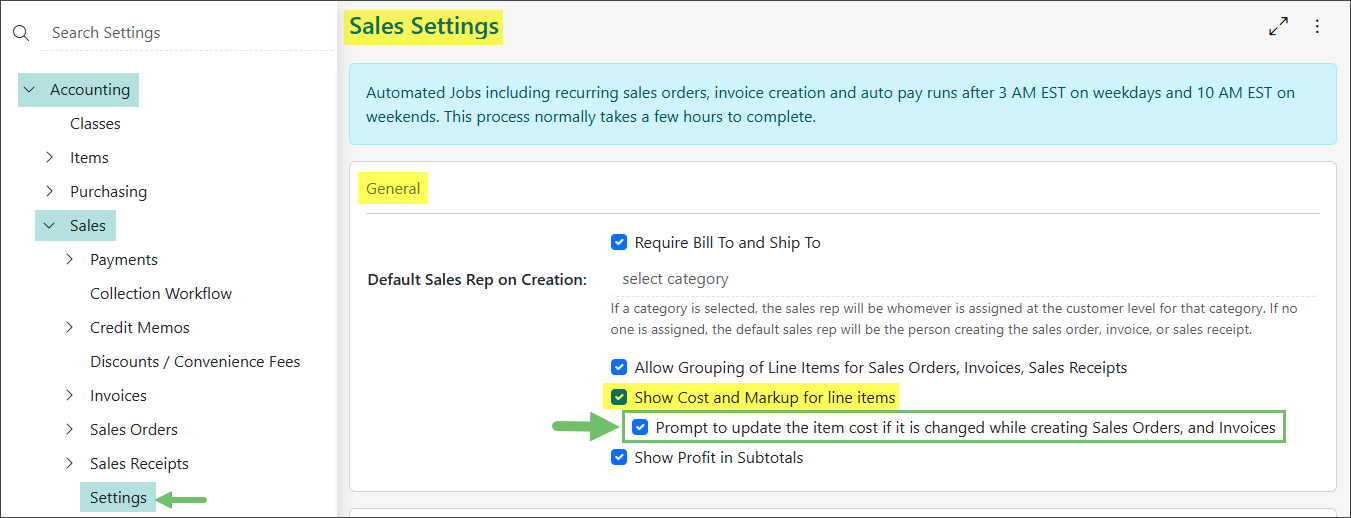
Example of the Setting to Enable Item Cost Editing on Sales Orders & Invoices
Additionally, there is a tooltip icon next to the Cost column on Sales Orders. This icon informs Employees about all the resulting changes that occur when the cost on the Order is modified.
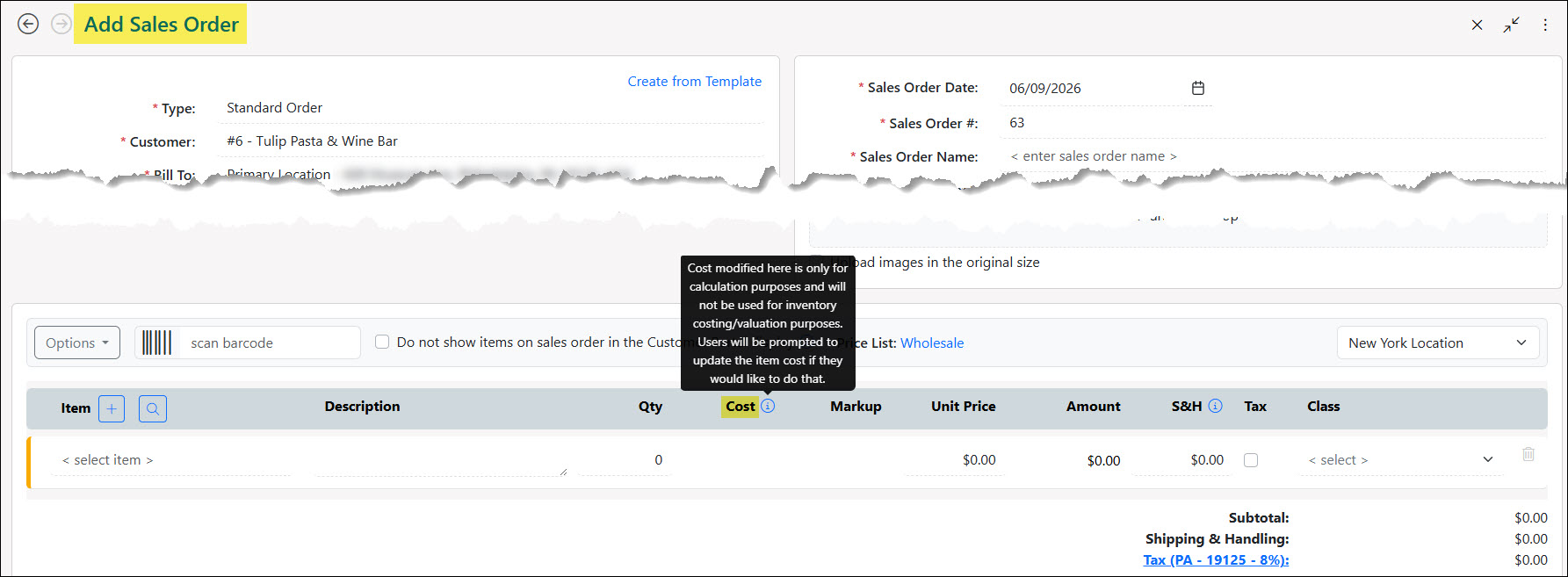
Example of Tooltip on Cost Column of a Sales Order
Depending on the Item Types included in the Sales Order, the cost will display differently.
- Item cost can be edited or updated for Items that are Inventory, Non-Inventory, and Service type Items as those are the only Item Types being loaded on the Purchase Order that is being created from the Sales Order.
- Item Groups and Manufactured Items will display as a static label since they have a cost, but are not being loaded on the Purchase Order created from the Sales Order.
- Fixed Assets and Discount Items do not have a cost, so they will not display cost information.
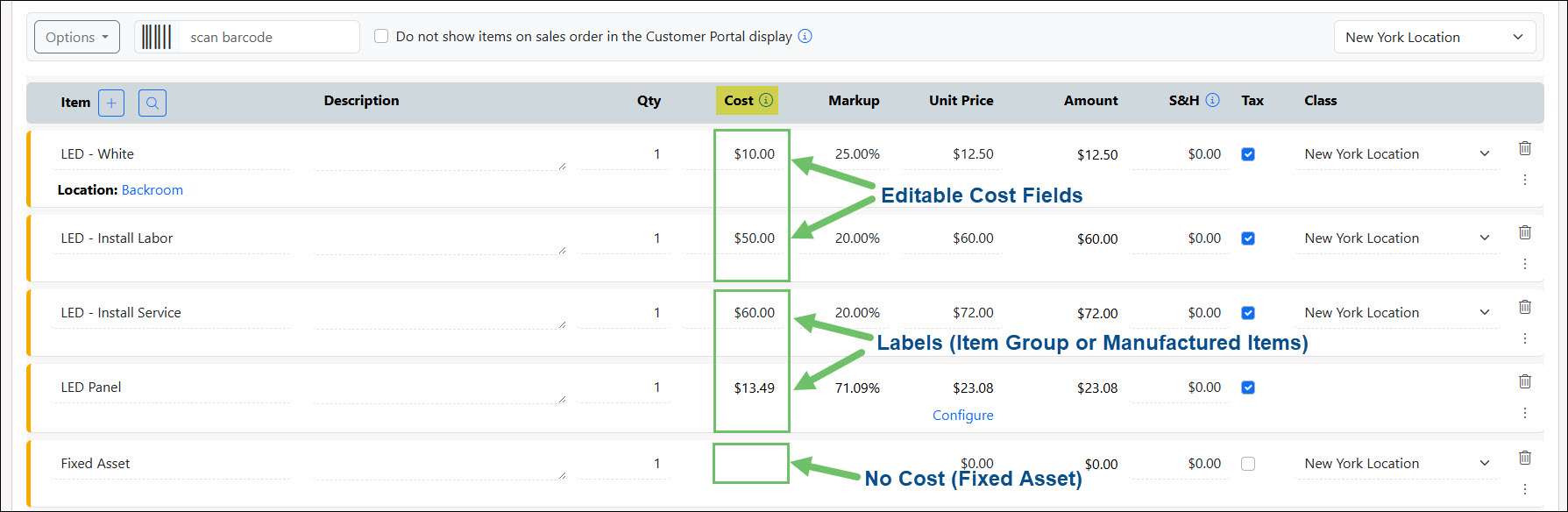
Example of the Different Cost Displays Depending on the Item Type
When creating the Purchase Order from the Sales Order, you’ll see the costs that have been changed will carry over from the Sales Order to display accordingly on the Purchase Order.
-
Sales Order Internal Approval
Striven allows you to set up an internal approval process for Contract Managed Sales Orders. This process requires certain orders to be reviewed by an internal user before they are sent to a customer for final approval.
This feature is useful for improving Employee training by ensuring new Employees are properly supervised by requiring their Contract Managed Sales Orders to be internally approved. It is also helpful for risk management by flagging sensitive Orders, such as those over a specific monetary amount, to enforce internal review and approval.
To configure this Sales Order Internal Approval Process, you need to begin by navigating to the profile of the Employee who should not have the direct authority to send Sales Orders to Customers. This can be done by navigating to Employees > List.
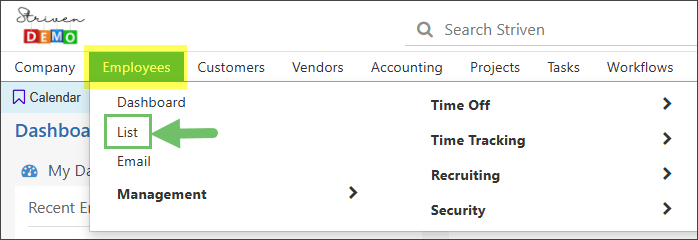
Example of the Employees List Option on the Employees Menu
Next, click on the Search icon and then enter the Employee’s name in the Name search field.
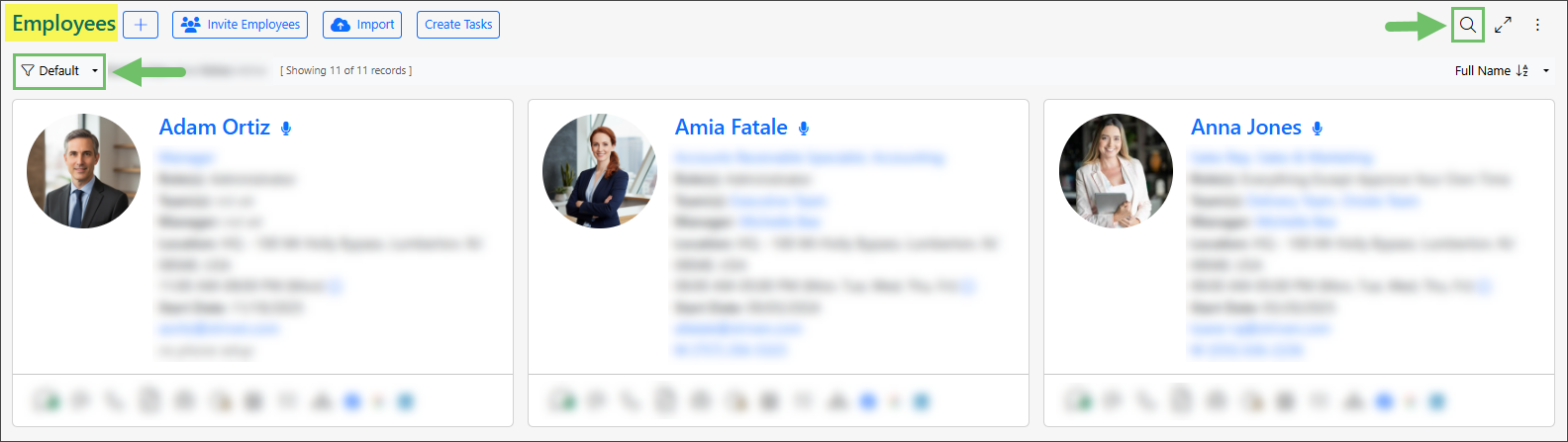
Example of the Two (2) Search Options Available on the Employees List Page
Once you have navigated to the Employee record you wish to configure for the Sales Order Internal Approval Process, you will then click on the Settings tab. There you will see the following options in the Quote Approval panel of the page:
- Approve up to: Provides a maximum dollar amount for the Employee’s authorization to Approve Quotes.
- No Limit: When enabled, the Employee will never be prompted to first go through the Internal Approval Process and can send directly to the Customer for approval.
- Quote approval for Orders with negative/0 Line Items: Determines per Employee whether they can send a Sales Order for approval when a Line Item within the Sales Order is either set as a negative quantity or with a $0 Line Item.
Example of Employee Order Approval Settings
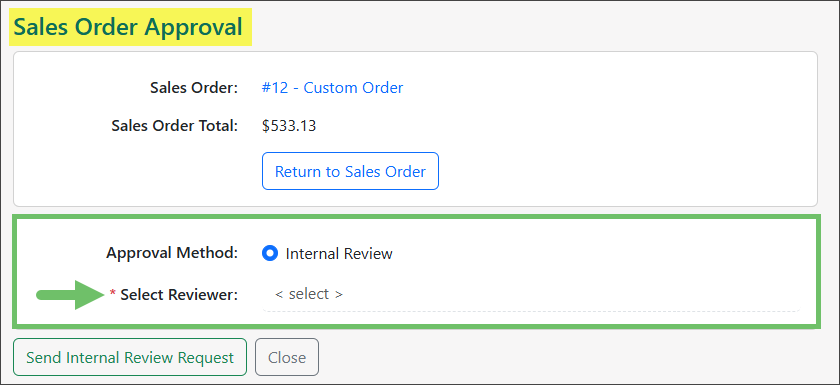
If an Employee needs a Sales Order approved internally, they will be asked to choose an approving Employee instead of using the approval methods set in the Sales Order Type. The chosen Employee will get an email notification to review the Sales Order and can then forward the Sales Order to the Customer Contact for their final approval.
Example of the Sales Order Internal Review Page
-
Only Items View
Restricting Sales Order access is a critical security feature, allowing system administrators to control what financial information Employees can view. This is commonly used to limit visibility for roles like warehouse staff or entry-level customer service, preventing them from seeing Individual Item Pricing and the Total Sales Order Amount.
This restriction offers key benefits:
- Enhanced Data Security: Minimizes exposure of sensitive financial data, showing only necessary logistical details (Item, Quantity, Location).
- Role-Based Efficiency: Removes clutter, letting Employees focus on operational tasks like picking and packaging.
- Confidentiality Maintenance: Ensures only authorized personnel (i.e. sales managers) access competitive or confidential pricing.
Administrators typically configure these permissions via User Roles to comply with security policies and maintain separation of duties.
To utilize the Only Items View for Sales Orders, the Employee’s User Role must include the permission “Sales Orders – Add/Edit (Only Items View).”
- Note: Other Sales Order permissions assigned to a User Role might create conflicts with the “Sales Orders – Add/Edit (Only Items View)” permission.
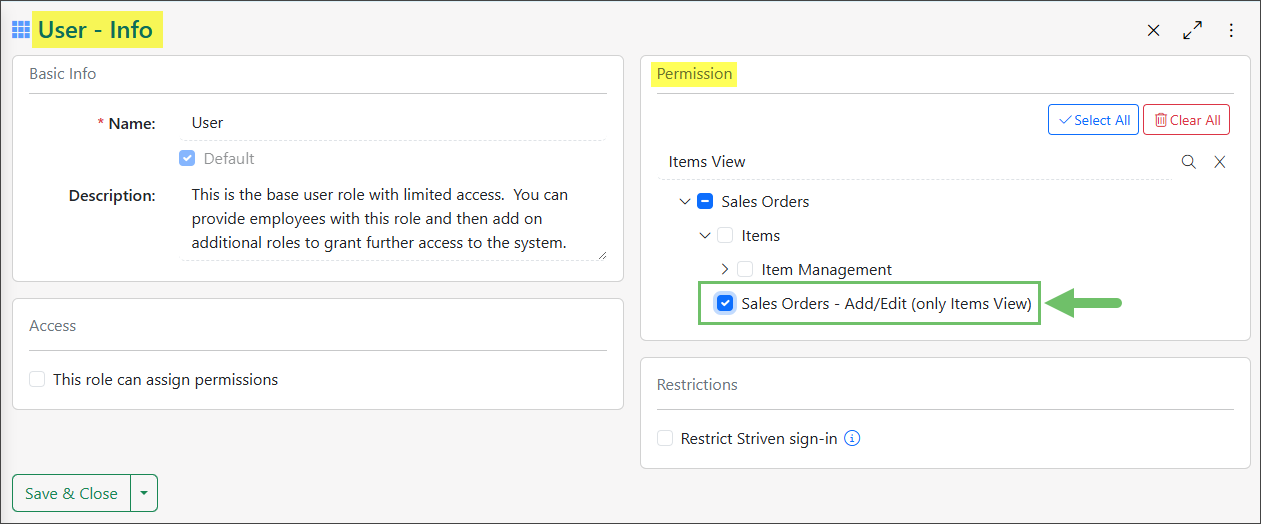
Example of the “Sales Orders – Add/Edit (Only Items View)” Permission Added to a User Role
Below is an example of how the Sales Order will appear to a user when the permission “Sales Orders – Add/Edit (Only Items View)” has been added to their User Role. When adding a new Sales Order, the Item Names, Descriptions, and Qty are visible to the user, but no monetary values are displayed.
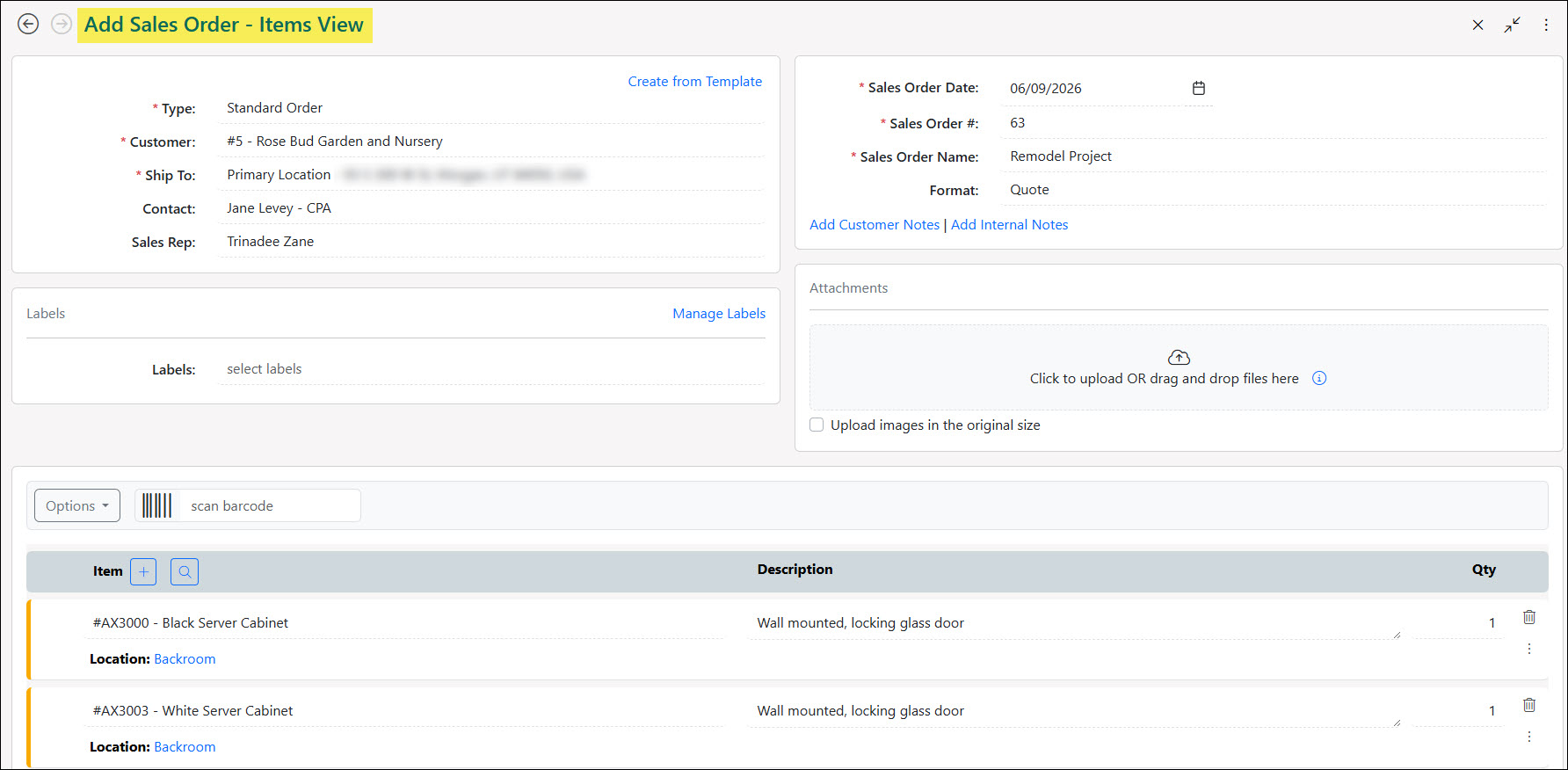
Example of a Sales Order in the Only Items View
-
Recap
This guide provided a comprehensive overview of Sales Order configuration in Striven, emphasizing tailoring settings for workflow and data tracking. Key areas covered include: Permissions (access control), Sales Settings (system defaults, financial display), Sales Order Types (Standard vs. Contract Managed), Contract Management Settings (approvals, invoicing triggers, terms), Labels Library (classification), Custom Fields & Columns (data capture), optional Internal Approval (financial oversight), Editable Cost Columns setup, and Only Items View (security).
Have a Question?
Ask the Striven Community
User-sourced how-to’s, feedback, and more!
FAQs
-
Is it possible for Standard Sales Orders to undergo an internal approval review process within the Approve Quotes system?
Standard Sales Orders do not go through an internal review or approval process. Standard Orders offer flexibility. They do not require approval from the customer or internally, and can be completed or modified at any point.
The Approve Quotes process is utilized for Contract Managed Orders, which have more stringent requirements and necessitate approval from the Customer or an internal party before work can start.