


Sales Management
Standard Orders & Layout
Support Guide
-
Overview
Standard Orders in Striven allow for a streamlined and flexible approach to processing Customer requests. This guide provides a comprehensive walkthrough of the Add Sales Order page, ensuring you can efficiently navigate the interface and utilize the Items Section to build accurate orders. From adding your first Item to calculating final costs, you will learn how to configure Sales Order details to meet your specific requirements.
Read this guide if you are trying to:
✔ Build a Standard Order in Striven.
✔ Organize your data visually using Line Item Groupings.
✔ Configure complex product offerings using Groups and Optional Items.
-
Permissions
Access to Sales Order Information in Striven is managed by a variety of user permissions. To verify your current access, consult your system administrator or the individual responsible for assigning and managing User Roles within your organization.
You can also check the permissions specifically related to the Add Sales Order page by clicking on the kebab menu in the top right corner of the Add Sales Order page and select Settings. This will display the Settings – Sales Order Info page, where the relevant permissions are listed, along with an indication of your current access status.
If there is a permission listed that you do not have access to, the system may offer the option to Request Access (depending on your organization’s system settings). Choosing this option will notify a designated individual, allowing them to grant you that specific permission.
-
Creating a Standard Sales Order
Creating a Sales Order is an important step in the sales process, officially documenting a Customer’s intent to purchase specific goods or services. This versatile internal document is used for several purposes: it facilitates communication with the Customer, establishes the foundation for inventory management and fulfillment operations, and serves as the basis for invoicing. The process for creating a Sales Order typically involves several key steps.
There are a number of different ways to create a Sales Order in Striven:
- Sales Orders List: Click the Add button on this page to open the Add Sales Order page. Alternatively, you can use the Sales Orders Import button on this page to add Sales Orders to Striven in bulk.

Example of the Sales Orders List Page

- Quick Add Menu: Navigate to the Quick Add menu in the top-right of the Striven Menu Bar. Below the Customers category, you will find the Sales Order option.
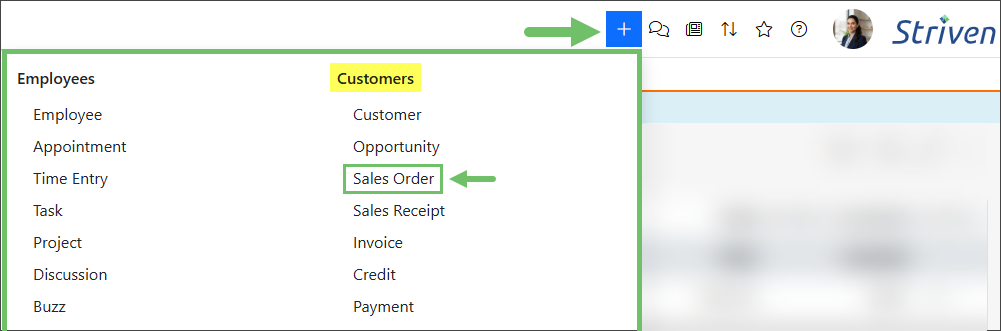
Example of the Sales Order Option on the Quick Add Menu
- Various Entities: The option to add/create a Sales Order is available from different entities within Striven, such as Opportunities, Striven Calendar, Projects, Tasks, and more.
-
Adding a Standard Sales Order
Creating a Standard Sales Order involves navigating several particular settings to tailor the transaction to your specific needs. This guide provides a detailed overview of the Add Sales Order interface, exploring the specific fields and options you will encounter. Below, we explain the functionality of each element and how to utilize them to successfully build your order.
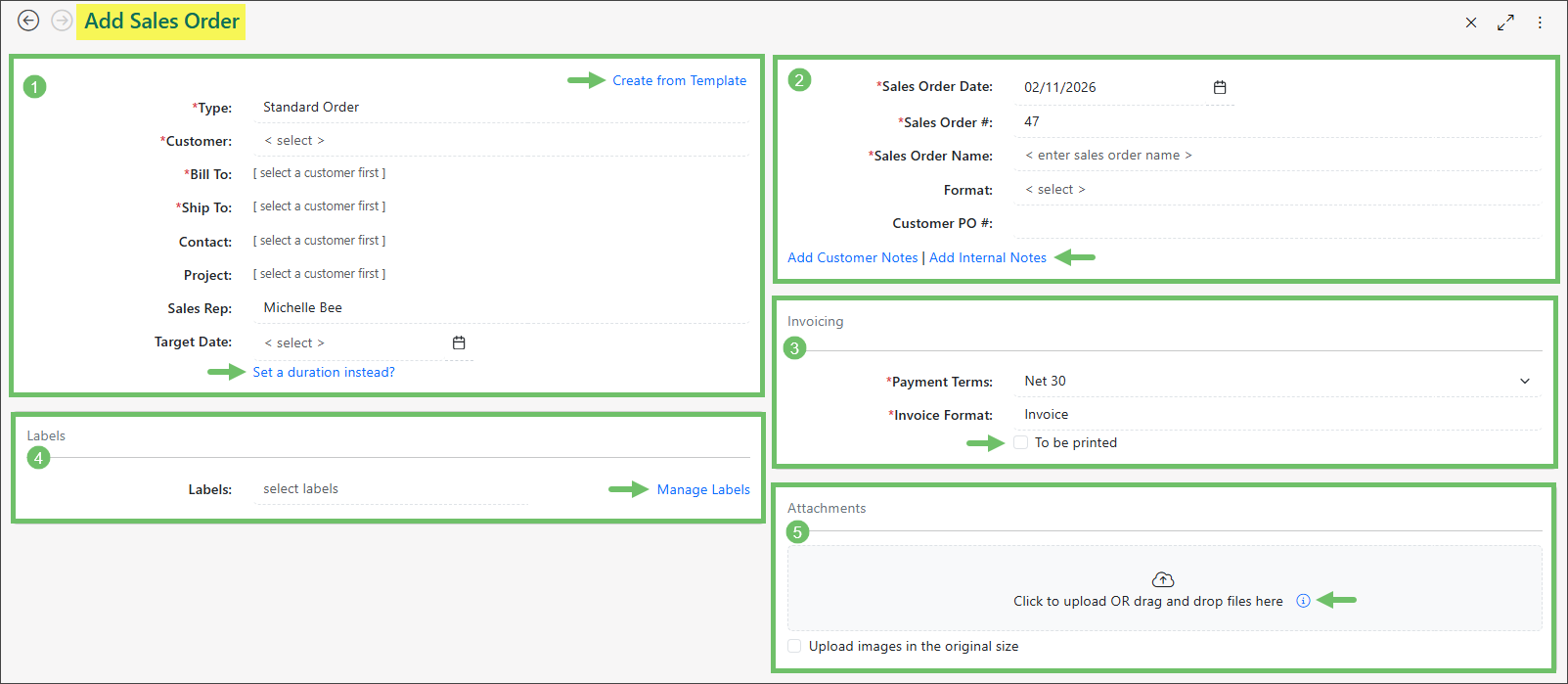
Example of Adding a Standard Sales Order
- Customer Information: Allows you to enter the Customer Information related to the Sales Order. This is also where you’ll find the option to create a Sales Order from a Template. For more information related to Sales Order Templates, refer to our Sales Order Management Guide.
- Create from Template: Provides the option to select from a list of Sales Order Templates from which to create your Sales Order. Clicking on the Manage option displays the Sales Order Templates page for further information related to the available templates.
- Type: Lists the available Sales Order Types from which to choose. Sales Order Types can be configured to meet specific needs of your business, including Contract Management. You may also use the hovering Add button to create a new Sales Order Type for the current order. Visit our Sales Order Settings Guide for further details about Sales Order Types.
- Customer: Provides a list of existing Customers from your Customers List from which to make your selection. Alternatively, if you need to Add a new Customer to the Sales Order, you can do so by hovering over the Customer line in this section and clicking on the Plus ( + ) icon that appears. This will display the Add Customer popup with fields to select the Customer’s Type and enter their general information to save in your system.
- Bill To: Displays the Customer Location designated as the Bill To location for the selected Customer. If the Customer does not have a designated Bill To location set, a list of Customer Locations is provided from which to choose.
- Ship To: Displays the Customer Location designated as the Ship To location for the selected Customer. If the Customer does not have a designated Ship To location set, a list of Customer Locations is provided from which to choose.
- Contact: Provides a list of Contacts related to the current Customer for selection. This field also includes a hovering Plus ( + ) icon should you need to add a new Contact for the current Customer to your system.
- Project: Provides a list of Customer-related Projects to relate to the Sales Order.
- Sales Rep: Displays a list of Sales Reps available for selection. This field also includes a hovering Plus ( + ) icon should you need to add a new Sales Rep.
- Target Date: Allows for the selection of a date to indicate when the Sales Order is expected to be completed. An exact date can be chosen, or there is an option to set a Duration period instead of a specific date. Setting a Duration for the Target Date allows the date to be calculated based on the Sales Order approval date.
- Order Information: Displays additional order information, such as the Sales Order Date, Sales Order Number, Sales Order Name, Sales Order Format, as well as the Customer’s Purchase Order Number if they have provided one.
- The Customer Notes link will allow you to enter a note that can be visible to the Customer in the Customer/Vendor Portal.
- The Internal Notes link will allow Employees to enter a note that will only be visible to internal Employees signed into Striven.
- Invoicing: Allows you to select or add Payment Terms, as well as select the printable format for the Invoices related to this Sales Order. (This section may vary depending on the Sales Order Type configuration).
- Labels: Allows you to select Labels from the list of existing Labels created within your Striven system. Available Labels are configured at the Sales Order Type level.
- Manage Labels: Opens the Manage Labels popup wherein you can select an existing label or add Private Sales Order Labels. You can choose the Label name and color. Private Labels are not visible or accessible to other system users, but may be used for personal use or reference. Private Labels are indicated by a Lock icon displayed on the Label in the Manage Labels popup.
- Note: Private Labels can be made Public to allow other system users to view and access them by clicking on the Label kebab menu and selecting Make Public. Keep in mind that once the Label is made Public, it cannot be switched back to Private.
- For more information on Sales Order Labels, check out the Labels Library section of our Sales Order Settings Guide.
- Manage Labels: Opens the Manage Labels popup wherein you can select an existing label or add Private Sales Order Labels. You can choose the Label name and color. Private Labels are not visible or accessible to other system users, but may be used for personal use or reference. Private Labels are indicated by a Lock icon displayed on the Label in the Manage Labels popup.
- Attachments: Enables you to choose a file or drag/drop a file to upload as an attachment to the Sales Order. These files will be available for the Customer to view in the Customer Portal as well. (For files that should only be available internally, the Sales Order’s Hub should be used instead). Hovering over the tooltip icon will display a list of allowed file types.
- Customer Information: Allows you to enter the Customer Information related to the Sales Order. This is also where you’ll find the option to create a Sales Order from a Template. For more information related to Sales Order Templates, refer to our Sales Order Management Guide.
-
Sales Order Items & Totals
Once the initial information for your Sales Order has been filled in, it is time to select the Items. Items are goods or services that you wish to sell to your Customer. After selecting the Item(s), information such as the Quantity, Unit Price, and Shipping & Handling can be entered to calculate the overall Total for the Sales Order.
- Items Section: Allows you to choose existing Items within your Striven system to be sold to your Customer. Use the Item Quick Add [ + ] option to create an Item directly from the Add Sales Order page. Additionally, use the Items Search button for a more advanced search option. The Select Item field automatically displays your most recently viewed Items at the top for quick access. If you need a specific Item, you can still search by typing its name directly into the field.
- Totals Section: Displays the Subtotal, Shipping & Handling, Tax Rate, and an overall Total of the Sales Order. The tax line can be edited for a different tax code as needed. To learn more about configuring and setting up Tax Agencies in Striven, please review our Accounting Setup Guide.
- Note: When an Invoice is created from a Sales Order, the most up-to-date Tax Rate in the Tax Agencies List will be used, rather than the Tax Rate that was originally selected on the related Sales Order.
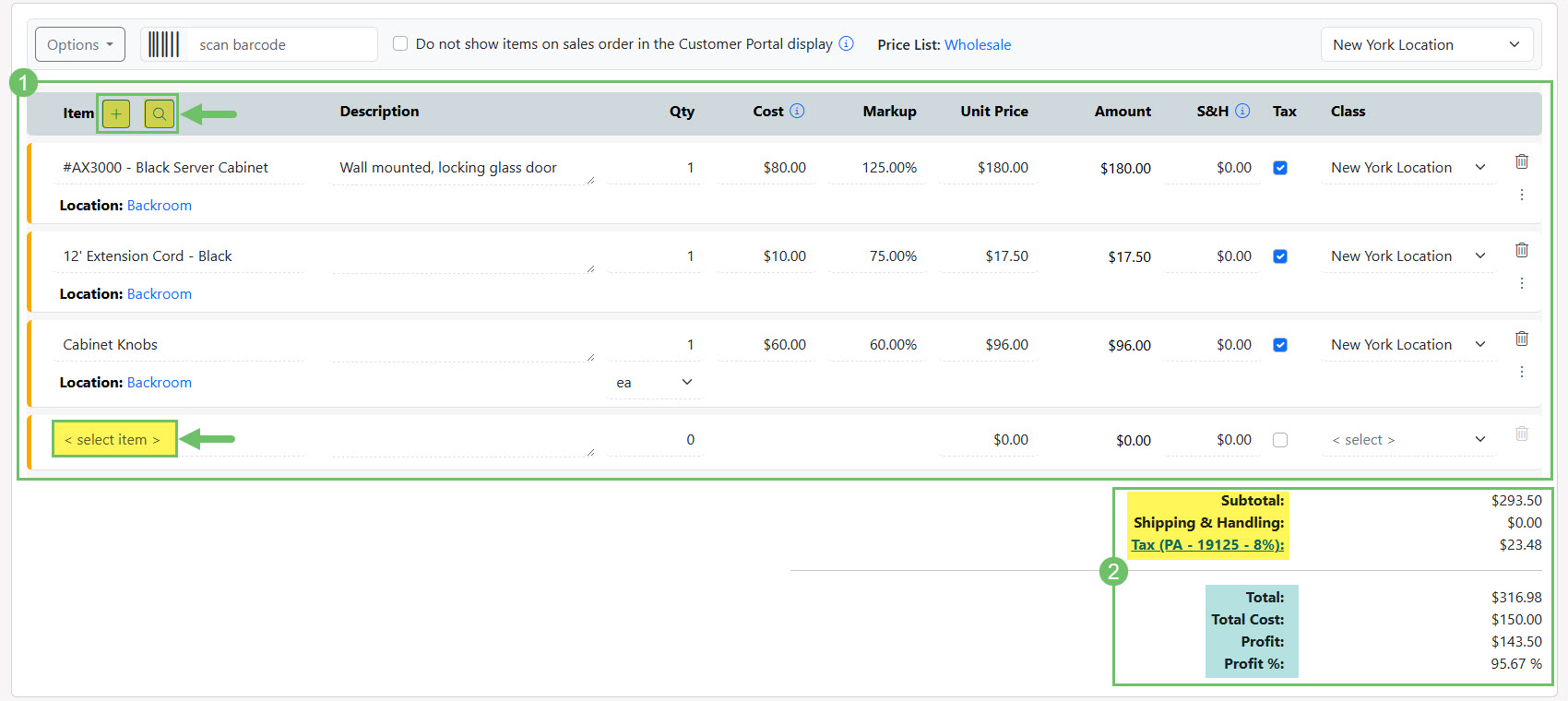
Example of the Items Section & Totals Section of a Sales Order
Color Meaning of Items
The status of line Items when adding or editing them on a Sales Order is visually represented by color coding: blue and orange.
- Blue line: Indicates that the line Item has been successfully saved to the Sales Order.
- Orange line: Indicates that the line Item is currently in edit mode. Any modifications have not yet been saved, and navigating away from the page may result in a loss of changes.
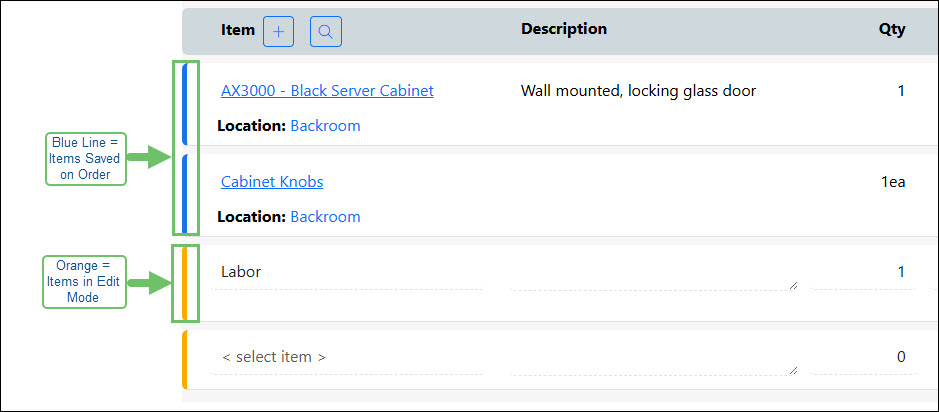
Example of the Blue and Orange Color Coding on a Sales Orders Items
Do Not Show Items in the Customer Portal
At the top of the Items section is an option for Do not show items on sales order in the Customer Portal display. When this option is enabled, Items listed on the Sales Order will not be displayed to Contacts viewing the order through the Customer Portal.
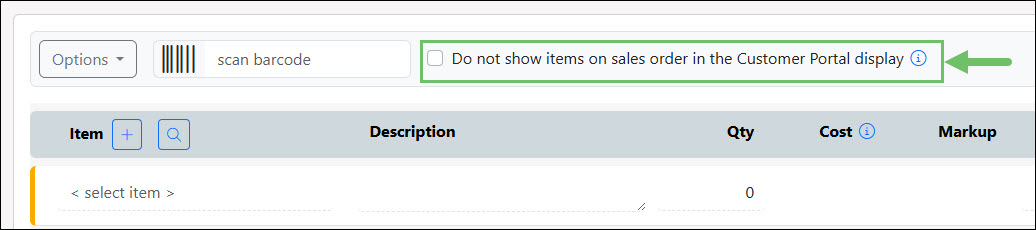
Example of the Do Not Show Items in the Customer Portal display Option on a Sales Order
Note: Please be aware that because Invoices in the Customer Portal utilize a Printable Format, the visibility of Items on Sales Order-related Invoices is determined by the configuration of that specific format. If the Invoice Printable Format is set to include Items, they will be displayed as configured. Learn more about configuring Invoice Printable Formats by reviewing the Printable Formats section in our Accounts Receivable Setup Guide.
-
Items Section
When selecting Line Items for your Sales Order, you can use the drop-down box on the Add Sales Order page to search for your Item. Clicking into this field will load the first fifty (50) Items in your Items List, along with an option to Load More. The Item Number (if applicable) and Name are displayed at the top, and the Item Category(ies) are displayed beneath the Item Name, in-line.
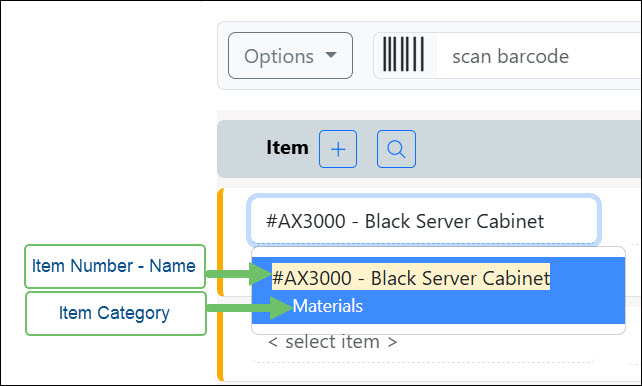
Example of the Item Drop-Down List on a Sales Order Showing the Item Number-Name and Category
If a Category is deeply nested under other Categories, the Category Name will be truncated so that you will not see the top level “parent” Categories, but there will be an ellipsis you can click on to display the full Category hierarchy in-line.
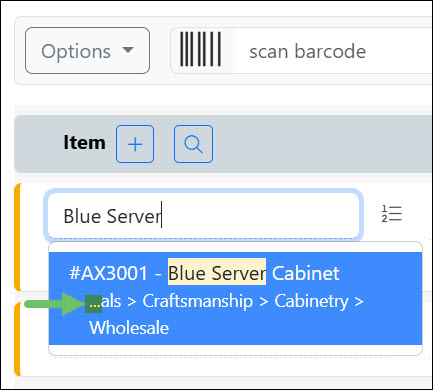
Example of the Category Ellipsis on the Items Drop-Down List on a Sales Order
You have the option to search using either the Item Number, Item Name, or Category Name, and any matching text will be highlighted in the displayed results.
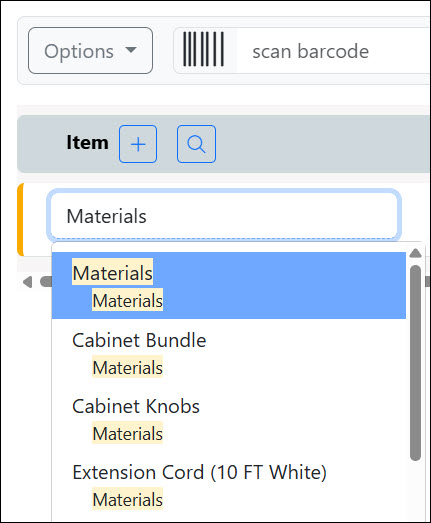
Example of the Highlighted Search Results on the Item Drop-Down List
-
Search & Add Items Option
When selecting Items to add to your Sales Order, you can use the Search & Add Items option as an alternative to selecting the Items from the drop-down list. This feature is available on the Item section header on a Sales Order by clicking on the magnifying glass icon to open the Search and Add Items popup.
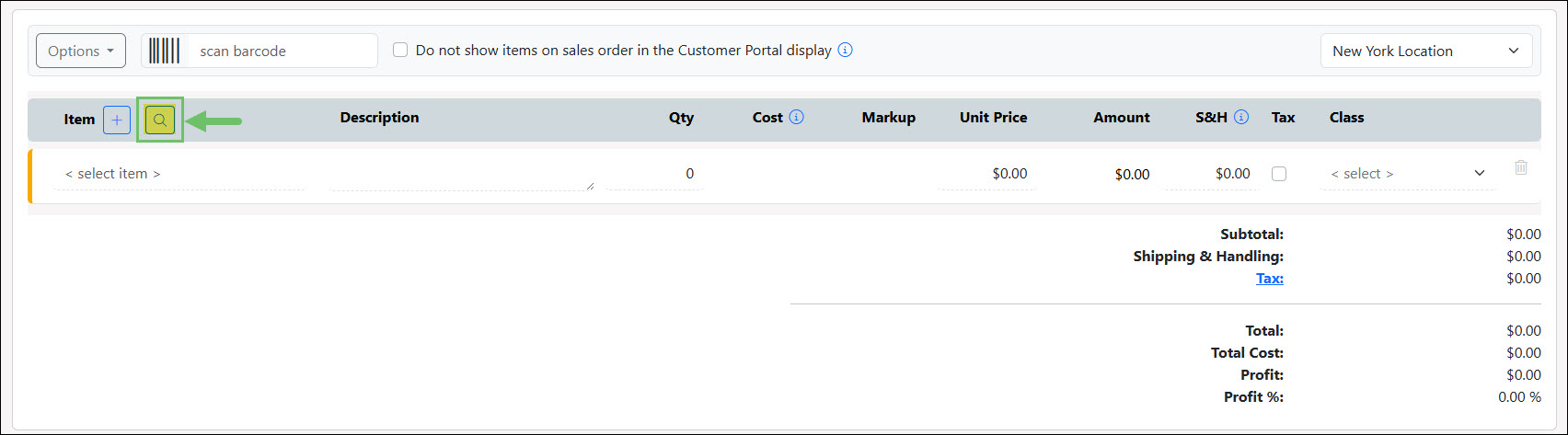
Example of the Magnifying Glass Icon for the Items Search Option on a Sales Order
This popup will allow you to search for Items by Name, Number, Description, Manufacturer Part #, Manufacturer, Category, or Type.
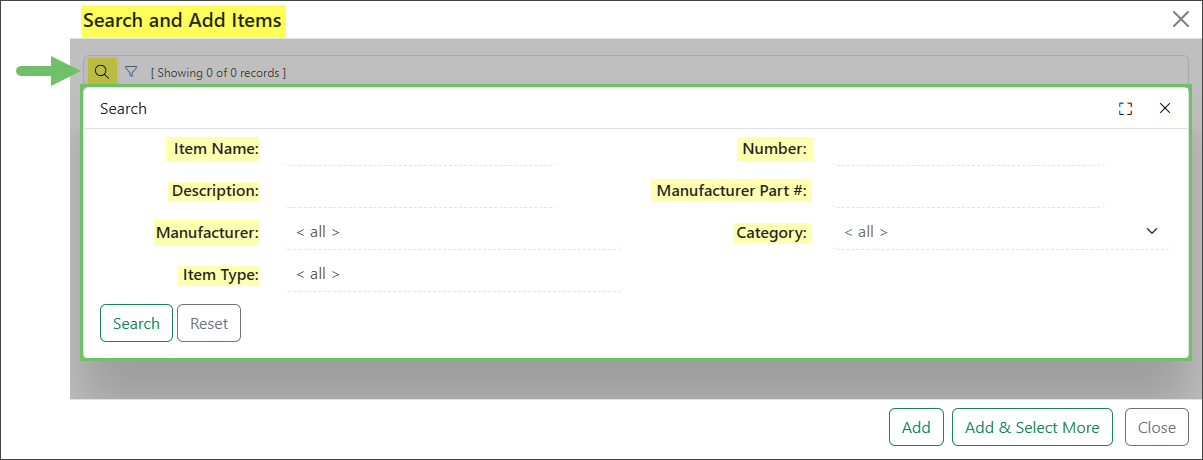
Example of the Search & Add Items Popup on a Sales Order
If your search returns more than ten (10) Items after you select your criteria and click Search, a Load More button will appear at the bottom of the results, allowing you to view additional options.
To add Items to the Sales Order, check the box next to the desired Items. After making your selections, you have two options:
- Click the Add button to add the selected Items and close the selection window.
- Click the Add & Select More button to add the Items while keeping the search results visible, allowing you to continue selecting and adding additional Items.
If you have Line Item Grouping enabled in your Striven system, you will also have an option to add selected Items to an existing Item Group, or create a new one.
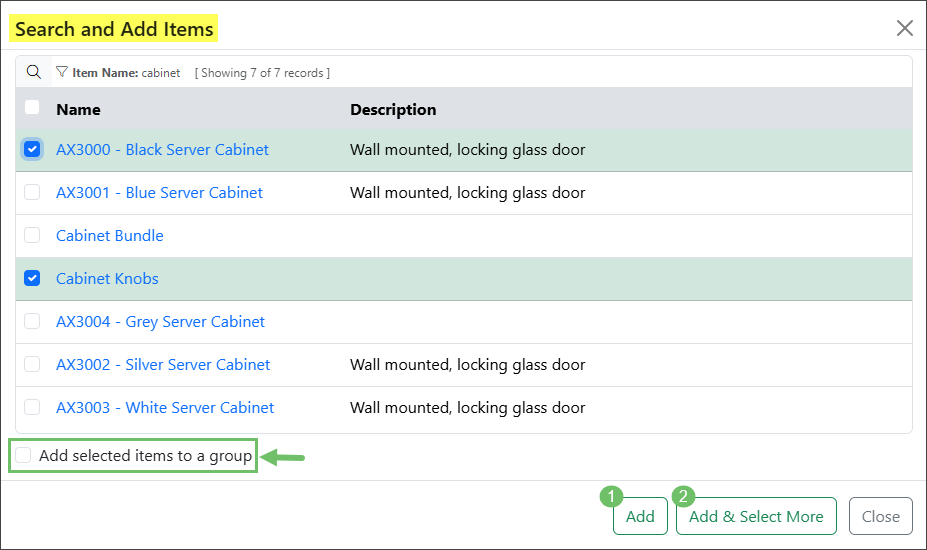
Example of the Add Items to Group Option on the Search & Add Items Popup
-
Line Item Groupings
Sales Orders, Invoices, and Sales Receipts have the added feature to group Line Items by Item Type, Item Category, or a Custom grouping of your design. Not only will this arrange your Line Items together, but it will also display a Grouping Header and Subtotal for each grouping.
To enable the Line Item Grouping feature for Sales Orders in your Striven system, navigate to Company > Settings > Accounting > Sales > Settings and select the option for Allow Grouping of Line Items for Sales Orders, Invoices, and Sales Receipts.
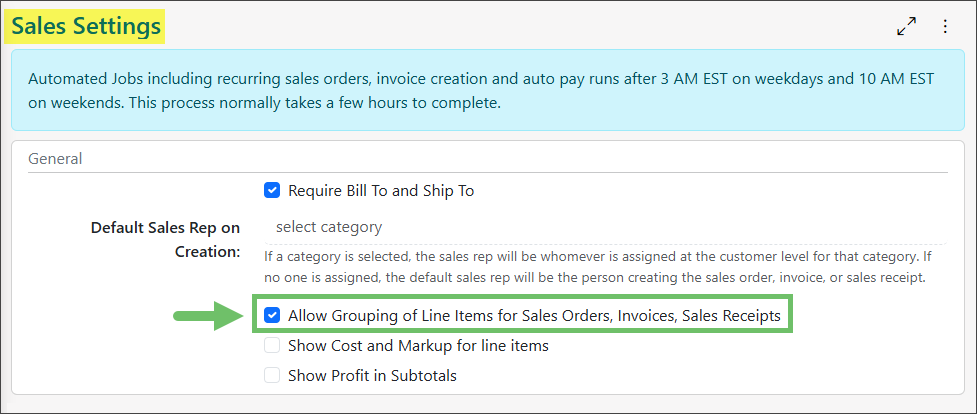
Example of the Sales Settings Option to Allow Line Item Grouping
-
Grouping Options
Once the Line Item Grouping feature is enabled, you will find the Item Grouping settings under the Options menu on the Sales Order. These options include Copy from Another Group, Group by Item Type, Group by Item Category, or create a Custom Group.
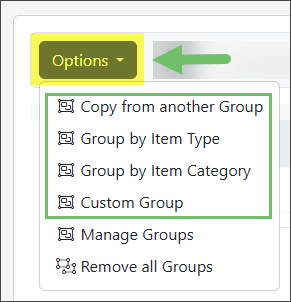
Example of the Line Item Grouping Options
Copy From Another Group
With the Copy from another Group option, you have the ability to select an Item Grouping that exists on a different Sales Order to copy to the current order.
Selecting this option opens the Copy Group From window. In this window, you must first choose a Customer from your system, and then select one of their Sales Orders.
- Note: Only Sales Orders which utilize Line Item Grouping will be available for selection.
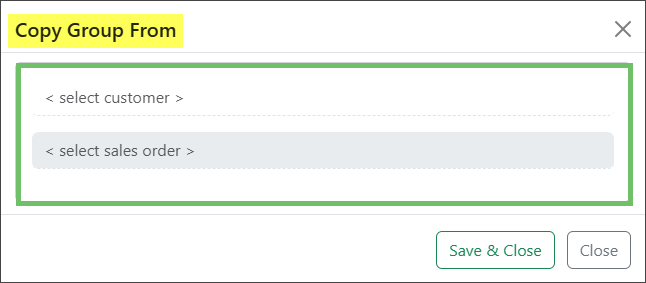
Example of the Copy Group From Window
After you have selected the Customer and Sales Order to choose your grouping from, you will be presented with the ability to Select groups to be copied. Using the checkboxes, you can select one or more of the present Groups to copy to your Sales Order. If you would like to copy all Groups, choose the Select all groups option. You can rename the Group from this window, or keep the original Group name. Once the Save & Close button is clicked, the selected Group details will be copied to the Sales Order.
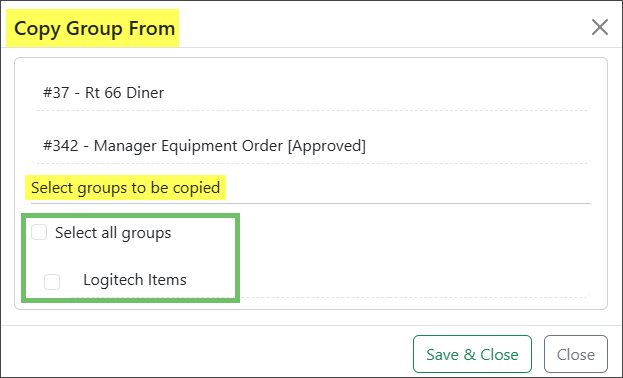
Example of the Select Groups Options on the Copy Group From Window
Group by Item Type
When grouping by Item Type, you’ll be able to organize your Line Items under an Item Type header. Item Types include Inventory, Non-Inventory, Service, Item Group, Discount, Fixed Asset, and Manufactured. This will gather all Line Items of the same Type into one grouping on your Sales Order and provide a subtotal of those Items.
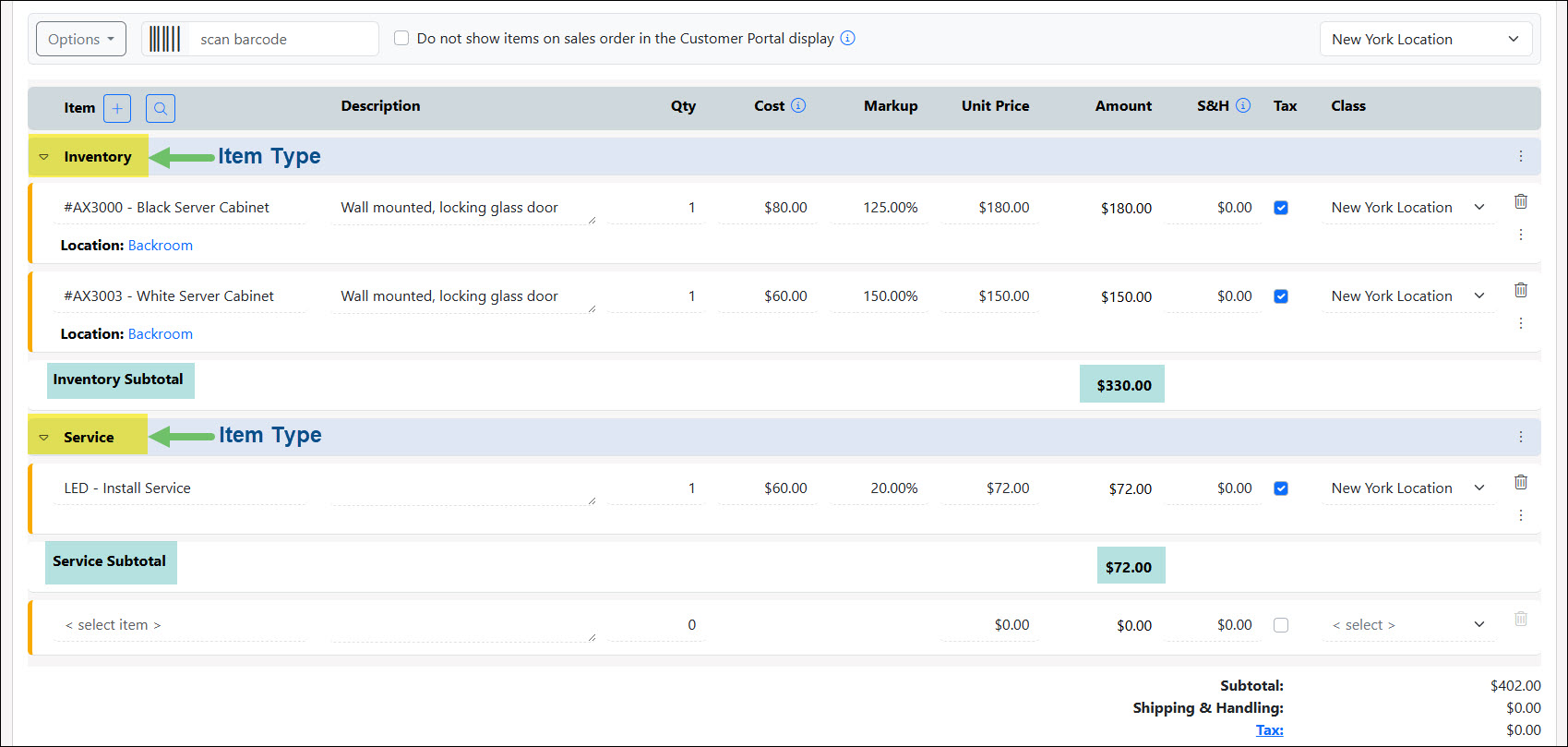
Example of a Sales Order Grouped by Item Type
Group by Item Category
Grouping by Item Category will arrange your Line Items into groupings by their assigned Item Categories and provide a subtotal as well.
- Note: For more information about configuring and utilizing Item Categories, please refer to the Item Categories section of our Category Management Guide.
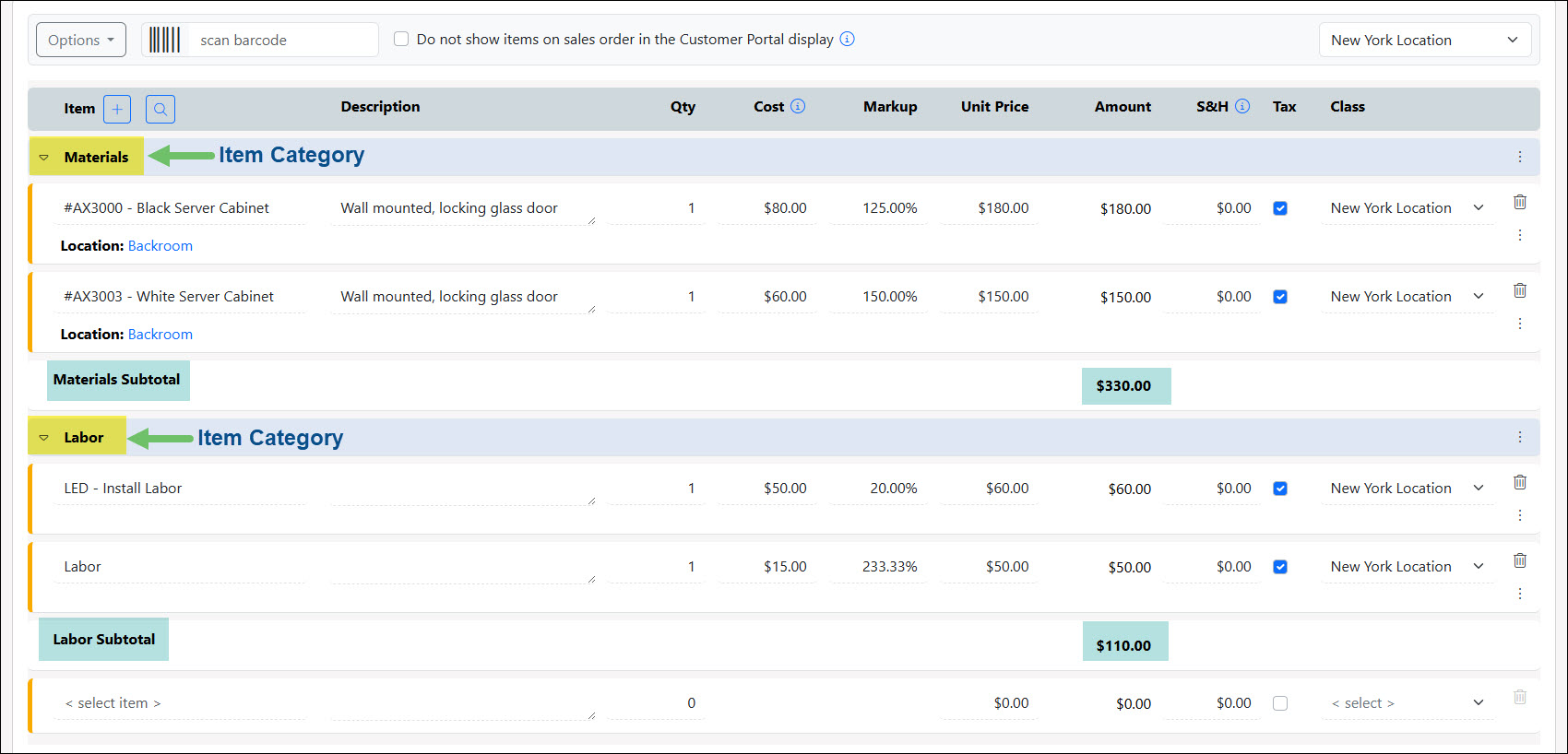
Example of a Sales Order Grouped by Item Category
Custom Groupings
The Custom Group option offers the ability to enter a Group Name, and then select the individual Line Items you wish to add to this grouping. There’s also the option to add all ungrouped Items at once to your Custom Group.
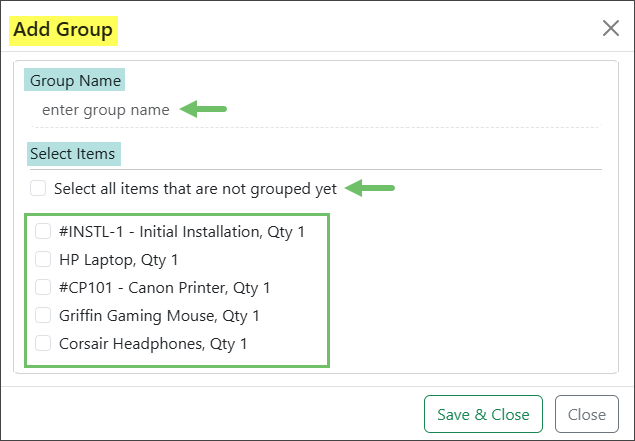
Example of Creating a Custom Item Grouping on a Sales Order
Other Options
The Options menu also houses the Manage Groups and Remove All Groups settings.
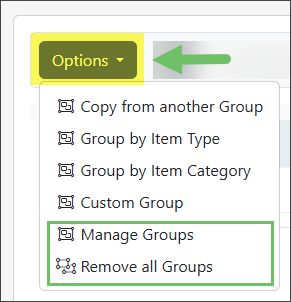
Example of the Manage Groups & Remove all Groups Options
The Manage Groups option allows you to sort the groupings on the page by clicking and dragging the drag/drop icon to the desired position. There are also options to create a new group, edit a group name, delete a group, or enable the option to show subtotals for each group in the subtotal section below all Items.
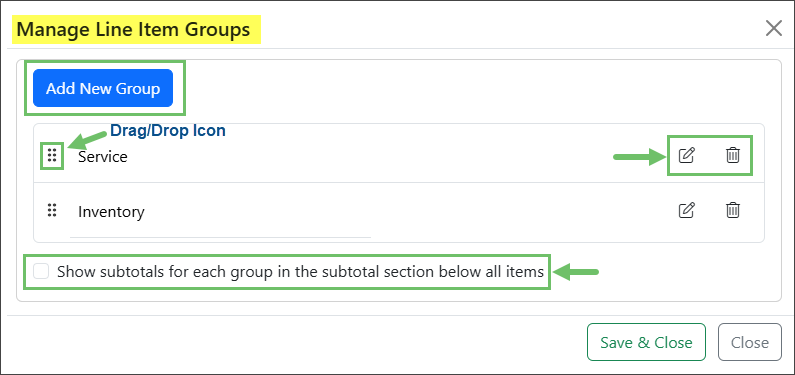
Example of the Manage Groups Options
Should you wish to remove all Line Item Groupings from the Sales Order, but keep the Line Items, you can select Remove All Groups from the Options menu and the Line Items will just be listed in the original order in which they were added to the list.
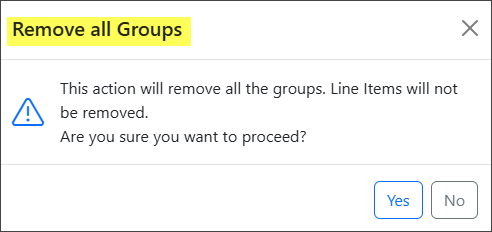
Example of the Option to Remove all Groups from the Sales Order
-
Grouping Header Menu Options
On the far-right side of each Grouping Header you’ll see the kebab menu with the following options:
- Edit: Allows the name of the group to be edited and updated.
- Add Items: Gives the option to search and add additional Items directly into the group.
- Copy: Recreates the group as a new group in the same Sales Order.
- Remove: Deletes the group from the Sales Order without removing the Items from the group.
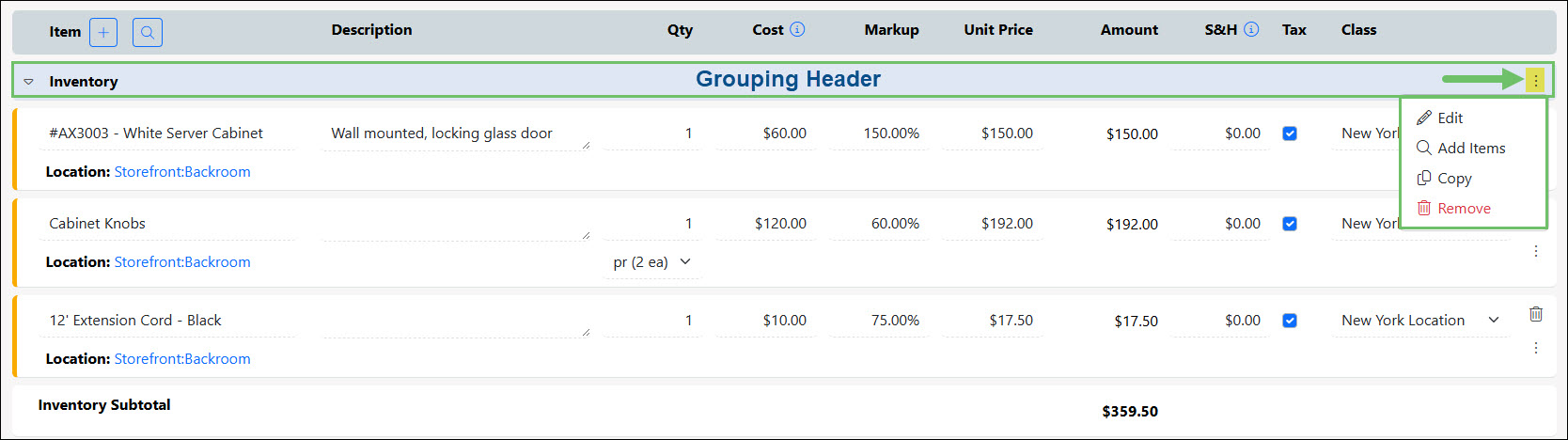
Example of the Grouping Header Kebab Menu
-
Line Item Menu Options
While nested in groupings, the Line Items will have a kebab menu on the right side of the page with options there to View the Item Info page, Move the Item to a different grouping or list it as an individual/ungrouped Item on the Sales Order, or Remove the Item from the current grouping which will automatically list it as an individual Line Item with no grouping. Other menu options may include the Item Quick Report and, depending on the Item Type, a link to the Item on the Inventory Stock Status Report.
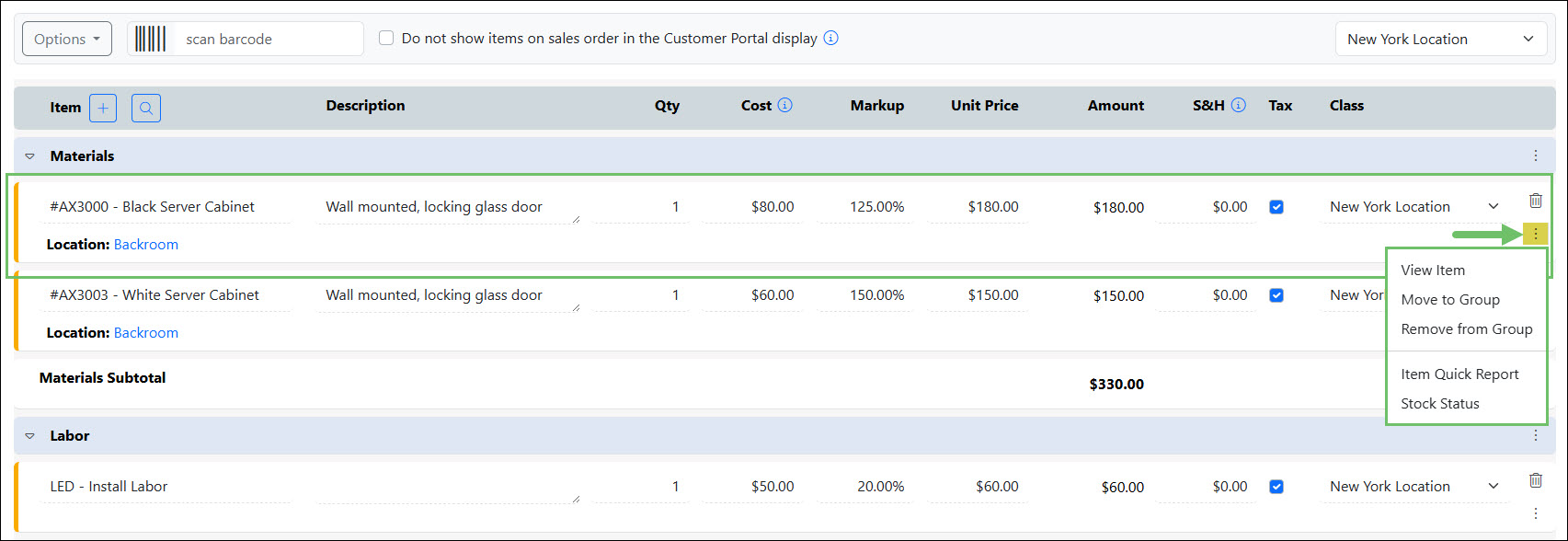
Example of the Line Item Kebab Menu on an Item in an Item Grouping
Adding new Line Items after grouping your existing Line Items will not automatically list the new Items in the corresponding group. Newly added Items will be listed at the bottom of the groupings as ungrouped Items. Re-grouping is recommended to ensure that the newly added Items are listed in the corresponding groupings. This can be easily accomplished by removing all groupings, and then selecting your preferred grouping option again.
While Sales Orders provide the ability to drag/drop Line Items into a specified order, this can only be done within the Item’s existing grouping as the drag/drop feature will not allow movement from one grouping to another.
-
Enabling/Disabling Line Item Grouping
One last thing to note about this feature is that when the Line Item Grouping is turned on and transactions are created, turning the Line Item Grouping feature off will cause those transactions to still display the Line Items in the configured groupings, but none of the grouping related options would be available. The Line Item Grouping feature would need to be re-enabled to make any changes to the grouping on those transactions.
-
Discount Calculator
The Striven Discount Calculator is available on Sales Orders to allow you to easily calculate a discount and apply it to the desired transaction. As a general note, all discounts are calculated pre-tax and before any shipping/handling charges are applied.
When adding a Discount type Item to your Sales Order, a small calculator icon will appear next to the Item Name.
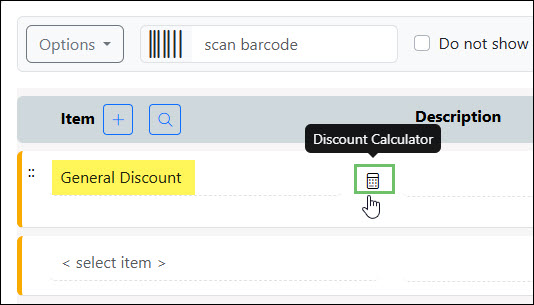
Example of the Discount Calculator Icon when Adding a Discount Item to a Sales Order
When you click on this icon, a popup will display wherein you can enter the percentage of the discount and choose between calculating the discount for the entire Sales Order or just for certain Items.
- Note: If you are utilizing the Line Item Grouping feature, there will be a third option for applying your discount for certain groups on the Sales Order. Selecting this option will further allow you to select which grouping(s) for which to have the discount calculated.
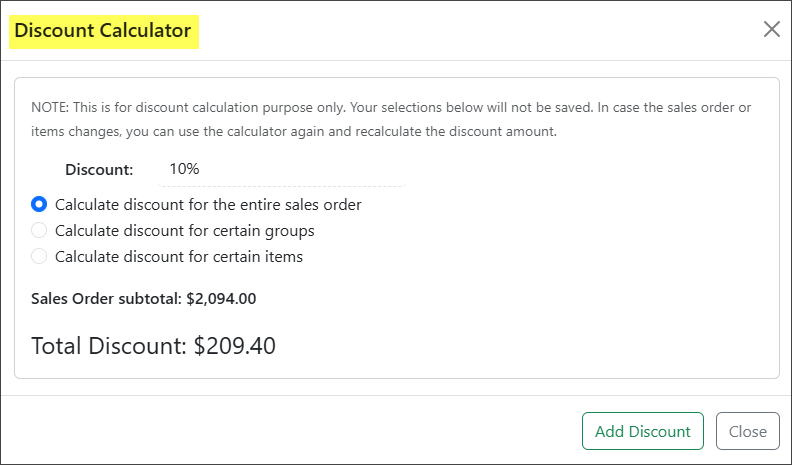
Example of a Discount Calculator Popup on a Sales Order
Similarly, creating a discount for certain Items will show a list of available Items from the Sales Order to select for the discount calculation. The Sales Order will display the discount amount for the selected Items and the reduced subtotal.
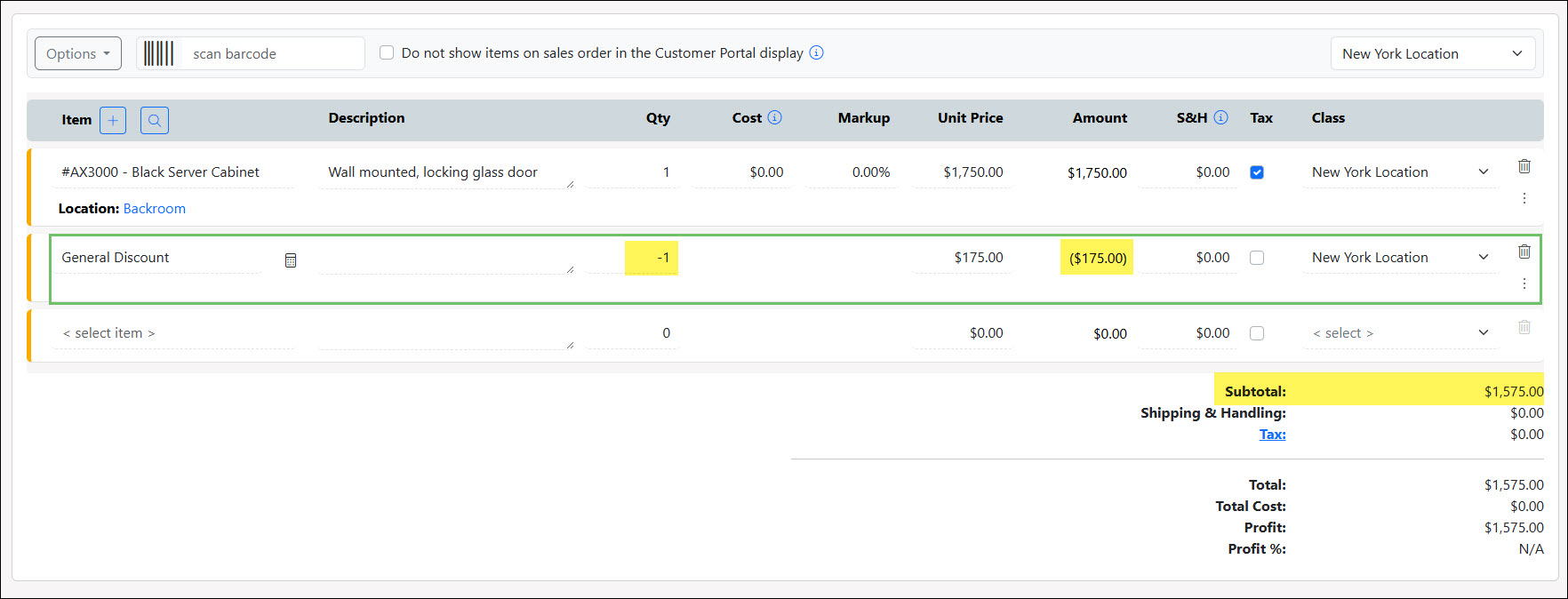
Example of a Discount Line Item Calculated for the Entire Sales Order
For Sales Orders with a large number of Line Items (more than 10), you can either click Load More to see more of the Items, or you can utilize the Search option to find the exact Items for which you wish to apply the discount. Search options include searching by Item Name or Item Category.
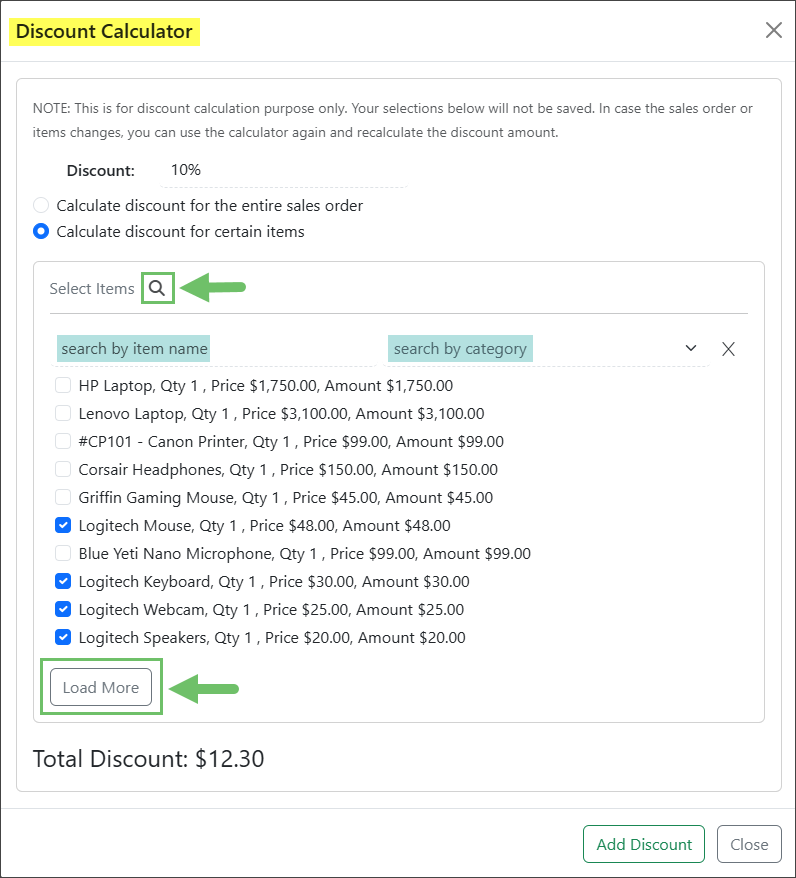
Example of the Load More Option & Search Items Options for Calculating Discounts for Certain Items
And lastly, as mentioned earlier in this guide, if you have configured Line Item Groupings, you will have the option to apply the discount to certain Item groupings.
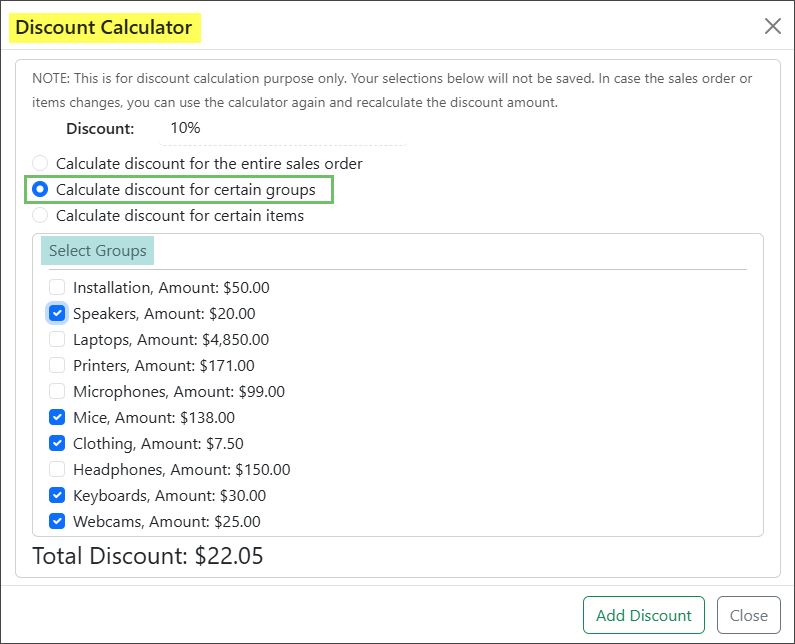
Example of Calculating a Discount for Certain Groups
-
Save as Template
On the bottom of the Add Sales Order page, before you create the order you’ll find the option to Save as Template. Checking this box enables you to save the current Sales Order as a Template to use again for future Sales Orders without having to reconfigure all the Sales Order details.
When saving a Sales Order as a Template, you will be able to enter a Template Name and select from the following options:
- Copy Sales Order Name: Saves the Sales Order name with the Template to be used when a new Sales Order is created from the Template.
- Copy Customer and Location information: Saves the Customer, Billing Location, and Shipping Location with the Template to be used when a new Sales Order is created from the Template.
- Copy Pricing information: Saves the price per Item with the Template to be used when a new Sales Order is created from the Template. If this option is not enabled, the pricing information will be retrieved from the Item based on its current Price.
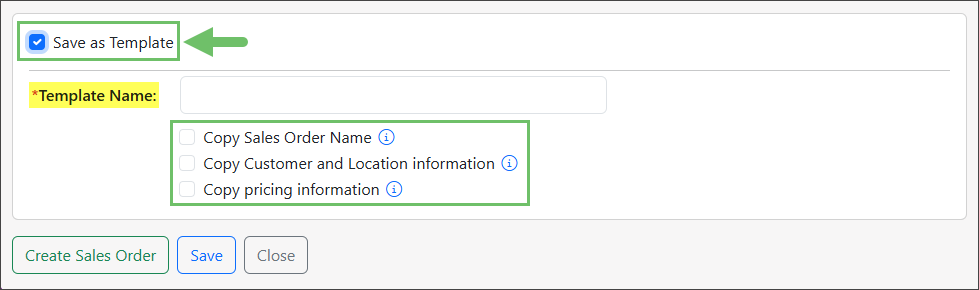
Example of the Save as Template Option on an Add Sales Order Page
-
Create/Save Sales Order
The final step when creating a Sales Order in Striven is to click the Create Sales Order button, or if you are not prepared to finalize the Sales Order, you can click the Save a button to save your progress in an Incomplete status.
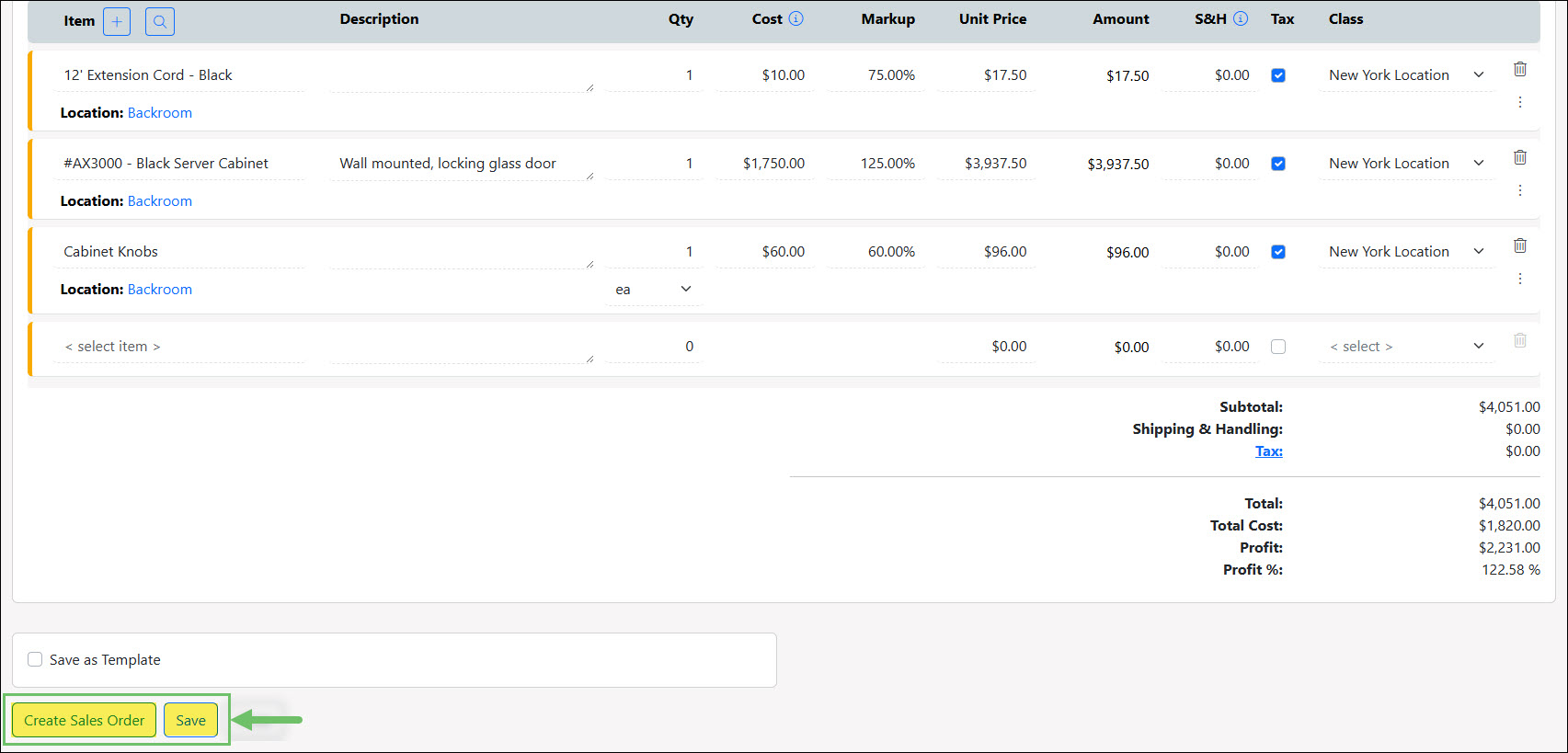
Example of the Create Sales Order and Save Buttons on the Add Sales Order Page
Incomplete Sales Orders are non-valididating, meaning you can save the order despite required fields being left blank, such as Item location or a Contact. It is essentially a “draft” that allows you to walk away without losing progress. Incomplete orders also do not impact inventory allocation nor can they be used in Striven Workflows.
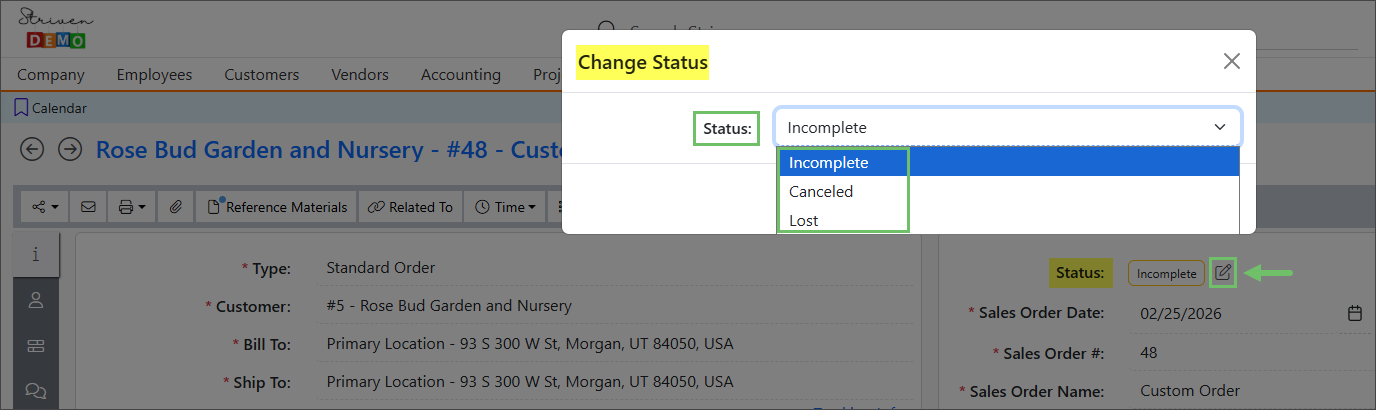
Example of the Incomplete Sales Order Status Options
You can change an Incomplete Sales Order status to Canceled or Lost, but you will need to click the Create Sales Order button before you will be able to change the status to Quoted, Approved, In Progress, or Completed.
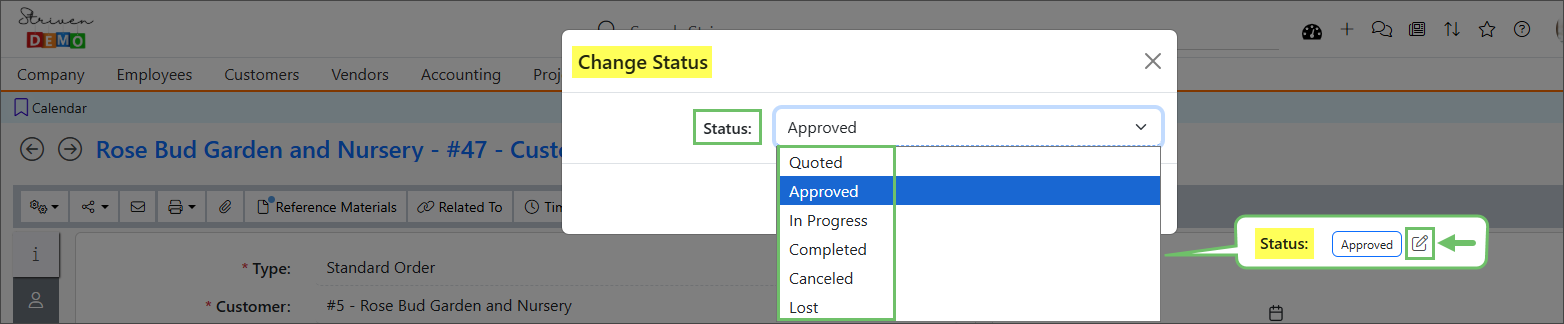
Example of the Created Sales Order Status Options
Clicking the Create Sales Order button causes the system to run the Sales Order though the validation process, checking that all the required fields on the Sales Order are filled. Depending on the settings at the Sales Order Type level, it will be saved as Quoted, Approved, or In Progress.
From here you now have access to the other features, such as Printable Formats, Discussions, and more. You can also use Striven Workflows to Send an Email, Send a Discussion, Create a Task, or Create an Opportunity related to the order.
-
Sales Order Import
Having an Import Tool comes in very handy when you have a large number of Sales Orders you wish to enter into Striven. For more information about importing Sales Orders to Striven in bulk, visit our Import Management Guide.
-
Recap
With this comprehensive Standard Orders & Order Layout Guide, we walked through the entire process of creating a Standard Sales Order in Striven, beginning with understanding necessary user permissions and the various methods for initiating an order. We explored the detailed sections of the Add Sales Order page, covering Customer and Order Information, Invoicing, Labels, and Attachments. Crucially, we detailed how to efficiently select and manage Items using the Items Section, including the use of Search & Add Items, configuring Line Item Groupings for visual organization, and utilizing the Discount Calculator. Finally, we reviewed the options for saving the order as a Template, finalizing the transaction by clicking Create/Save Sales Order, and the availability of the bulk Import Tool.
Have a Question?
Ask the Striven Community
User-sourced how-to’s, feedback, and more!
FAQs
-
Are discounts calculated before or after tax and shipping?
All discounts calculated using the Discount Calculator are applied pre-tax and before any shipping and handling charges are applied to the transaction.